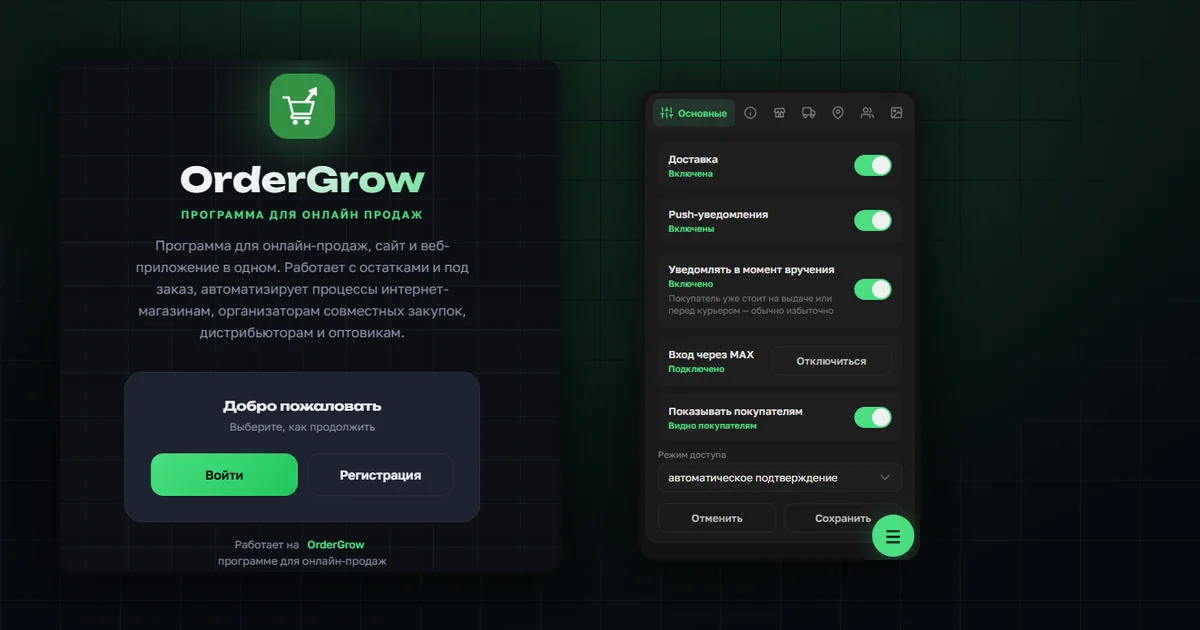
The number of settings an admin manages keeps growing, so we split the profile into two tabs — "Profile" and "Settings" — instead of stacking everything on one long screen.
A compact settings menu
The "Settings" section got a new menu design — it's now compact. When a section isn't selected, the menu shows only its icon; once selected, its name appears next to the icon.
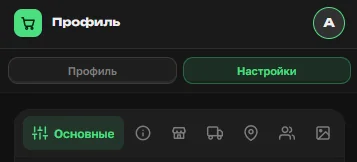
"Profile": admin details
"Profile" still holds the admin's own details, plus the option to switch to the buyer view to shop in your own store.
If you've logged in or used Telegram, the profile shows your username and a toggle to turn Telegram login on or off. Email is used for PIN-code login — it noticeably simplifies logging in and takes some of the load off admins.
The balance in the admin's profile works the same as for a regular buyer. "Notifications" turns the admin's own notifications on or off. Switching between light and dark theme for the site or app is an individual setting — it doesn't apply to other users. Below that are the interface language switch and a button to log out of OrderGrow.
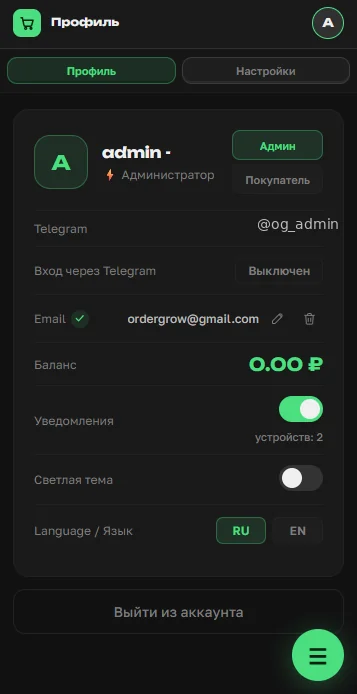
"Settings → Basic"
The "Basic" section holds five settings.
Delivery — turns the delivery option itself on or off for buyers. When it's off, buyers don't see the option at all and can only pick up orders themselves.
Push notifications — turns on the overall push-notification capability for buyers. On top of that, each buyer still has to enable push notifications in their own profile on every device before they'll actually receive them.
Notify on handout — the person who picks up an order isn't always the one who placed it, so there's a separate notification for the moment an order is handed out.
MAX login, and whether to show it to buyers — login and registration via MAX can be enabled without appearing on the home page. The admin decides whether to turn this login method on at all, and whether to show it to buyers.
Access mode — manual or automatic. For a closed store where entry requires the owner's personal approval, manual confirmation is the right setting. With automatic confirmation, anyone can use the store or group-buying service through the available registration methods.
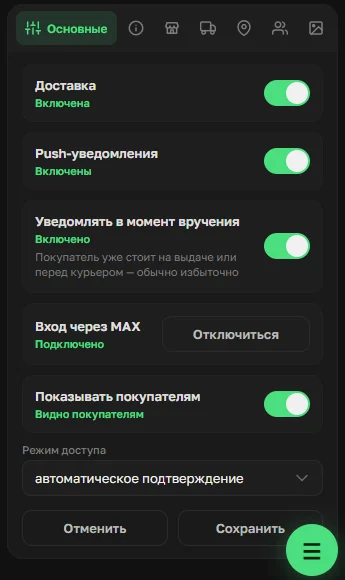
"Settings → About": your own welcome-page text
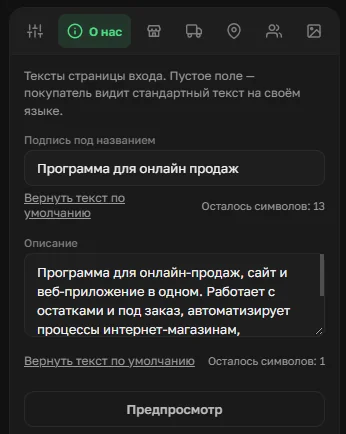
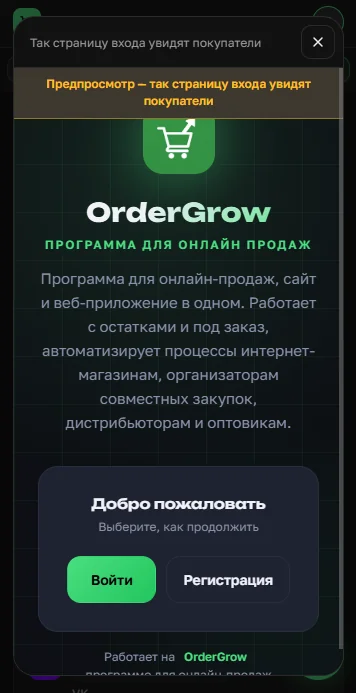
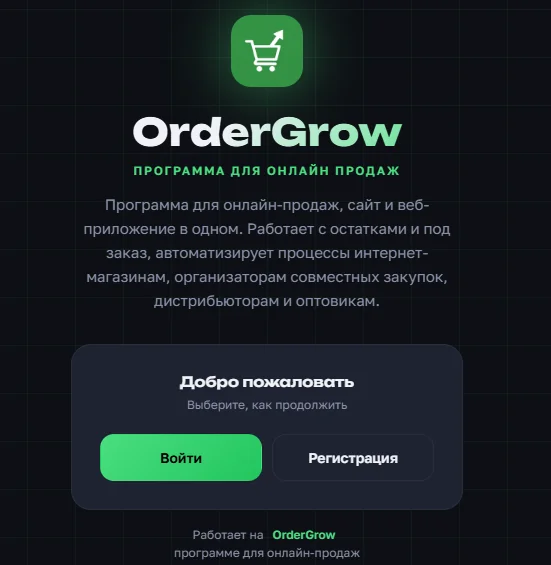
We reworked how the sign-in and registration page's text is managed — any admin can now fill in information about their own store, within a character limit. It used to be one generic line for everyone; now each store has its own.
In the "About" section you can add a tagline under the store name and a short description. Before saving, you can preview exactly how it will look to buyers with the "Preview" button.
Contact channels and the public storefront — also in "Settings"
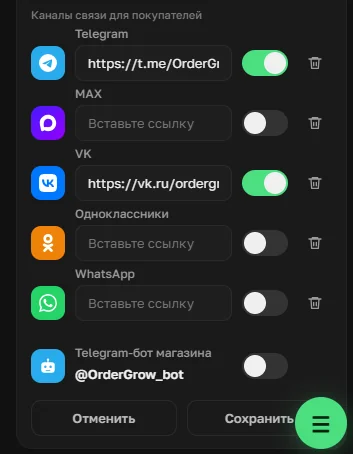
Further down in that same "About" section are all the store's messengers and social networks — we covered this in detail in "Contact Channels and Pickup Address in OrderGrow".
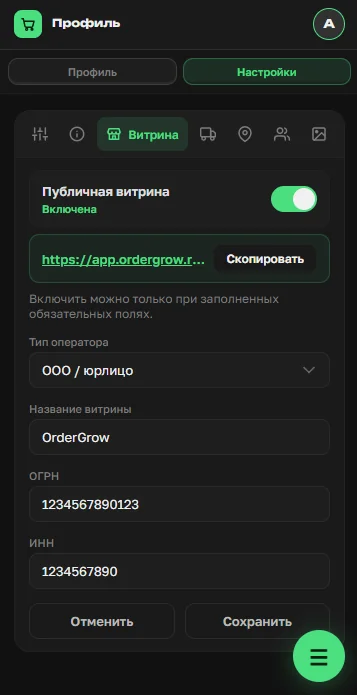
The public storefront, which buyers can browse without logging in, is covered in "OrderGrow's Public Storefront".
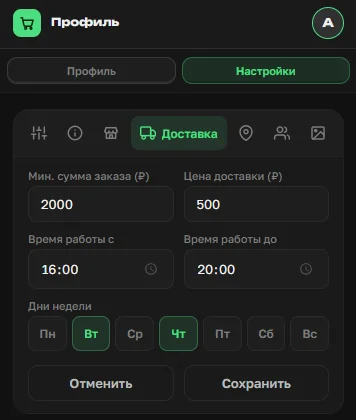
"Settings → Delivery"
This is where the basic delivery parameters live. Minimum order amount — if a delivery order's total is below this value, delivery becomes paid; if the field is left empty, delivery is paid regardless of order size. Then come delivery cost and delivery hours and days.
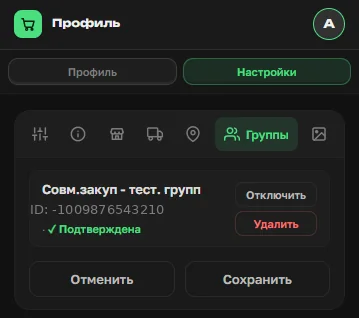
"Settings → Groups"
If a Telegram bot is connected, it can be added to your own group so the bot posts there automatically. The "Groups" section lets you disable or remove the bot, and track its status — which groups it's been added to and which it hasn't.
What's next
Separately, we launched a new "Pickup points" section — each with its own address, hours, and settings; that's covered in the next article. You can try the full group-buying app in OrderGrow Lab — seven days free.