The product range has to get into the system somehow. Three items are no question — you type them in within five minutes. Three hundred, with a fresh price list from the supplier every week, and manual entry becomes a job of its own.
OrderGrow is a group buying and order taking platform with a single catalog: what you add once is visible in the app, on the public shop page and in the Telegram bot. There are two ways to add a product, and they do not compete: a Google spreadsheet through the bot for volume, a form in the app for single items. Below: what you fill in, how the upload runs, what happens on an error, how photos work and when each way makes more sense.
What a product card contains
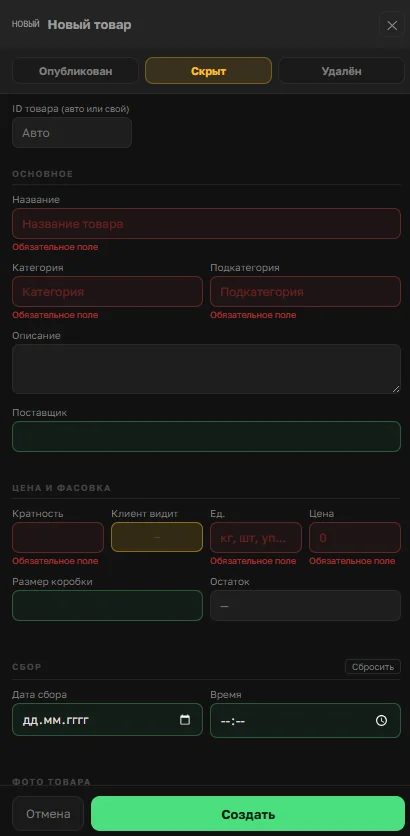
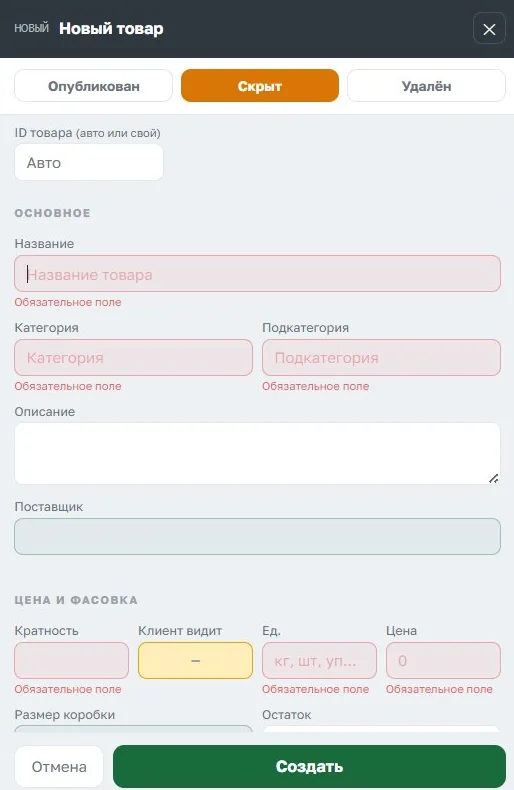
The set of fields is the same either way:
- Name, category and subcategory — they place the product in the catalog and sort it into sections.
- Description — optional, but it answers the buyer's questions before they are asked.
- Supplier — waybills and reports are grouped by it later.
- Order multiple, unit and box size — how the product is counted and how it is packed.
- Price.
- Status — «Published», «Hidden» or «Deleted».
- Collection end date and time — the moment the collection closes on its own.
The statuses differ more than they seem to. «Hidden» — the product is in the system, invisible to buyers, and can be brought back at any time. «Deleted» — the product is marked deleted and its photos are removed along with it. Restoring the card with the previous images is no longer possible, so temporary removal from sale is «Hidden».
ID is the first column in the spreadsheet and the first field in the form. You can set it yourself or leave it empty: the system assigns the next free number. A number already in use cannot be assigned again.
How to upload products from a Google spreadsheet
The spreadsheet already exists in the required format — the columns and their order should not be changed. You fill in rows: one row is one product.
Then, in the bot in administrator mode, open «Products» and then «Products from Google».
The system reads the sheet, checks every row and puts into the catalog whatever passed the check. New items are added, existing ones are updated by ID.
The practical conclusion: edit the exported spreadsheet instead of building a new one from scratch. In an export every field already holds its current value, and you change only what needs changing.
If the file contains two rows with the same ID, the first one is applied and the second is rejected with an error. The product is not «overwritten twice», but the second row does not reach the catalog either.
The outcome for every row appears next to it in a service column — what exactly happened to it. The report arrives where you were working, not as a separate file.

At the end the bot sends a summary: how many products were added, updated, deleted and how many rows did not pass.
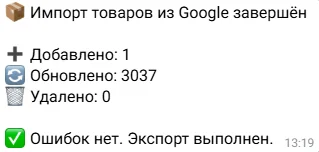
What happens when a row has an error
The check runs before the data reaches the catalog. The problem cell is highlighted and the service column gets a line of text: what is wrong and how to fix it.


A few of the checks people run into most often:
- required fields are empty;
- price and order multiple have to be numbers;
- the collection end date and time are either both set or both empty, and the date cannot be in the past;
- the same ID cannot appear in the file twice.
We do not publish the full list of checks: it is part of the logic, and there is no reason to hand it to competitors. There is little practical value in the list anyway — if a row fails, the system writes right in the spreadsheet what to correct.
An error in one row does not stop the others. Correct items go into the catalog straight away, problematic ones are skipped with an explanation. There is no need to fix the whole file just to add something.
A row that fails the check gets no number. Leave the ID empty and make a mistake in another field, and no number is assigned. Otherwise every failed upload would eat numbers and leave gaps in the sequence.
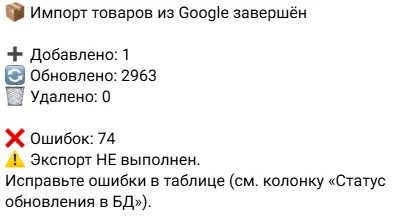
The spreadsheet works both ways
The exchange is not one-way. The system reads the spreadsheet and also updates it from the catalog: after a successful upload the sheet holds the current state of the range — with IDs, statuses and photo counts filled in.
While the spreadsheet has errors, it is not overwritten. An export replaces the contents of the sheet with what is in the catalog — and would wipe exactly the rows you are fixing. So it is postponed until a clean upload.
An export stops if the spreadsheet has rows without an ID. A row without a number means the product was typed in by hand and has not been uploaded yet. The system refuses to export and asks you to run the import first — otherwise the new rows would simply vanish without reaching the catalog.
If you already work with the catalog through file exports and bulk edits, the mechanics are familiar — they are described in the article about managing your catalog in Excel. The difference is that a Google spreadsheet lives permanently and updates itself, while a file is exported for a specific task.
How to add a single product in the app
For one or two items there is no point in opening a spreadsheet.
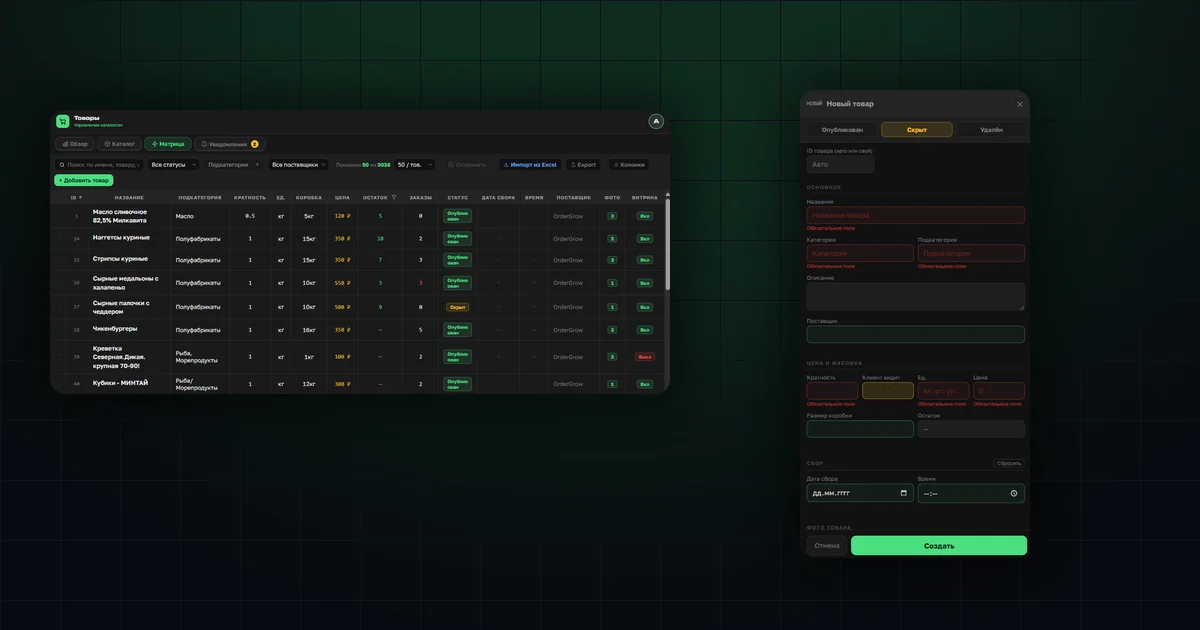
In the app in administrator mode: the «Products» section, the «Matrix» tab, the «Add product» button — on a computer above the table on the left, on a phone at the bottom centre.
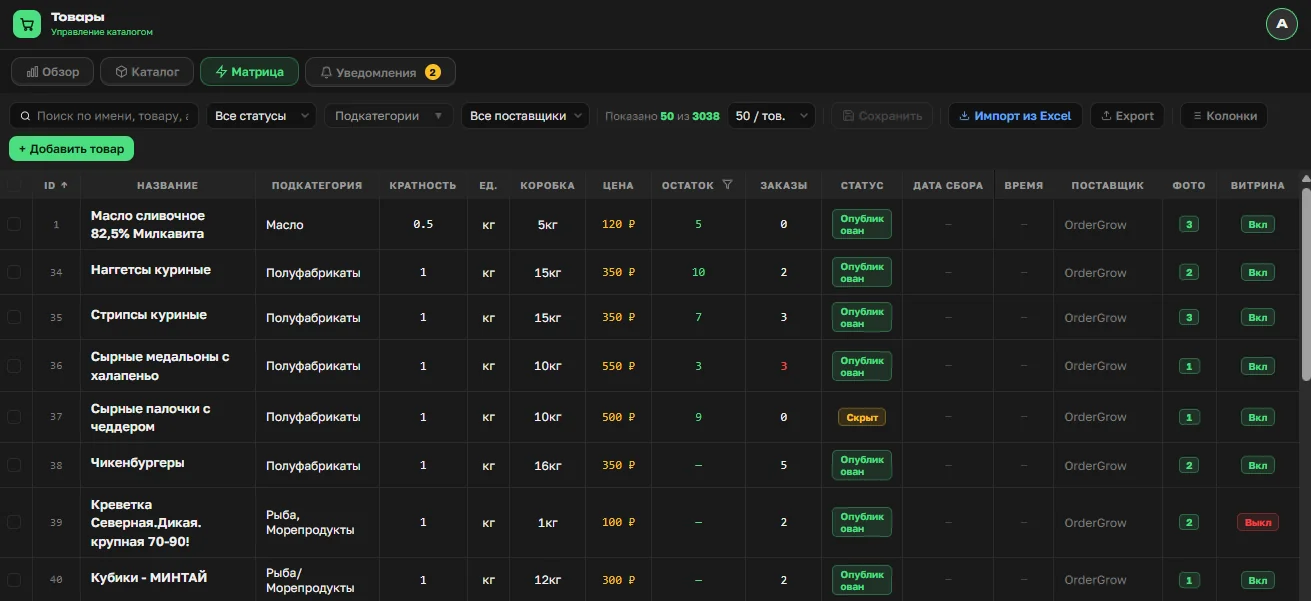
The fields are the same as in the spreadsheet. There is one substantial difference: photos are attached here, in the product card. After «Create» the product is in the catalog.
How photos are added
Photos are uploaded in the web version only, through the product card. There are two ways to store them, and the choice affects how quickly the catalog opens for buyers.
Storage in Telegram. The free option: Telegram acts as the store for the images. There is nothing to pay, but a dependency on an external service appears — on its availability and on restrictions that may apply in a particular city, region or country. On top of that, photos load more slowly when buyers open cards and scroll the catalog.
Storage on the server. Images reach the buyer noticeably faster and the catalog does not depend on what happens to external services. The limit here is different — capacity: the base disk space is finite, and a large range can run into it. More space is available for an extra fee, terms on request.
The two do not exclude each other: a single product can have up to four images in Telegram and up to four on the server — up to eight in total.
When to use the spreadsheet and when the app
The spreadsheet — when there are many items, when the supplier sends a price list regularly and when edits have to cover many rows at once: prices, statuses, collection dates.
The app — when there is one item, it is needed now and it comes with photos.
In practice organizers use both: the main range goes in through the spreadsheet, one-off items are added on the go from a phone. Both ways are part of the standard set — nothing has to be enabled separately.
There is a third route — Excel inside the app, without a Google spreadsheet and without the bot. The «Products» section, the «Matrix» tab, the «Export» and «Import» buttons: you export the catalog as a file, edit it in a familiar editor and upload it back. It works from a phone too. This suits a one-off edit across many rows when there is no reason to keep a permanent spreadsheet — the mechanics are covered in the article about managing your catalog in Excel.
What to check after adding
- The product is in the catalog with the right category and subcategory.
- The status is «Published» if the product should be visible to buyers.
- Price, order multiple and unit match what you entered.
- Switch to buyer mode and look at the card through their eyes.
The last point looks redundant until the day you find a product priced per kilogram with an order multiple in packs.
What these ways do not do
Photos are not uploaded through the spreadsheet. It only shows how many there are. A spreadsheet works with text and numbers — passing files through it is awkward and slow.
A product does not appear for buyers on its own. Until the status is «Published» the item is in the system but invisible. Uploading the catalog and publishing it are separate actions by design: the range can be prepared in advance and opened all at once at the right moment.
The collection end date only works forward. Backdating it to close a collection will not work — such a row fails the check. To close a collection now you change the status, not the date.
«Deleted» removes the photos. It is not «Hidden». For temporary removal from sale use «Hidden».
The spreadsheet does not replace the matrix. Stock, orders and the shop page column are edited in the app: this is state that changes during the day, and keeping it in a spreadsheet is pointless — it would go stale faster than you could open it.