Every Telegram bot is created through the official BotFather bot — this is handled by Telegram itself, not a third-party service. The process takes a couple of minutes and requires nothing beyond a Telegram account.
Why you need BotFather
BotFather is the only official way to set up a bot in Telegram: it issues the token — a unique access key without which the bot won't work in any service. The same principle applies to OrderGrow itself — its own Telegram bot was also issued through BotFather.
Step-by-step instructions
In the Telegram search bar, type botfather. Only open the account with the blue verified checkmark — there are many fakes using this name.
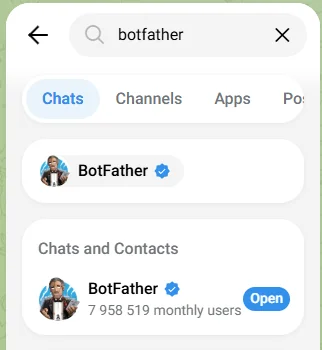
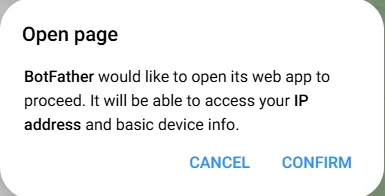
To the right of the found bot, tap "Open". A permission window will appear — BotFather asks for access to your IP address and basic device info to open its mini app. Tap "Confirm".
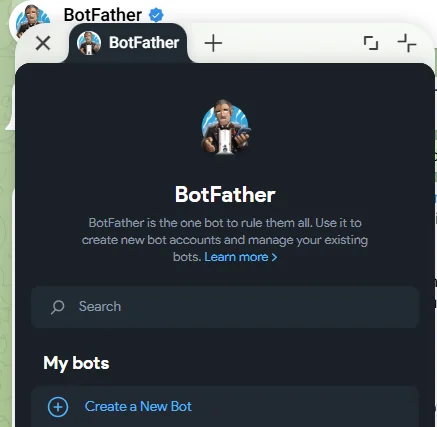
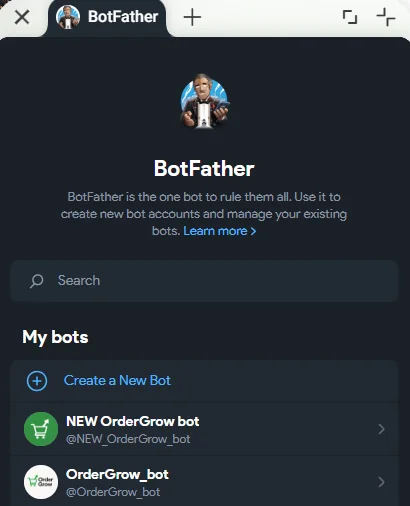
The BotFather main screen opens. Tap "Create a New Bot".
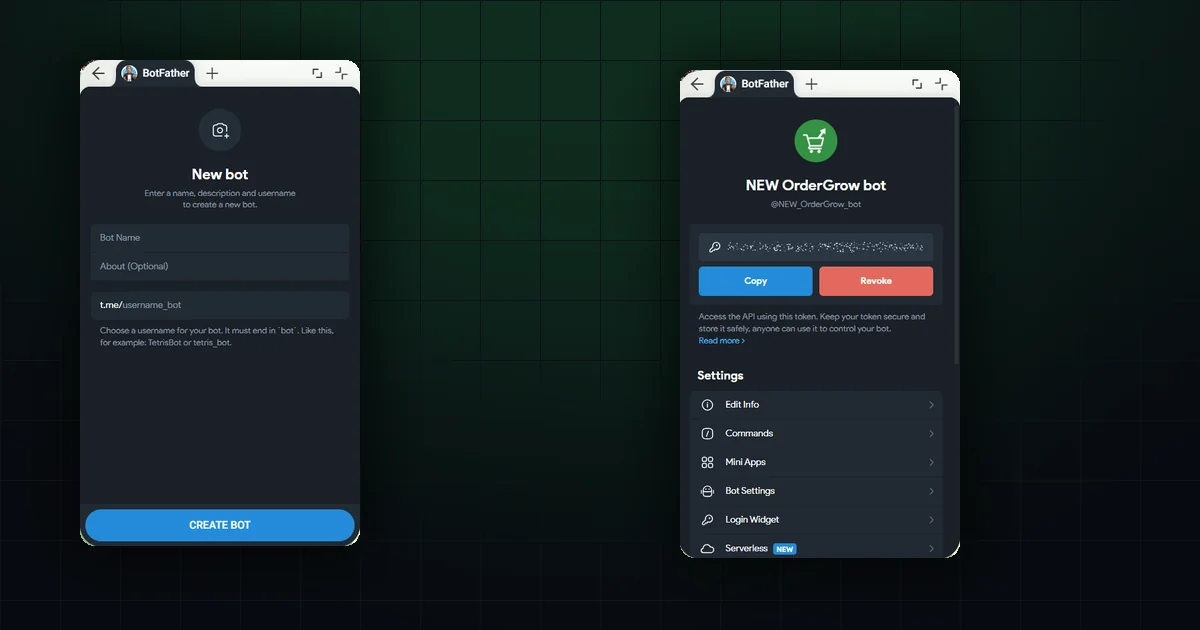
Fill in the form: Bot Name — the name everyone sees, in any language; About (optional) — a short description of the bot. You can add a bot photo right away via the camera icon at the top of the form. Below, set the technical name — t.me/username_bot: must be in English, no spaces, and must end in _bot.
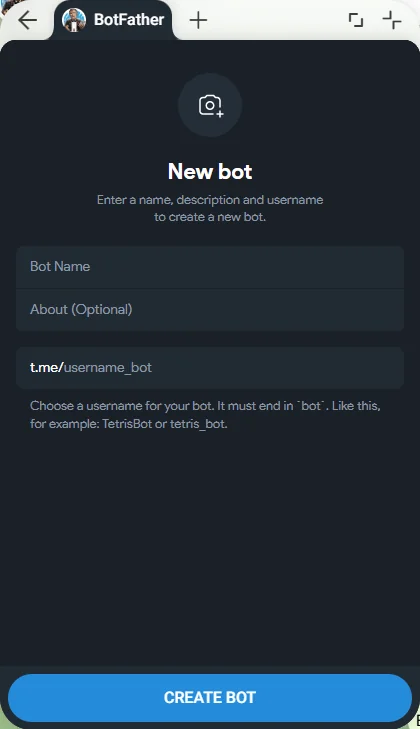
A common mistake when picking a bot name
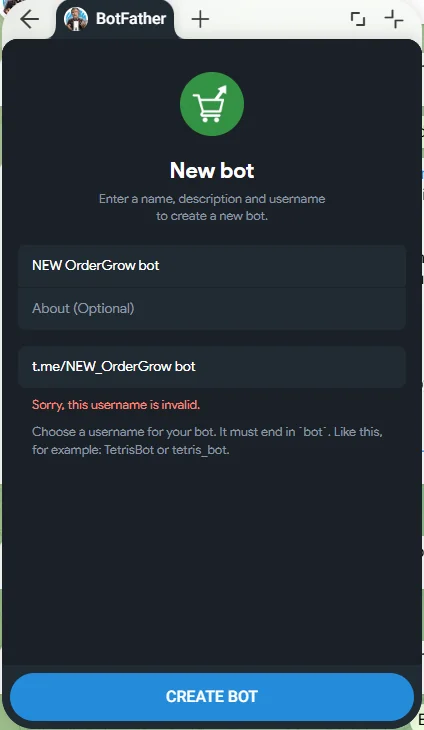
A bot's username can only contain letters, digits and underscores — spaces are not allowed. In the example below, the name NEW_OrderGrow bot (with a space before "bot") was rejected by BotFather with "Sorry, this username is invalid".
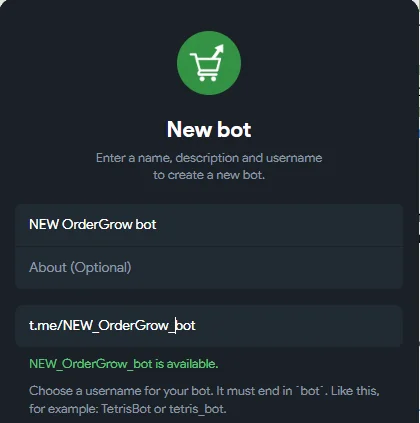
Just remove the space and replace it with an underscore — NEW_OrderGrow_bot — and BotFather confirms the name is available.
Tap "Create Bot". On success, a screen with the bot's token and name opens.
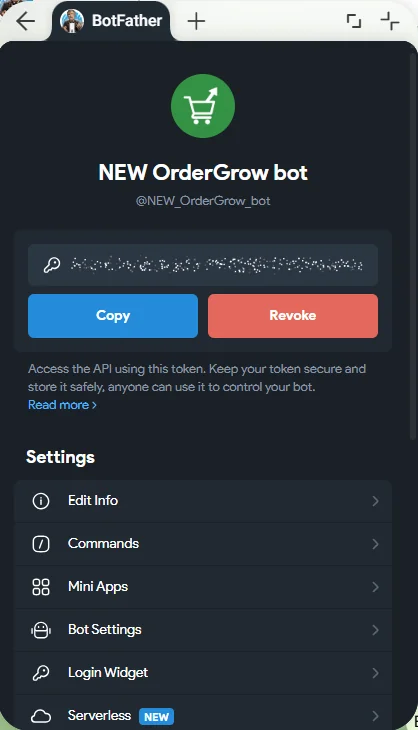
The username (t.me/username_bot) can't be changed after creation — the only option is recreating the bot, which means a new token and the risk of losing contact with clients already connected. Bot Name and About can be changed freely at any time.
How to keep the token safe, and where to find it again
The token is a full access key to the bot: whoever has it can control the bot on its behalf. Never publish the token anywhere — not in public code, not in chats, not in screenshots. If the token does end up public, tap "Revoke" on the same screen: the old token stops working, and BotFather issues a new one — you'll need to re-enter it wherever the old one was used.
There's no need to store the token separately "just in case" — it's always available inside BotFather itself. Open it again, tap "My bots", select the bot you need — the same token screen opens.
What's next
The token you get goes wherever the bot is meant to work — into code, into an automation service, or, for example, into the Telegram bot settings of OrderGrow, a group-buying app. For how OrderGrow's own Telegram bot works, along with other login options for buyers, see "Sign in with MAX".