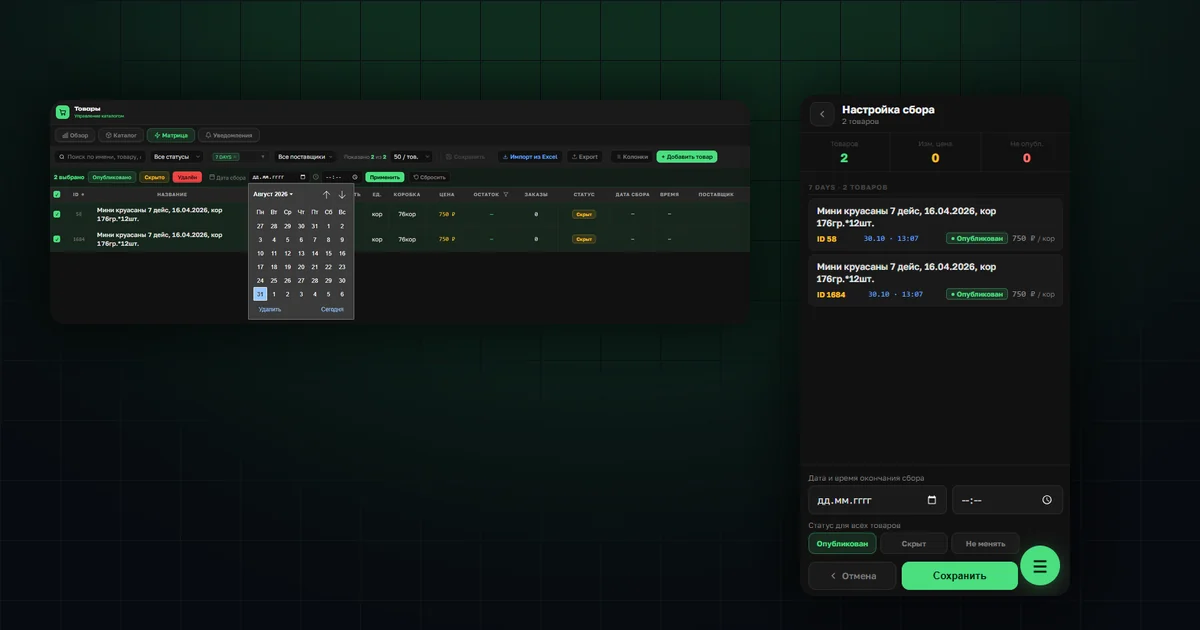
The hard part of running collections in group buying is volume. The group buying organizer has to publish and hide products, set collection deadlines, watch the clock, tally orders per product, add them up and hand the result to the supplier.
The system grew out of our own practice. We ran group buying ourselves and collected orders as lists in Telegram: lists got duplicated, buyers overwrote each other. When building collections we tried to close the gaps we had hit ourselves.
OrderGrow is a group buying app for taking orders. A collection is not a separate entity here: it is formed from products that share the same deadline. Below is how to set that deadline on desktop and on the phone.
Adding the product itself is covered separately: spreadsheet or app.
What ends up in one collection
Products are grouped into a collection by their end date and time. There is no separate «create collection» button: set the same deadline and you get one collection. A collection can be assembled from arbitrary items — just give them the same deadline, regardless of category or supplier.
Categories and subcategories have no effect on this. Products in one category may carry different deadlines. Inside a collection, items are grouped by subcategory.
The end date and time are optional. A product without a deadline joins no collection: it will be sold to order or from stock.
Setting a deadline on a single product
Click a product in the matrix to open its card. Fill in «Collection date» and «Time», then save. The values appear in the matrix table.
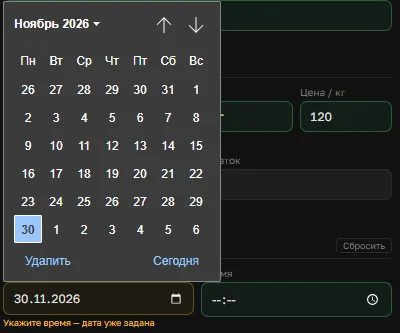
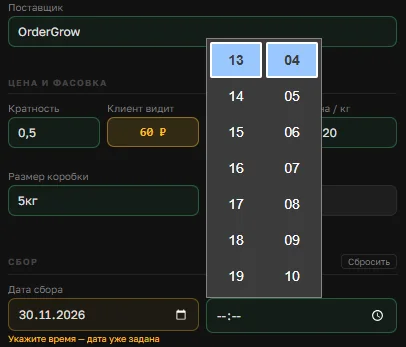
Date and time are filled in as a pair. Enter only the date and the system reminds you: the time is missing. Enter only the time and it asks for the date.
Setting deadlines in bulk
Select products using the filters — by subcategory, supplier or search. Fill in the date and time field and they are applied to the selected products.
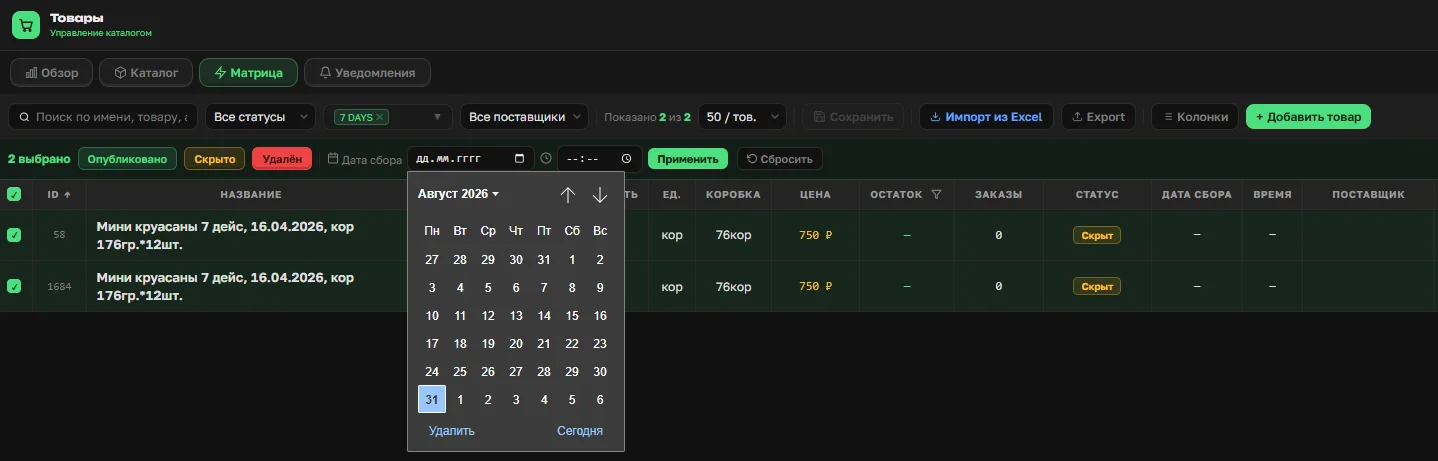
The same bulk action changes the status. Press the green button on the left and the status becomes «Published», making the product available to order. Adjust the price at the same time if needed.

Press «Save» — the changes are committed and the collection is open.

Extending a collection works the same way: select the products again, set a new deadline, save.
What happens with an invalid deadline
If the date or time has already passed, the system warns you that the deadline is in the past. The cell is flagged in red and saving is blocked.
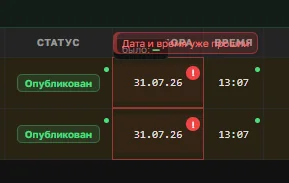
When everything is correct, the values appear in the «Collection date» and «Time» columns in blue.
Opening a collection from your phone
Sometimes a collection has to be opened on the spot, and the matrix is awkward to read on a phone — and awkward to edit. So we built a mobile flow for collection deadlines: more compact, but enough to manage a collection in a few taps.
Go to «Open collections».
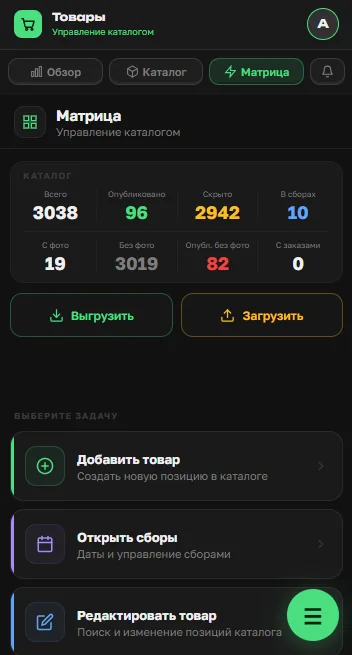
Find the product or category through search or filters. The group buying app shows the selected products — the checkboxes on the left let you adjust the selection.
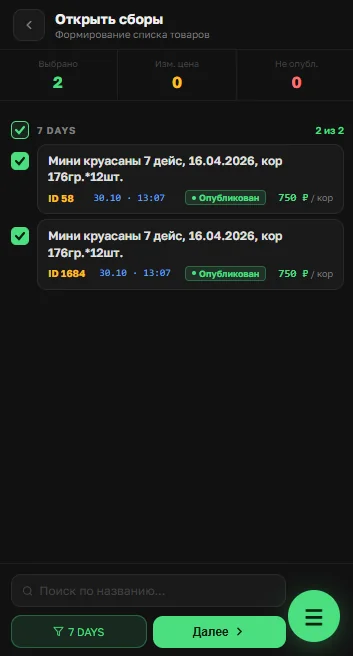
Prices can be corrected right here: tapping a card opens a dialog with the new unit price and the amount the customer pays. The «Price changed» counter at the top shows how many items were edited.
Confirm or adjust the selection and press «Next». On this screen set the collection end date and time, change the status if needed — «Published», «Hidden» or «Leave as is» — and press «Save».
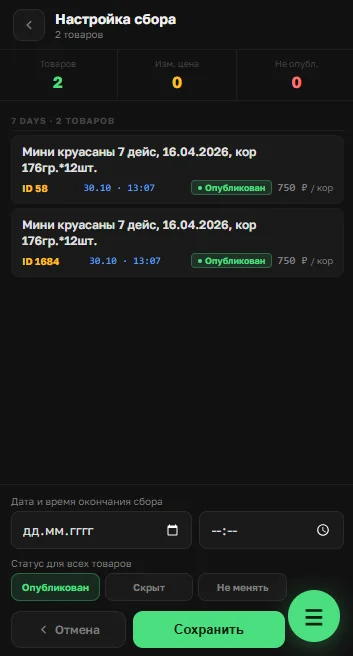
The collection is now open or updated, depending on what you did.
What to check afterwards
- Product status is «Published».
- Date and time are set on every product you intended.
- The price matches the supplier price list.
What collections do not do
The end of the ordering window does not stop customers from ordering. Until the collection is closed manually or automatically, orders keep coming in. If the deadline is hard, choose automatic closing.
A collection cannot be given a name. It is identified by its end date and time.
A collection does not close on volume. Time is the only condition. How much was collected per item is visible at closing.
Opening a collection sends no notifications. Telling customers about it is a separate action.
What comes next
The collections exist. Next comes the Collections section: tracking active collections in the group buying app, sharing the assortment, closing a collection and getting the order tally.