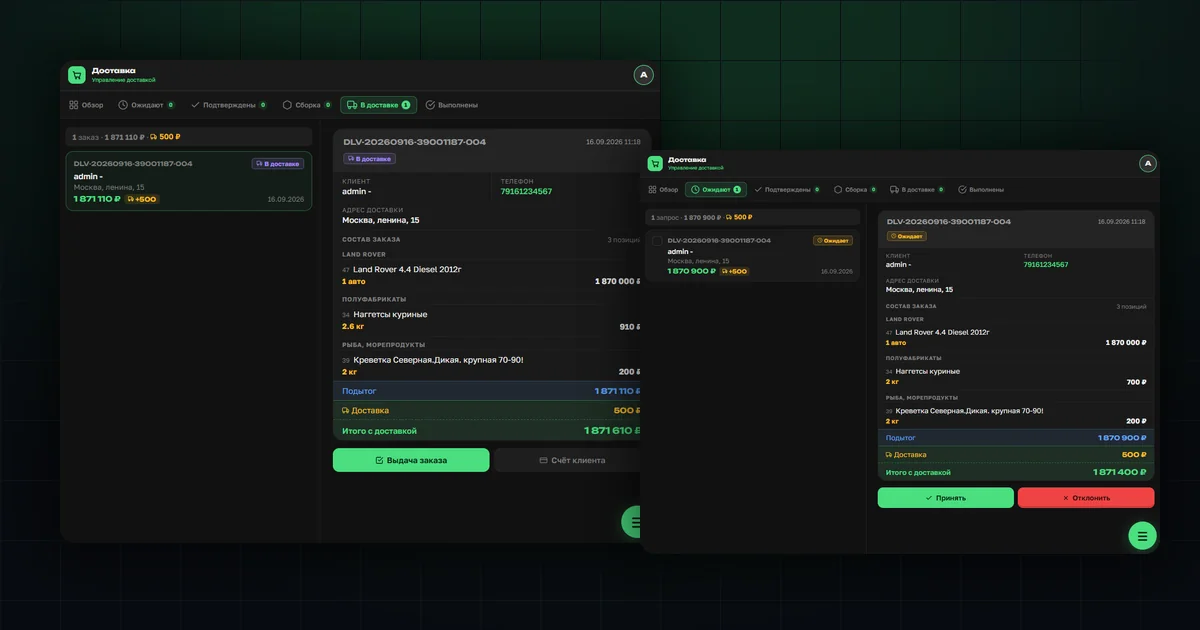
The "Delivery" section follows the same logic as warehouse order processing: from an incoming request to handing goods to the customer. The key difference between OrderGrow, an e-commerce and group-buying app, and a regular online store is that an order isn't placed for the whole cart at once — it's placed per item. As soon as an item reaches "Ready for pickup," the customer can collect it in person or have it delivered, if that option is enabled in the shop's settings. We covered how single-item ordering works in "One-click ordering from the catalog".
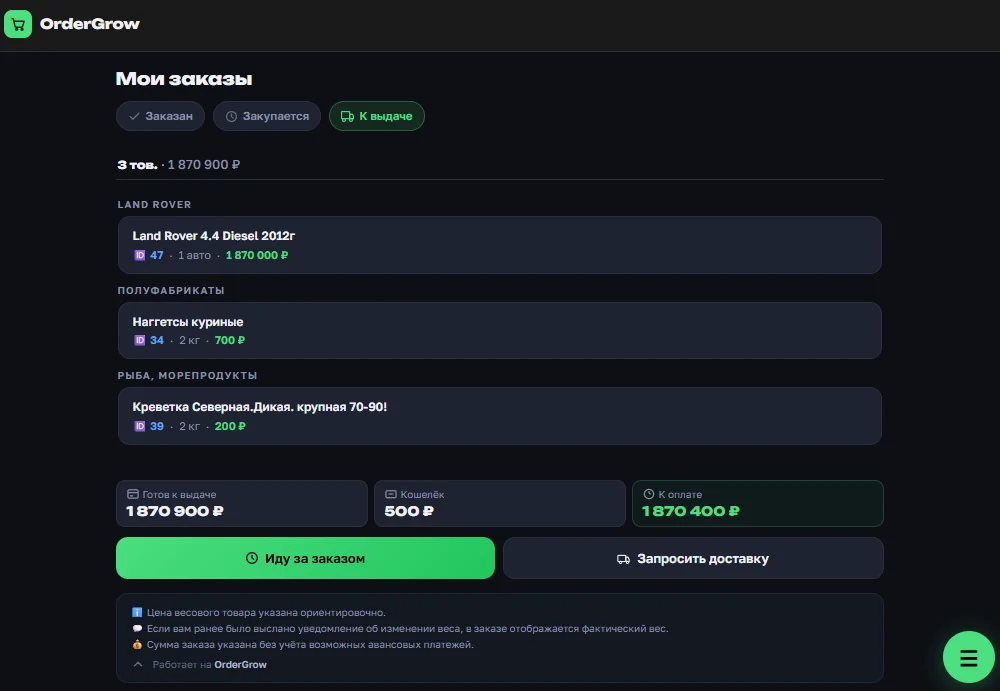
This logic lets OrderGrow be used not only for group buying, but also as an add-on tool for small fulfillment warehouses: partnered with the group-buying app, a warehouse gets an online-store interface, and the shop owner just needs to deliver goods on time.
How a customer requests delivery
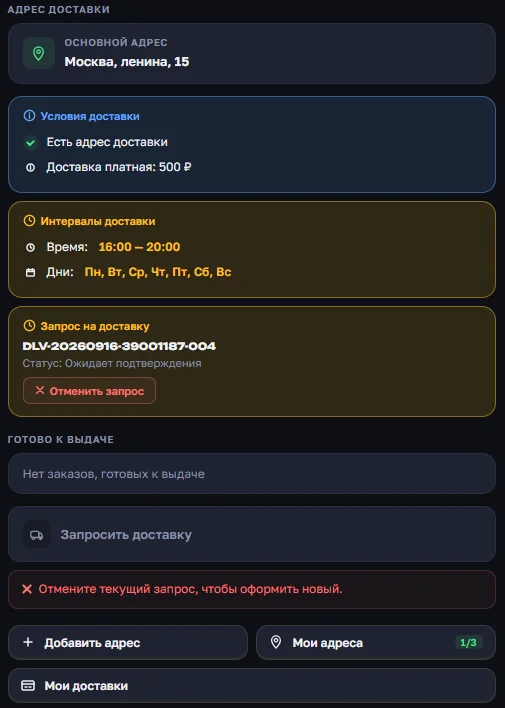
The customer sends a delivery request from the ready-for-pickup section.
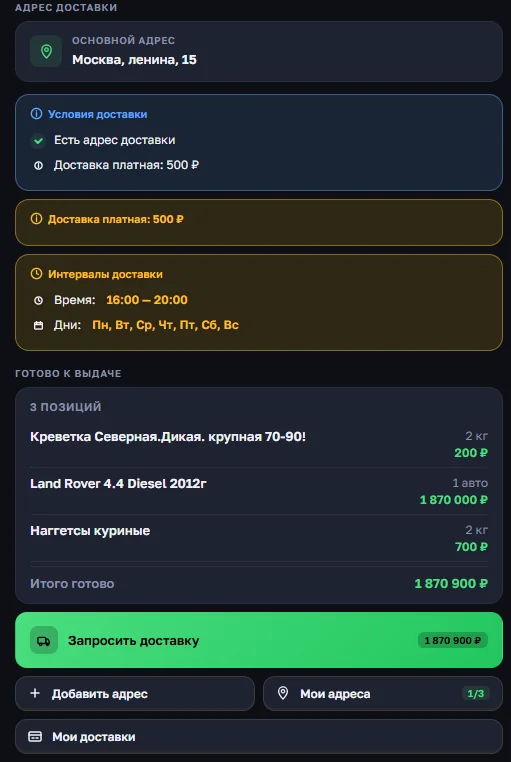
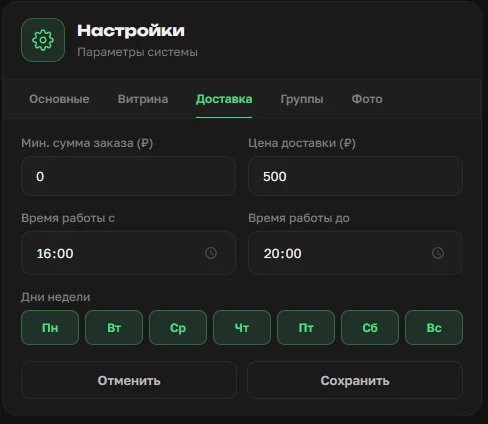
Delivery can be free or paid, depending on parameters set in the shop's settings: minimum order amount, delivery price, working hours and days.
In the request form the customer sees the order contents, the total including delivery, and can indicate a preferred pickup time — the exact time is then agreed with the operator.
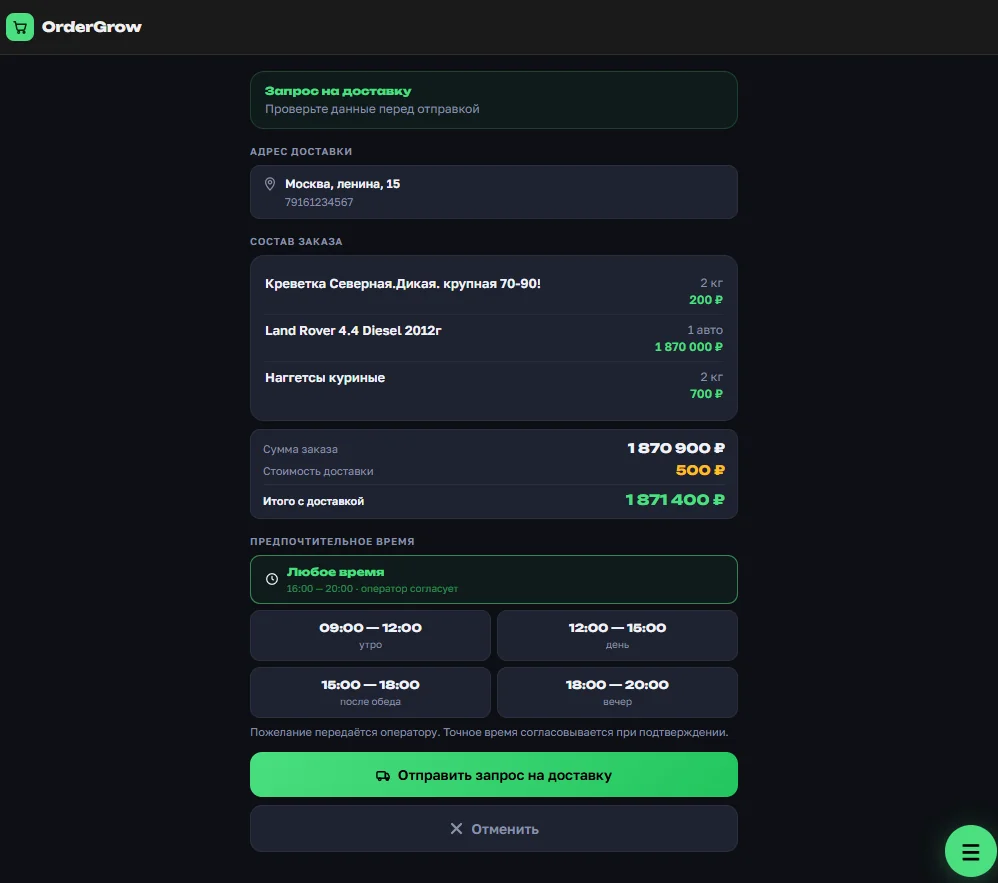
Sending a request doesn't mean it's automatically accepted — it's an application the shop owner has to process. The customer sees a "Pending confirmation" status and can cancel the request before it's confirmed.
Delivery statuses and queue for the shop owner
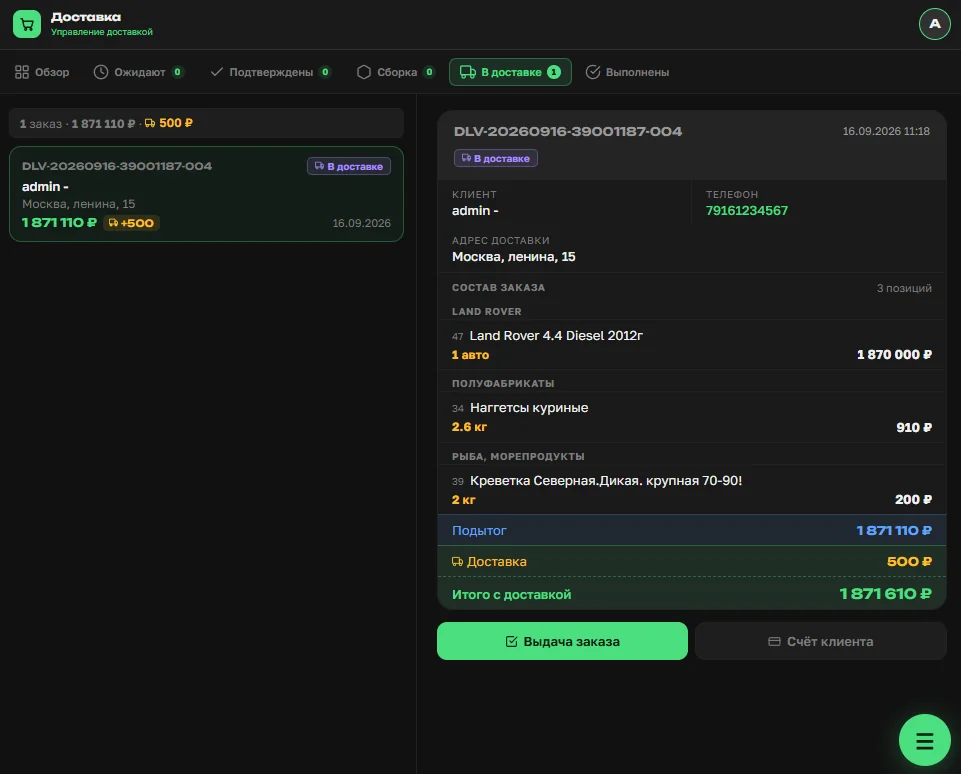
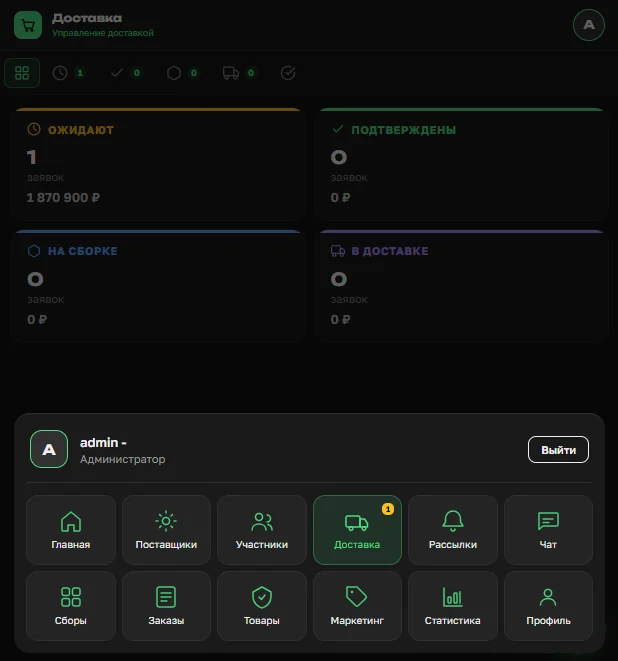
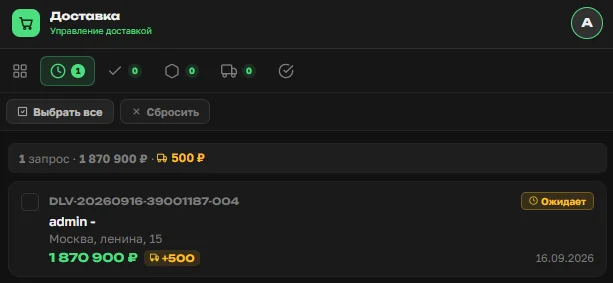
In the "Delivery" section the shop owner sees overall stats by stage: "Pending" — all incoming requests, "Confirmed" — applications accepted for work, "Picking" — orders handed to a picker to be assembled with exact weight and quantity, "Out for delivery" — picked orders with the courier, "Completed" — orders received by the customer.
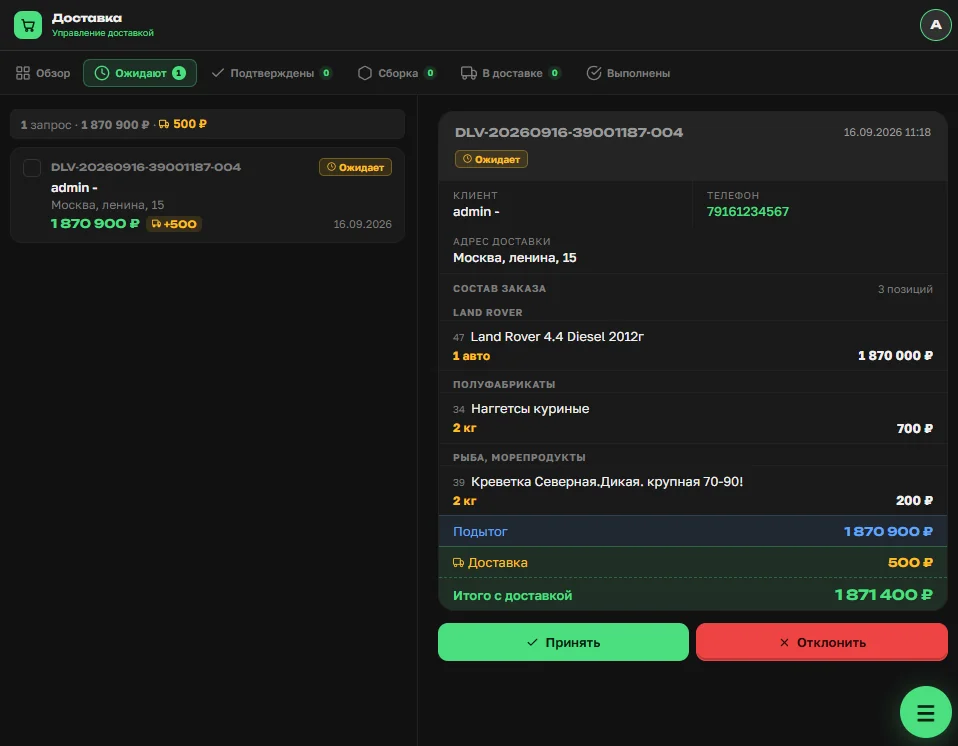
Every request gets a unique number. In the "Pending" list the shop owner can expand a request and see the order contents and customer details — needed to decide on confirmation.

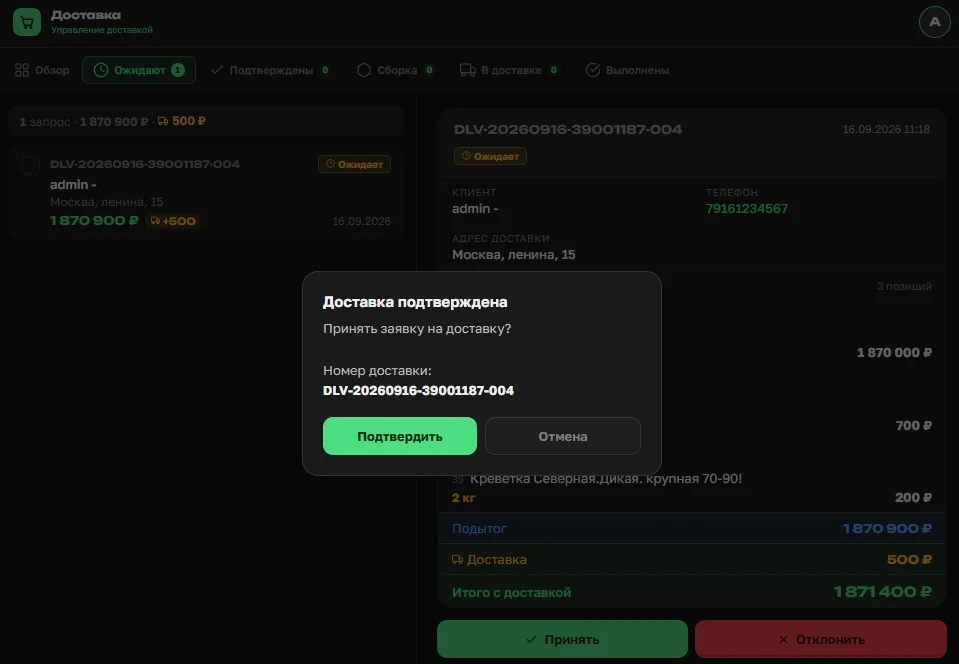
If the shop owner decides to take the delivery on, they confirm the request: the status changes to "Confirmed," the request joins the shared delivery queue, and the customer gets a status-change notification.
Adding items to a confirmed delivery. If a customer requested delivery in advance and some of their other orders reached "Ready for pickup" later, the shop owner can open the confirmed delivery and add those items to it instead of creating a second delivery. Items added this way are marked in the list as added by the operator — this avoids a second delivery to the same customer. At the confirmed stage, a preliminary picking document can be printed for the picker.
How an order gets picked
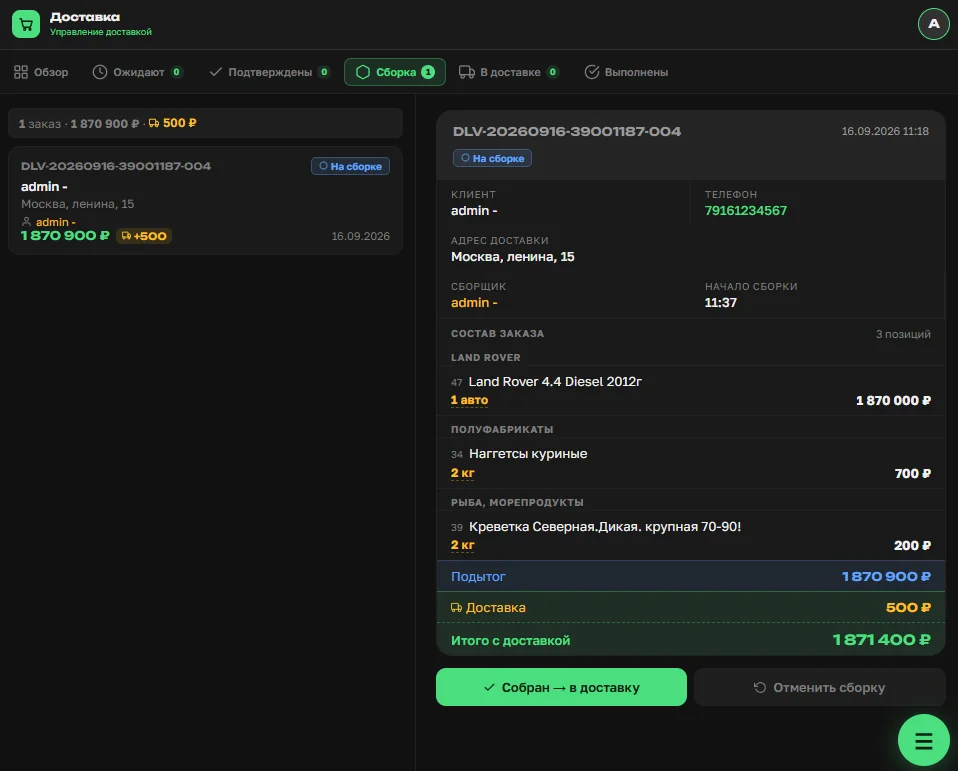
A picker takes a confirmed delivery into work — the delivery gets assigned to them.
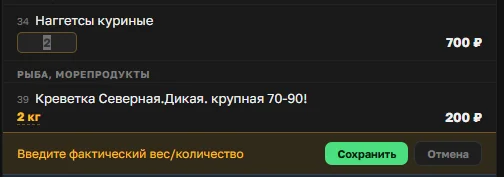
At the picking stage new items can no longer be added, but the actual quantity or weight of each item can be adjusted: tap the value, enter the actual figure, and save.
The change is reflected immediately in the order line and the total. Actual data can be entered either by the picker themselves or centrally by the shop owner, from a paper document filled in by the picker.
Once picking is complete, the order moves to "Out for delivery" and is handed to the courier.
How a courier hands over an order — in full or in part
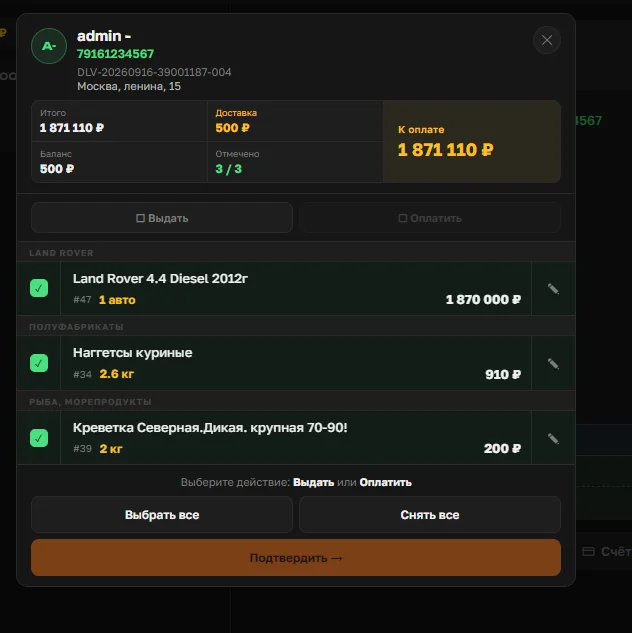
Handout on delivery works the same as handout for in-person pickup: the courier finds the right delivery and opens the handout screen.
If the customer has no complaints and accepts every item, the courier selects all items and confirms a full handout.
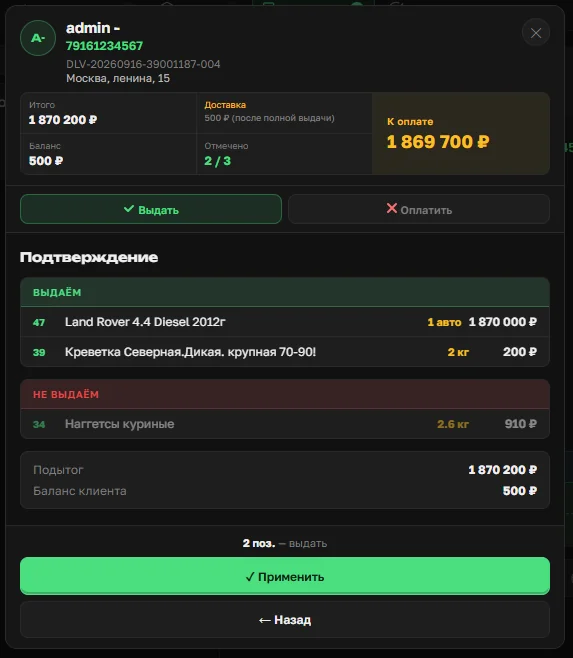
If one or more items are refused or don't match, the courier unchecks that specific item and confirms a partial handout without cancelling the whole delivery. The system shows separately what's handed over and what isn't, and recalculates the amount due and the customer's balance.
What's next
Delivery is one of two ways to receive a ready order; the other, in-person pickup, works with no extra setup. Try the group-buying app in full, delivery setup included, at OrderGrow Lab — seven days free, no card required.