
The product matrix works well for one-off edits: change the price of a single item, hide a product, set a round date. But once you have more than a hundred positions and need to touch every other one, working through a web table turns into a slog.
Now the catalog can be exported to Excel, edited the usual way and uploaded back. Bulk price changes, stock updates, adding a batch of new positions — all of it happens in the spreadsheet, and the system takes the finished file.
Exporting the catalog
The matrix has a new "Export" button. One click builds the file with your whole product range and hands it straight over for download — no waiting, no page refresh.
The file arrives ready to work with rather than as a raw dump: the header row is frozen, so column names stay visible while you scroll; every column has an autofilter; fields with a fixed set of values get dropdown lists; column widths are set so long names are readable; and numbers are written in a format Excel recognises as numbers rather than text.
Uploading changes
The "Import" button opens the "Import from Excel" window, where the file can be dragged in or picked the usual way.

Once a file is chosen, the "Check" button becomes active. The upload button stays disabled on purpose at this point: first you need to see what will actually change in the catalog.
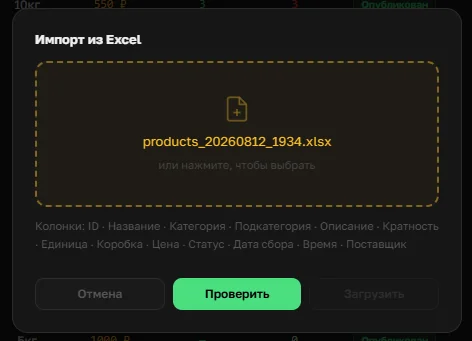
The system reads the file, compares every row against the catalog and against the rules for required fields. Nothing is written to the database at this stage — this is a read, not an upload.
What the check shows
The result is four summary tiles:
Will be added — positions in the file that aren't in the catalog; they'll appear as new. Will be updated — positions that exist and have changes. Will be deleted — positions marked for removal from the matrix. Errors — rows that can't be applied.
A separate line shows how many positions have no changes at all. That's more useful than it sounds: export the catalog and upload it straight back without touching anything, and every product lands here while the other tiles stay at zero.

The tiles are clickable — tapping one opens the list underneath, with the row number in the file and the product name. You see not just how many positions are affected, but which ones.

The labels at this step are in the future tense — "will be updated", not "updated". The difference matters: a check changes nothing, and the wording shouldn't suggest the work is already done.
If the file has errors
An error in one row doesn't block the rest. Valid positions are uploaded, problem ones are set aside — otherwise a single typo would stop work on the entire catalog.
The "Errors" tile shows which row didn't pass and why. The upload button stays active and displays how many positions will be applied: the hint above it suggests uploading the valid products first and fixing the problem ones afterwards.

The "Download products with errors" button hands back a file in the same format as a normal export, plus a column with the reason. That's precisely so you can fix things in it and upload it back — a file of a few rows instead of the whole catalog.
There's also a case where the whole file is rejected: if its structure doesn't match — say, a spreadsheet of the wrong format was uploaded. Then nothing is applied at all. The logic is simple: if it isn't clear what sits in which column, any action would be guesswork.
What a file can't break
The main rule worth understanding before your first upload: the file describes changes, not the full state of the catalog. Export a thousand positions, leave ten in the file, upload it — the other nine hundred and ninety are untouched.
Intuitively you might expect the opposite: "whatever isn't in the file gets deleted". That behaviour would cost you the catalog the first time you exported a fragment, so it doesn't exist. Deletion is a separate mark in the row, not the absence of a row.
Empty cells in optional fields don't wipe anything either: leave a field blank and the value in the catalog stays as it was. And the "Deleted" status marks a position rather than physically erasing it — the whole order history for that product is preserved.
It works on a phone too
Export and import aren't limited to a desktop. In the mobile matrix both buttons — "Export" and "Import" — sit right under the catalog summary, just above the task list.

The import window opens from the bottom, like any other panel in the app. The file is picked through the system file browser — which means a spreadsheet a supplier sent you in a messenger can be uploaded straight away, without forwarding it to your computer first.

The check report on a phone is exactly the same: four tiles, the list of positions underneath, the button to download the file with errors. The tiles are rearranged into a two-by-two grid so the numbers stay readable on a narrow screen.

Editing the spreadsheet itself from a phone is still awkward — that's desktop work. But receiving a finished file, checking it and applying it can happen anywhere: an organizer doesn't have to get home to update the price list before opening a round.
When this beats the matrix
Excel doesn't replace the matrix, it covers what the matrix isn't built for. Changing the price of one position is faster in the matrix. But recalculating prices across the whole price list, updating stock after a delivery, loading a new supplier's range or migrating a catalog from another system — that's spreadsheet work.
One more scenario is preparing the catalog in advance. Build the file in the evening, show it to a colleague, check it in the morning and upload it in one action. Checking and uploading are independent: check today, upload tomorrow — just send the file again.