In short
- Search and "Filters" in one line, with selected filters shown as chips.
- A new size and color filter across the whole catalog.
- Search by name, color, size, category, supplier article number and ID.
- Tile: price and stock on separate lines, the total on the button, up to 4 photos.
- "Hurry up!" instead of "Collection closed" while the collection is still open.
- Up to 10 photos per product, with zoom.
- A bottom bar for sections on phones.
- A "Turn on notifications" window.
How do you find your size across the whole shop?
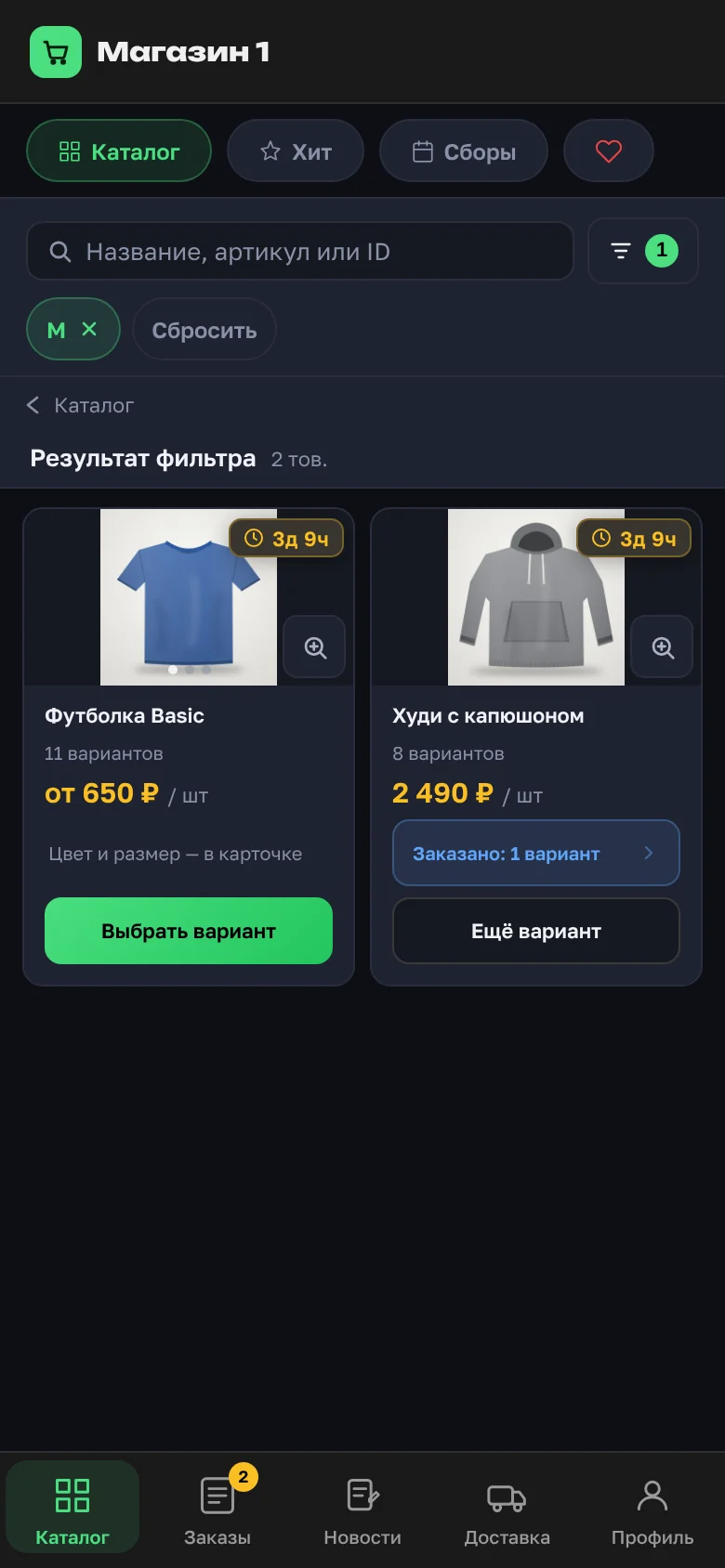
There used to be three lines above the products: search; "In stock" and "Clear"; "Categories" and "Subcategories". Now there's one: search and a "Filters" button with the number of selected filters. Below it are chips for the active filters, each removed with a cross. On a phone, products get more room.
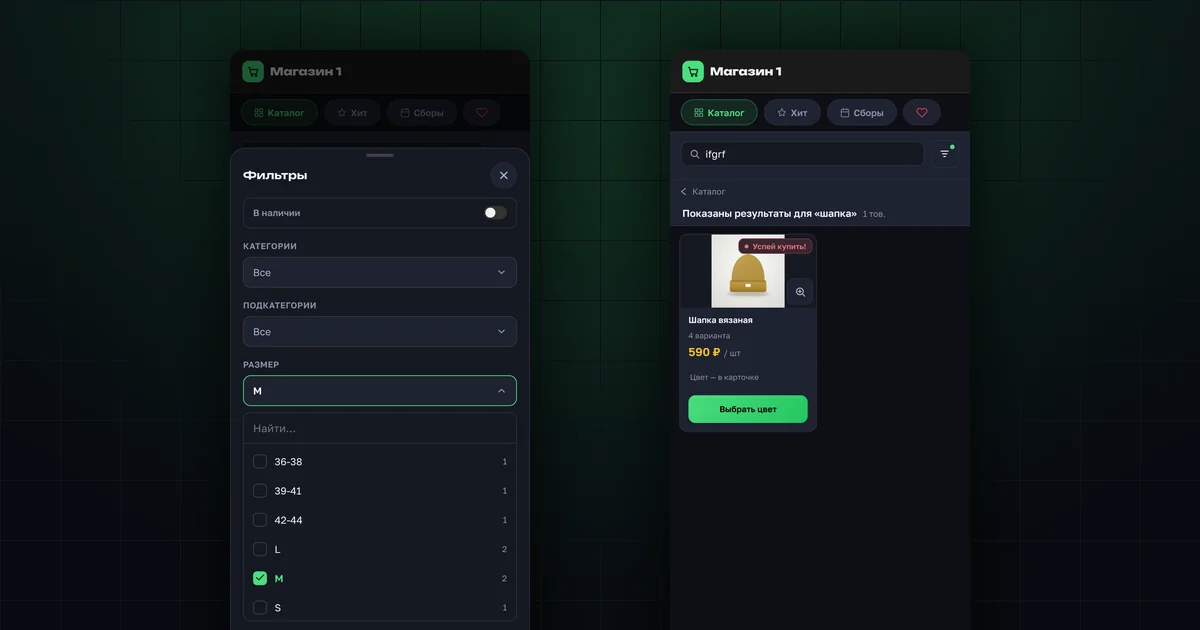
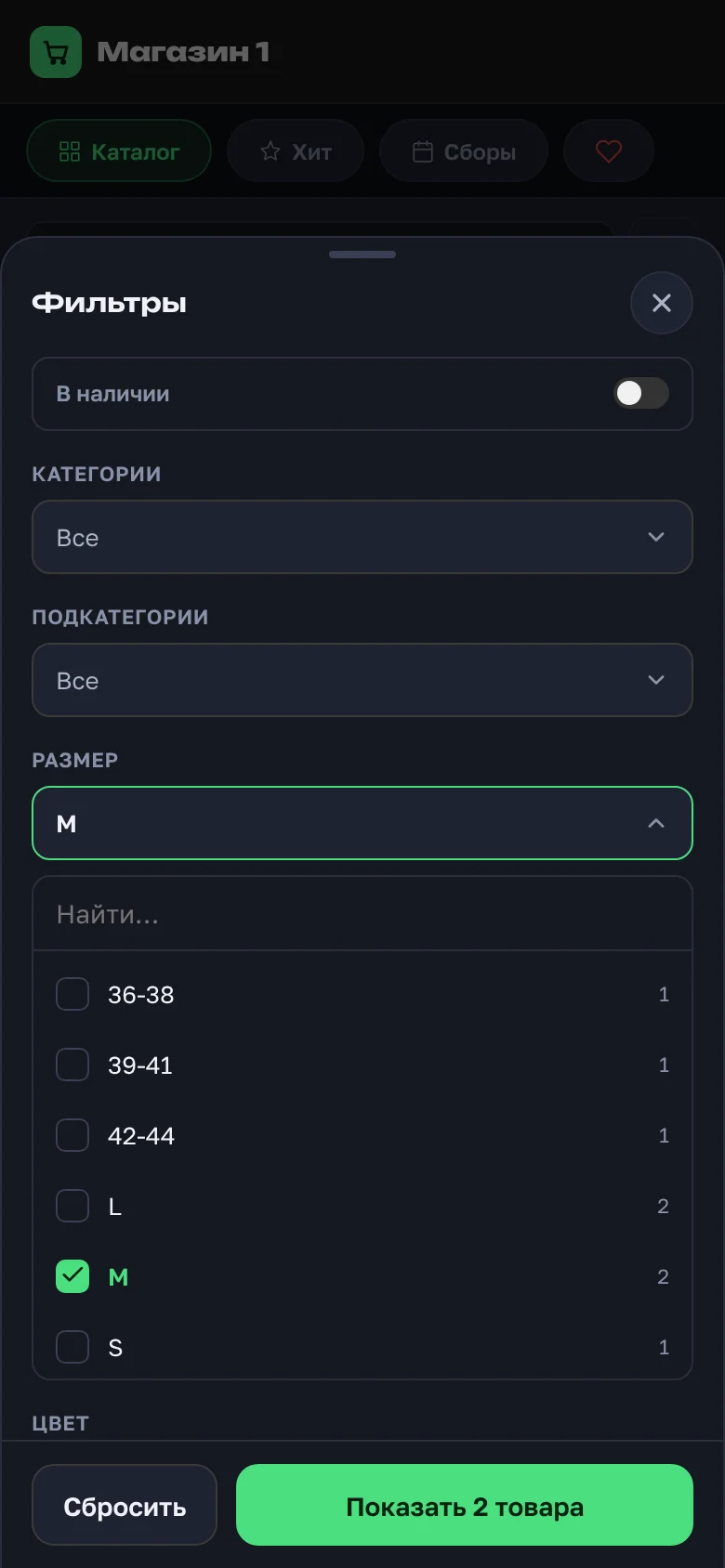
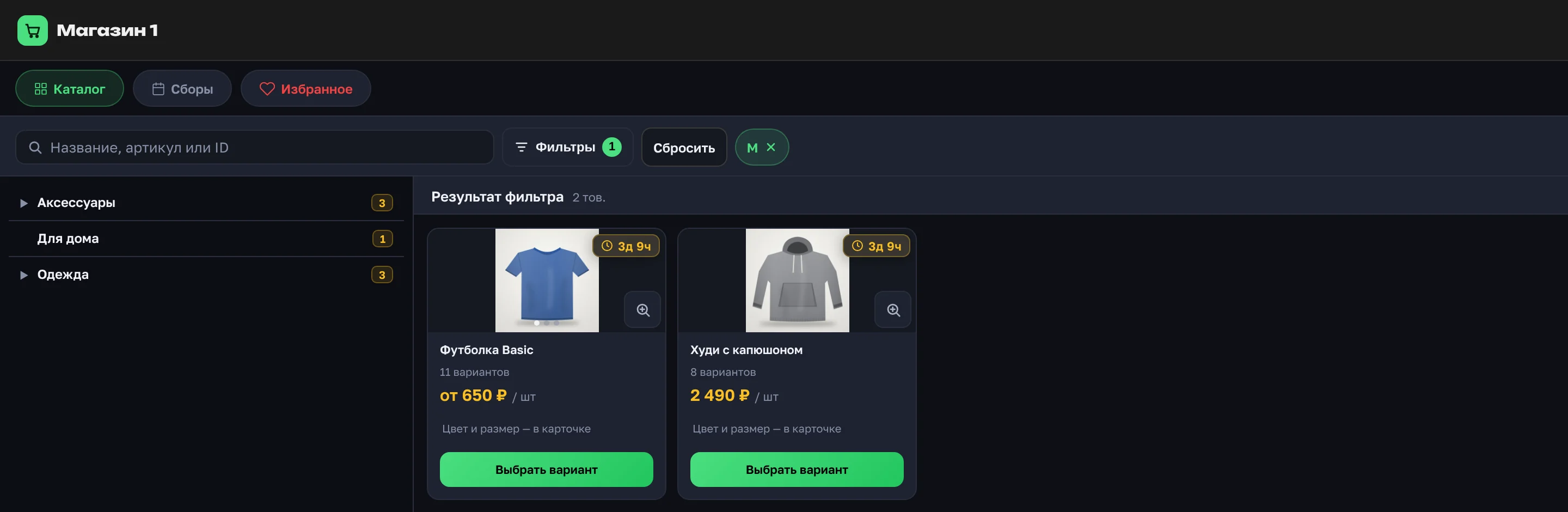
The filter window has "In stock", "Categories", "Subcategories", "Size" and "Color". Each section is a drop-down list with search, checkboxes and product counts. The button at the bottom shows right away how many products will be found, for example "Show 2 items".
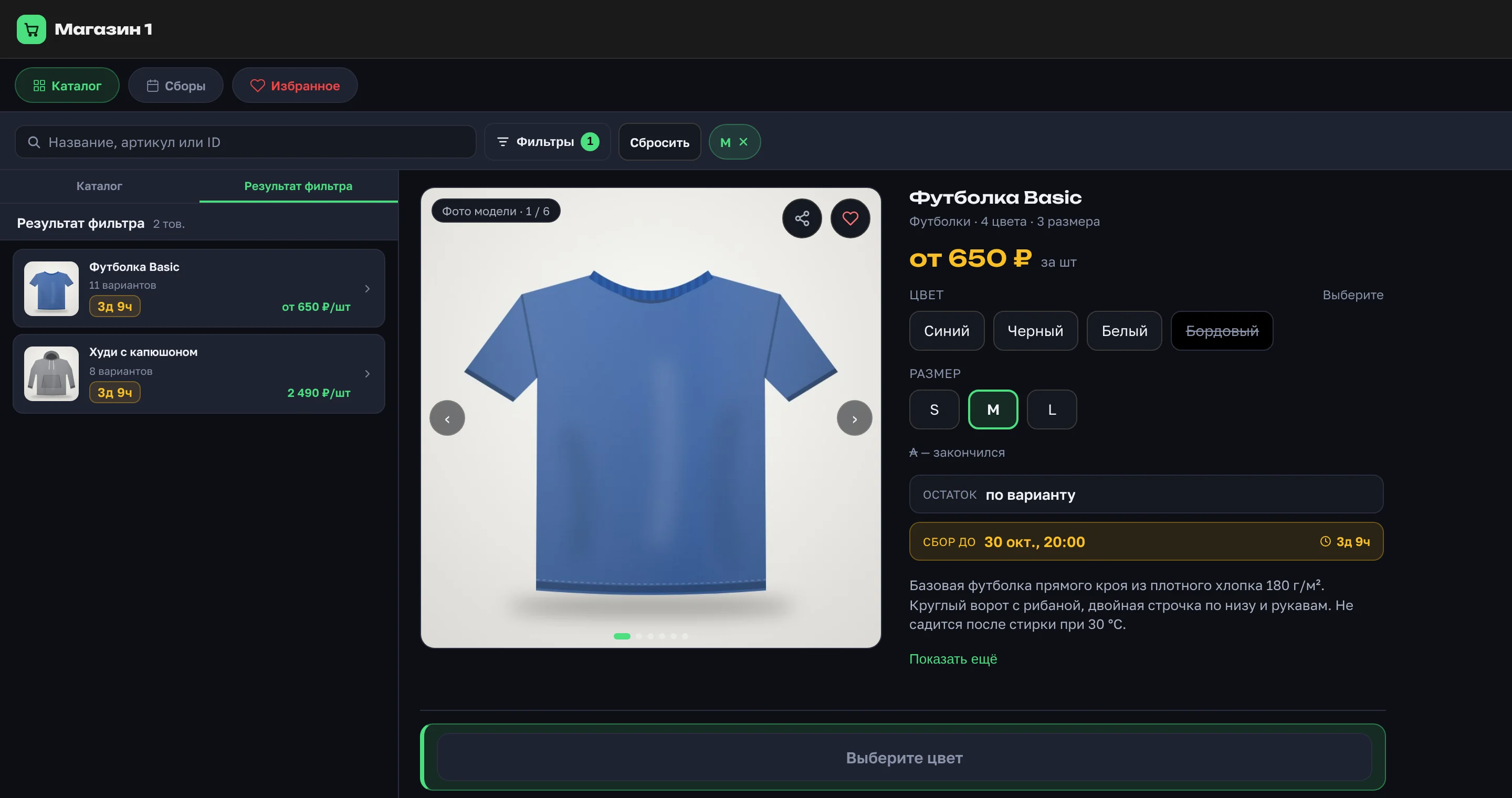
The size and color filter is new. Pick M and you see every product in that size across the catalog. If you open a card from such a list, the size is already selected.
On desktop the panel spans the full width: search, "Filters", "Clear" and filter chips in one line.
How do you search when a word is typed differently?
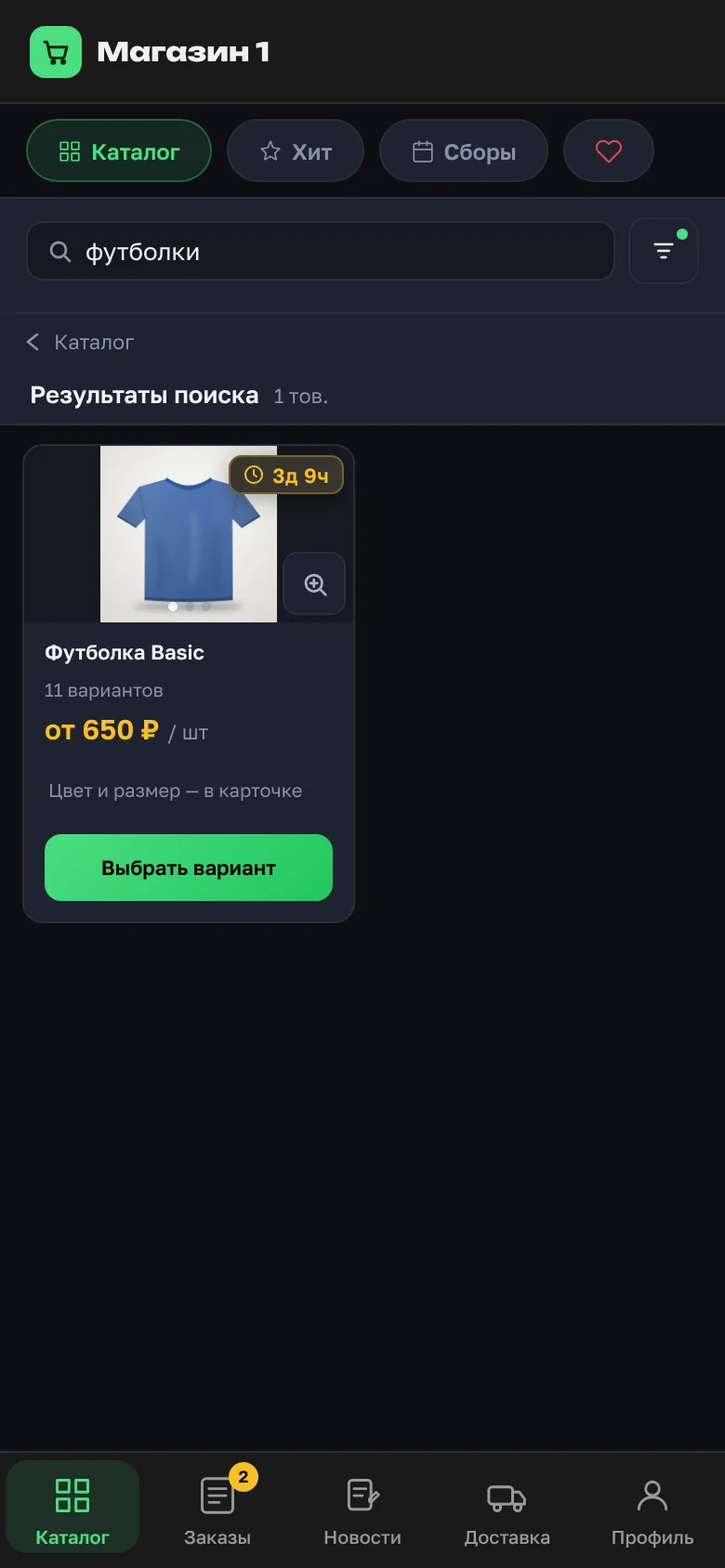
Search used to look for the whole phrase, and only in the name, color and size. A plural form didn't find the singular, and product numbers and categories weren't found at all. Now:
- words are found in any order and in different forms: "шапки" finds "шапка";
- search covers the name, color, size, category, subcategory, supplier article number and product ID;
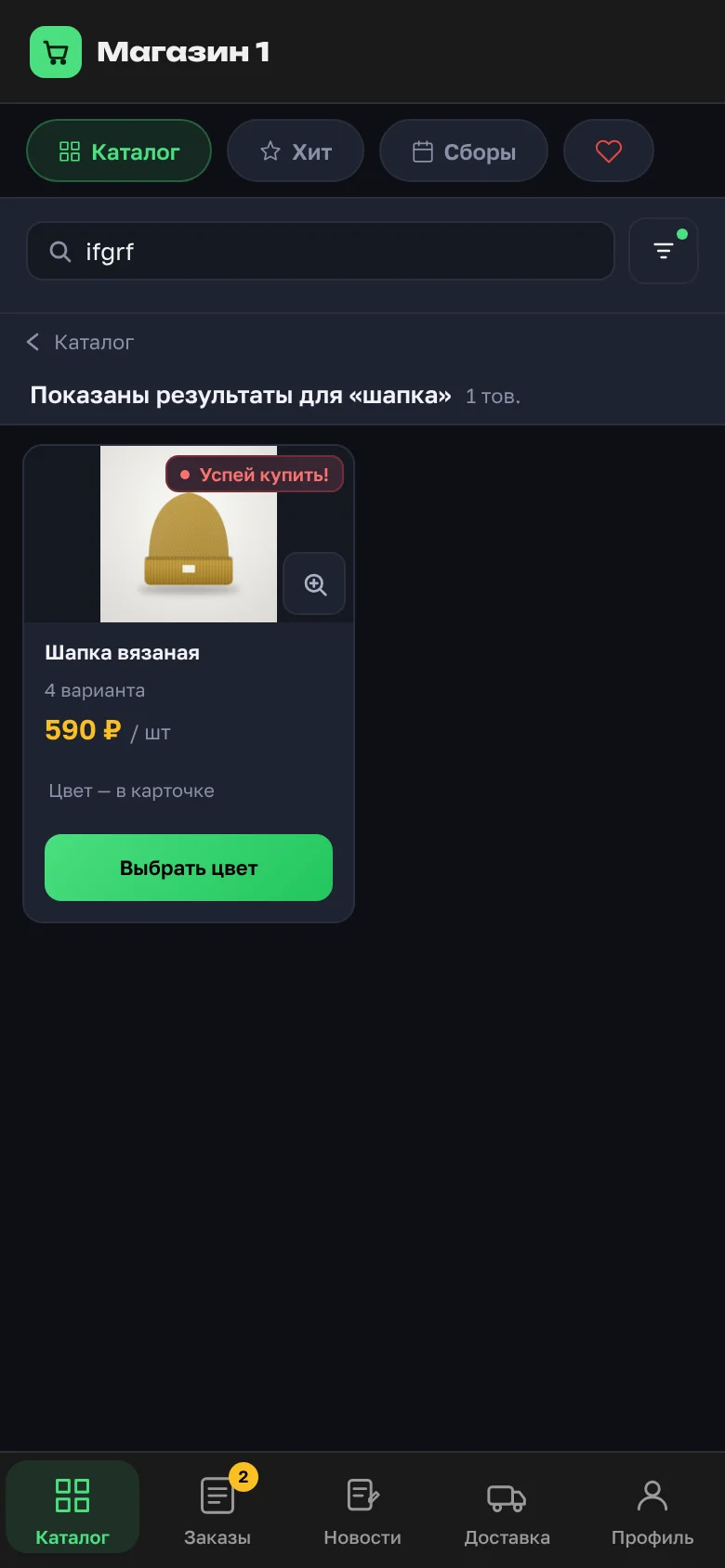
- if the text was typed in the English keyboard layout, for example "ifgrf", search repeats it in Russian and says "Showing results for “шапка”";
- the most exact matches come first.
The hint in the search line reads "Name, article or ID".
What changed on the product tile?
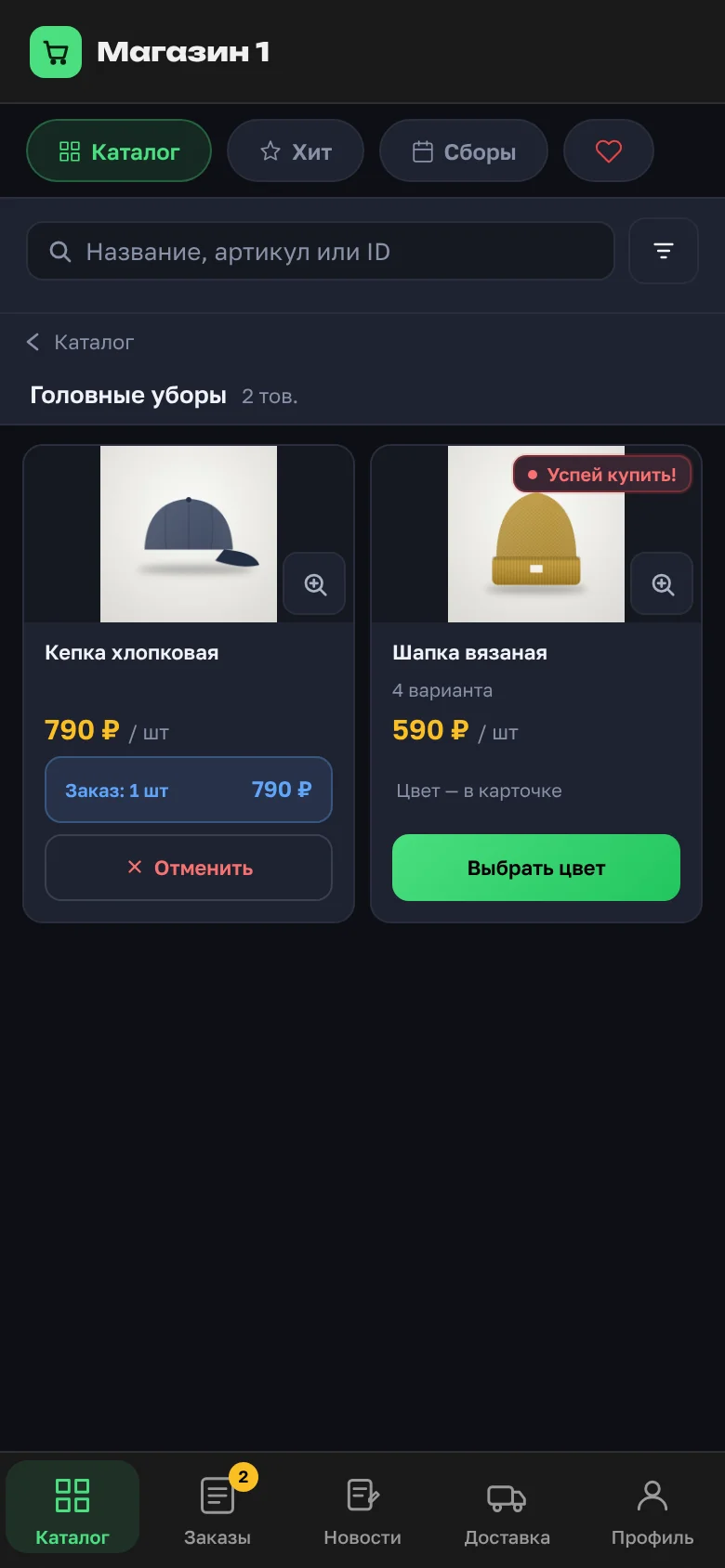
- Price and stock ("Stock 12") each on their own line.
- The total right on the button: "Order · 790 ₽".
- The collection timer on the photo, in the top right corner.
- After ordering, an "Order" strip with the quantity and total.
- Up to 4 photos swipe through (arrows on desktop); the magnifier opens a photo full size without leaving the list.
After the order deadline, the tile used to show a grey "Collection closed" badge even though you could still order. Now, until the organizer closes the collection, a red "Hurry up!" badge appears after the deadline. The deadline badge appears only on products that have a deadline.
How many photos can a product have?
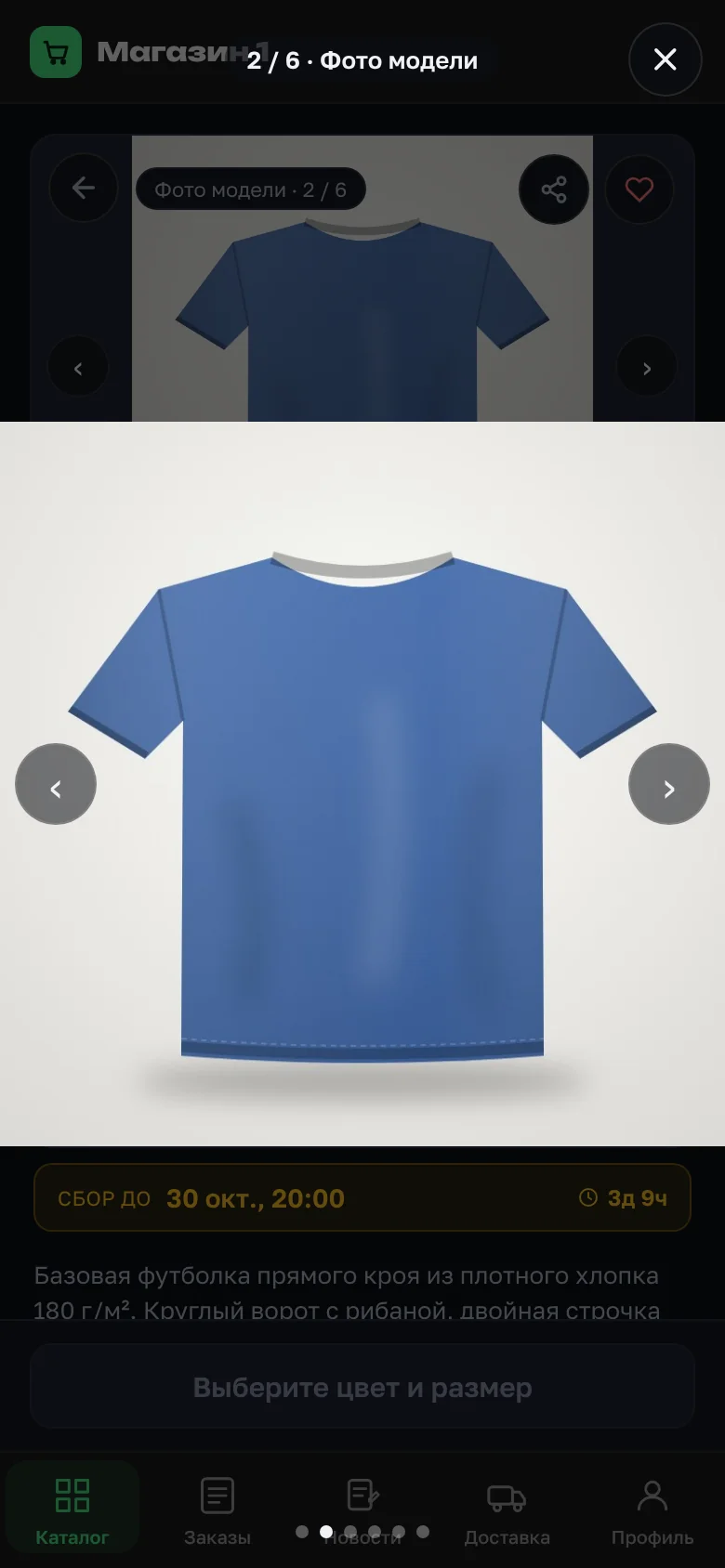
Up to 10 instead of 4. In the viewer, zoom with two fingers or a double tap, or with the mouse wheel on desktop. A counter at the top shows, for example, "2 / 6", and you can close it by swiping down. How to add product photos is covered in a separate article.
Where are the sections on a phone now?
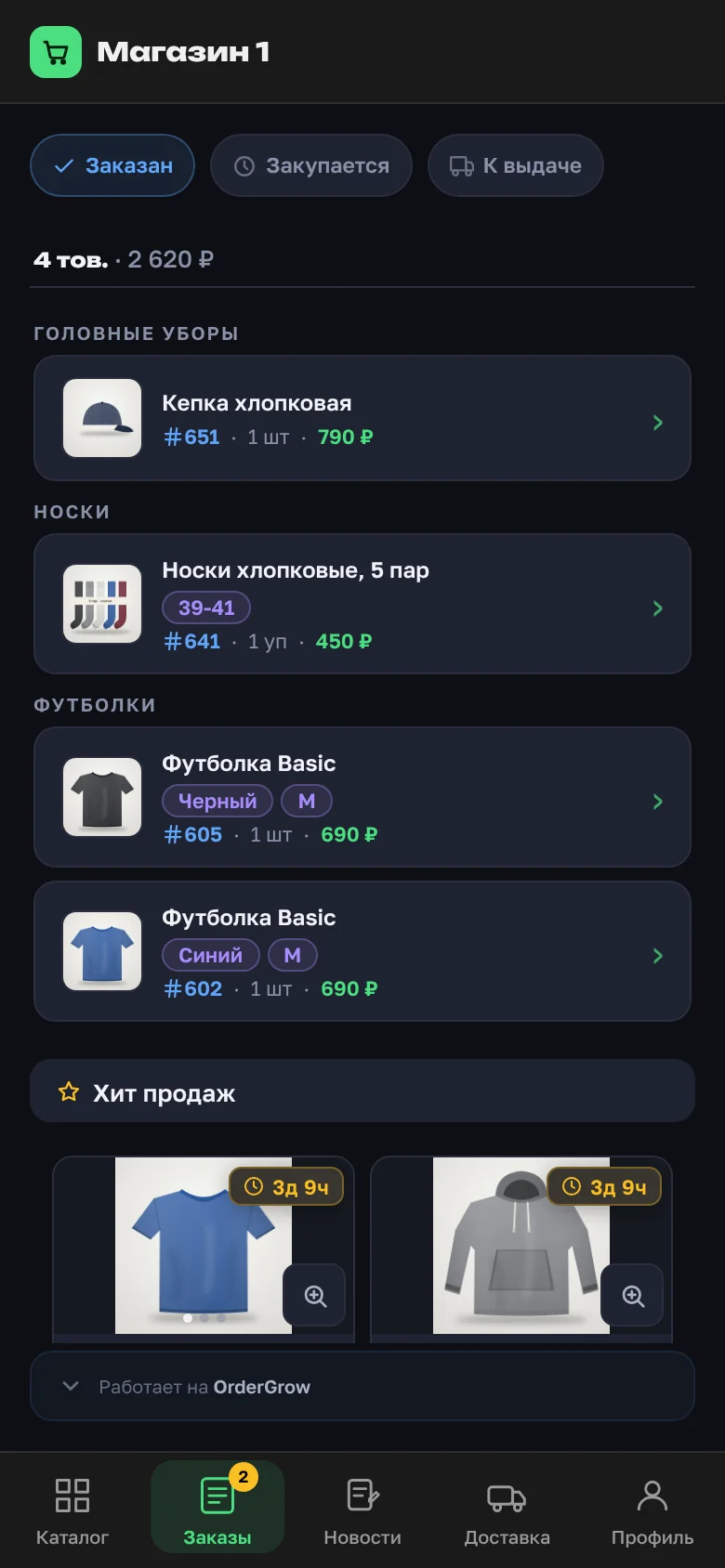
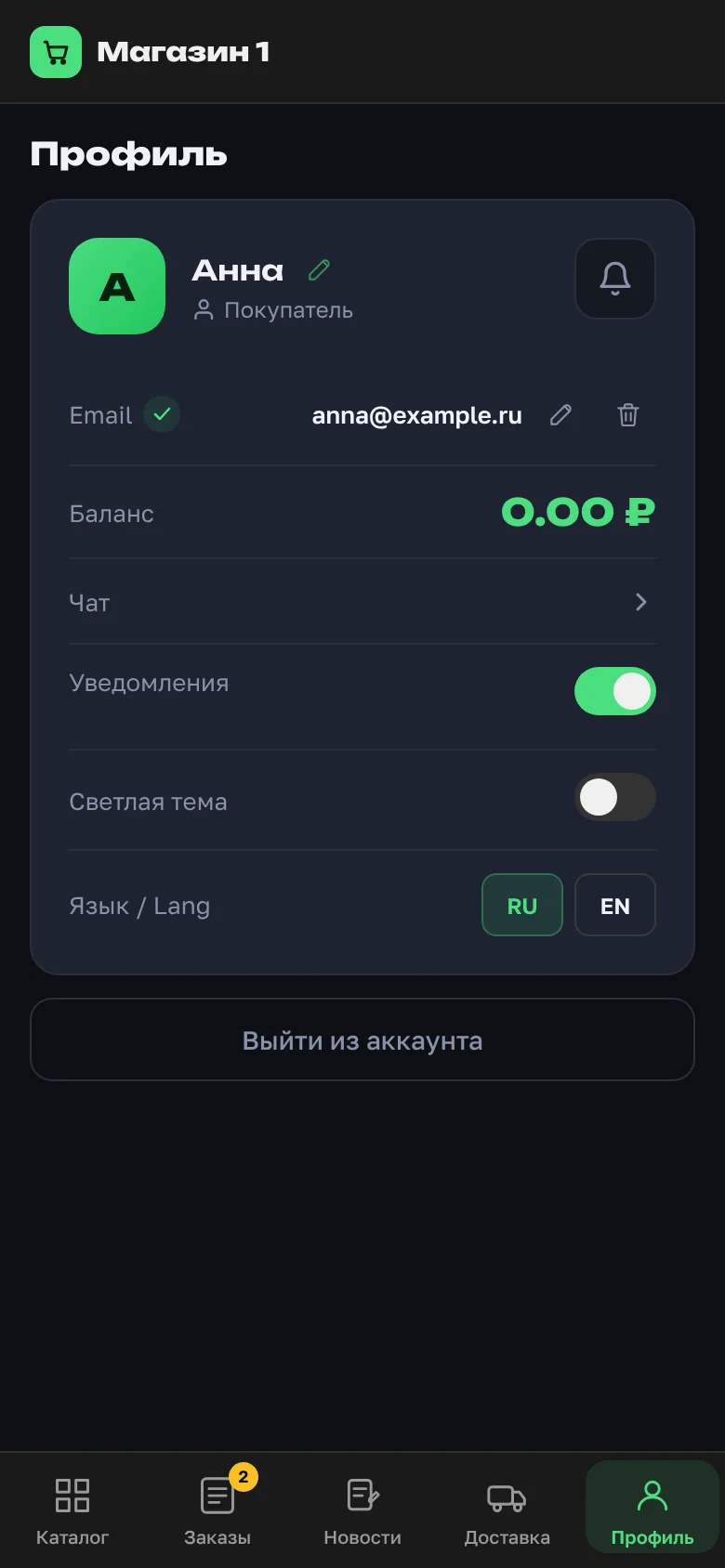
Sections used to open from a round menu button and a sheet. Now there's a permanent bar at the bottom of the screen: "Catalog", "Orders", "News", "Delivery", "Profile", with yellow counters. The profile has "Chat", "Language / Язык" and the notification bell.
In "Orders", each line now has a product thumbnail, the full name, and color and size as purple chips. On a phone the status tabs come first instead of a heading. The same chips appear in "Pick up order", in "Ready for pickup" for delivery and in "My deliveries". "Hits" under the orders opens the full product card. More in the "My orders" guide.
Why will buyers see a "Turn on notifications" window?
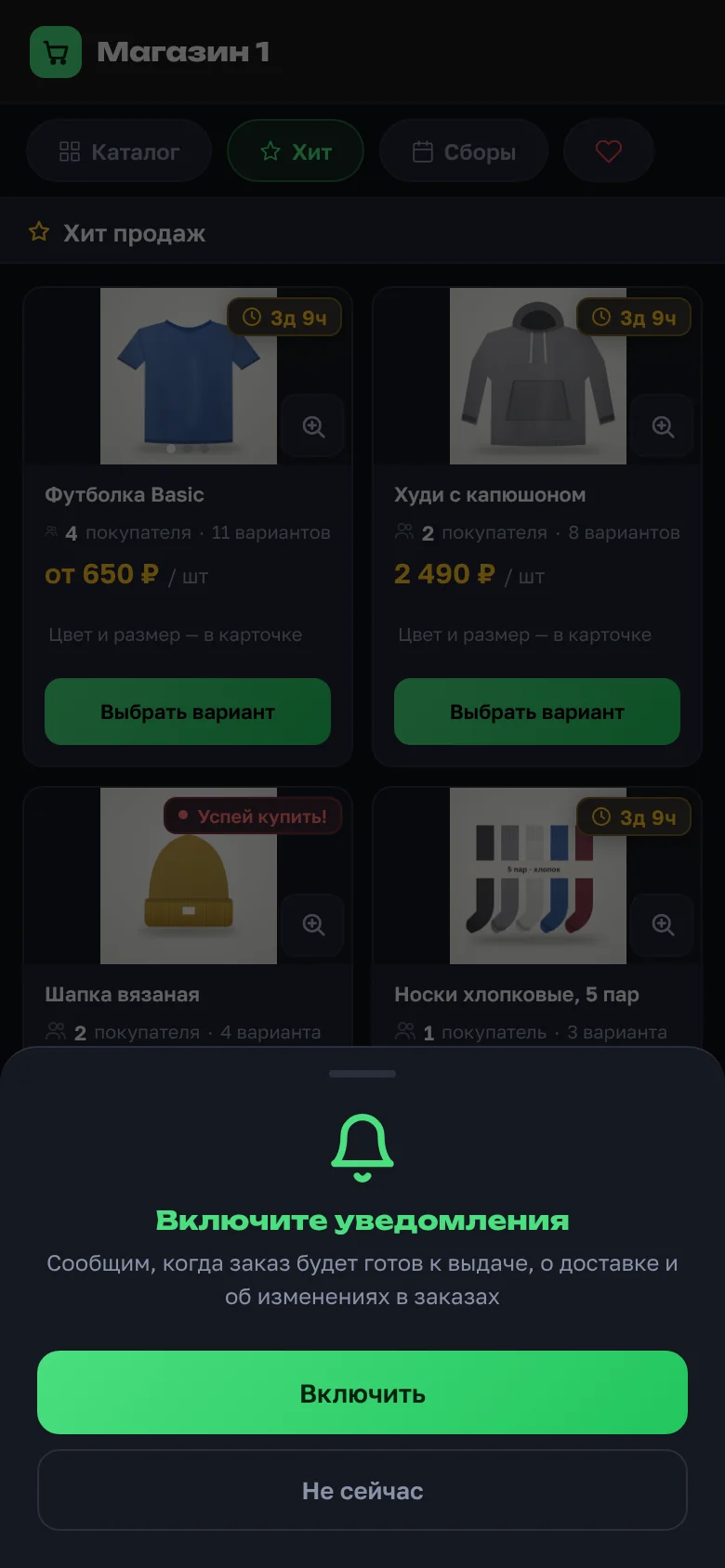
Notifications used to be turned on only with a switch in the profile, and many people didn't know about it. Now the app offers it: "Turn on notifications — We'll let you know when your order is ready for pickup, about delivery and changes to your orders", with "Turn on" and "Not now" buttons.
The window appears for buyers in shops where notifications are on. It's shown at most once a day, and not on a day when the "Orders ready for pickup" window was shown. People who have already turned notifications on or blocked them in the browser don't see it. On iPhone, if the app isn't added to the Home Screen, the window explains how to add it: without that, iPhone doesn't deliver notifications. How notifications work is covered in the guide.
What does the catalog look like on desktop?
On a wide screen, the product card opens in two columns: photos on the left, variant choice on the right. On narrower screens the card is compact, and the menu button no longer covers "Order". How color and size are picked is covered in the article on product variants. How a buyer places an order is in the "How to order" guide.