In short
- 3 guides for you: preparation, the first 7 days, a pickup checklist.
- 6 guides for buyers, each with a group post and an image.
- "Buyer guide" — one link to all buyer guides at once.
- A card with a QR code for your pickup point.
- All pages are public; no sign-up is needed to read them.
Where should an organizer start?
Three guides, in the order you will need them.
- What to prepare for launch
Name, logo, group and admin sign-in: what to have ready before the app is built.
- The first 7 days
Day by day: settings, products, inviting buyers, the first collection, closing it, the first pickup.
- What to check with a buyer at pickup
Five things you can set up together in a minute while the buyer is standing next to you.
Which guides should you send to buyers?
The buyer guides are written on behalf of your shop and do not name the software. Buyers see your shop's app, and the guides talk about exactly that.
Under each guide there is a "Post for your group" block with a "Copy" button and an image for the post.
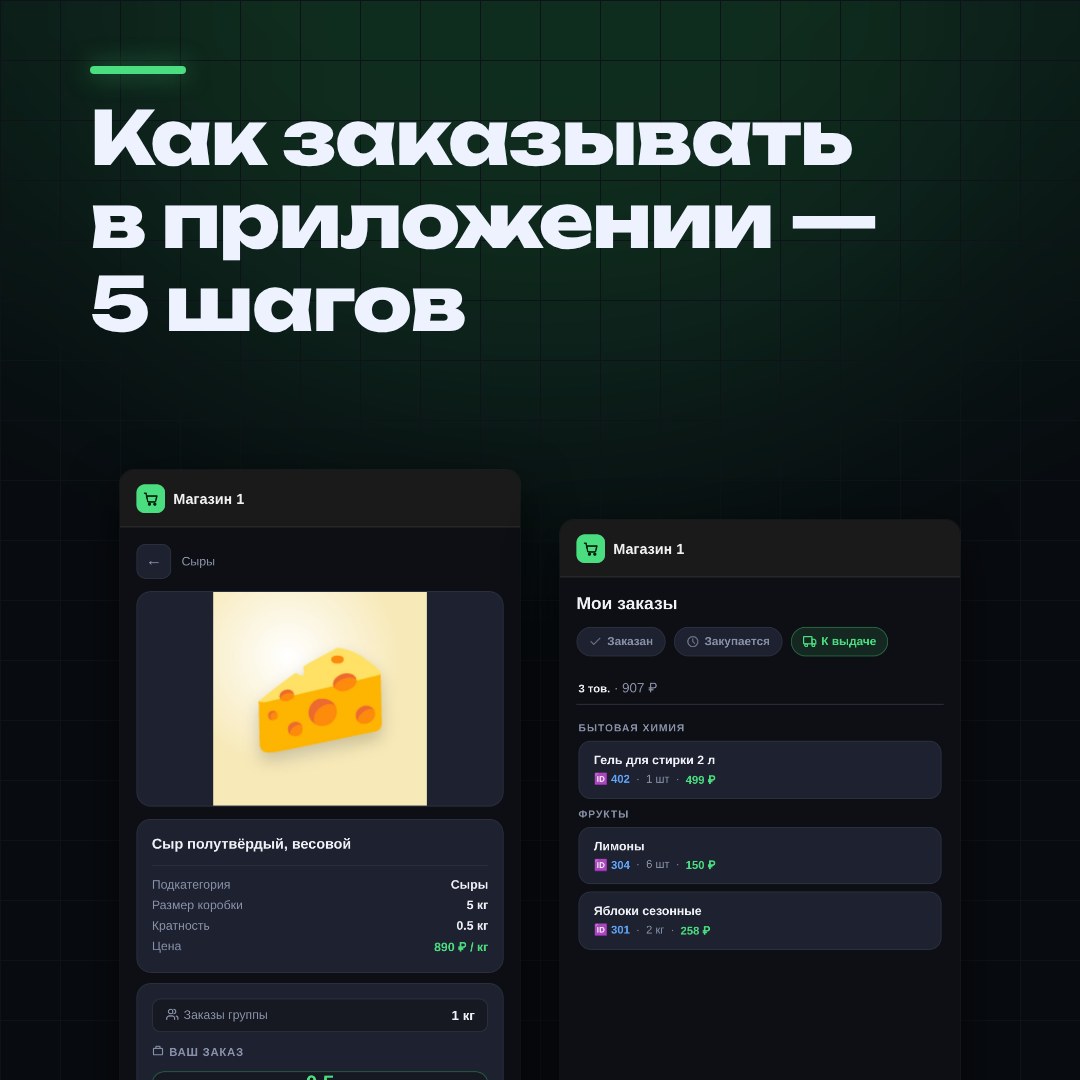
📱 How to order in our app — all on one page
A short guide: from sign-up to collecting your order in five steps.
1️⃣ Sign up: via MAX or with a request and a PIN code
2️⃣ Add the app icon to your home screen and turn on notifications
3️⃣ Choose a product and tap "Order"
4️⃣ Wait for "Ready" — you'll get a notification
5️⃣ Collect your order: the amount to pay is shown in advance
👉 Link to the app: [your link]
Save the guide so you don't have to search the chat 👇
https://ordergrow.ru/en/start-pamyatka-pokupatelyu?utm_source=shop&utm_medium=nabor
#groupbuying #guide
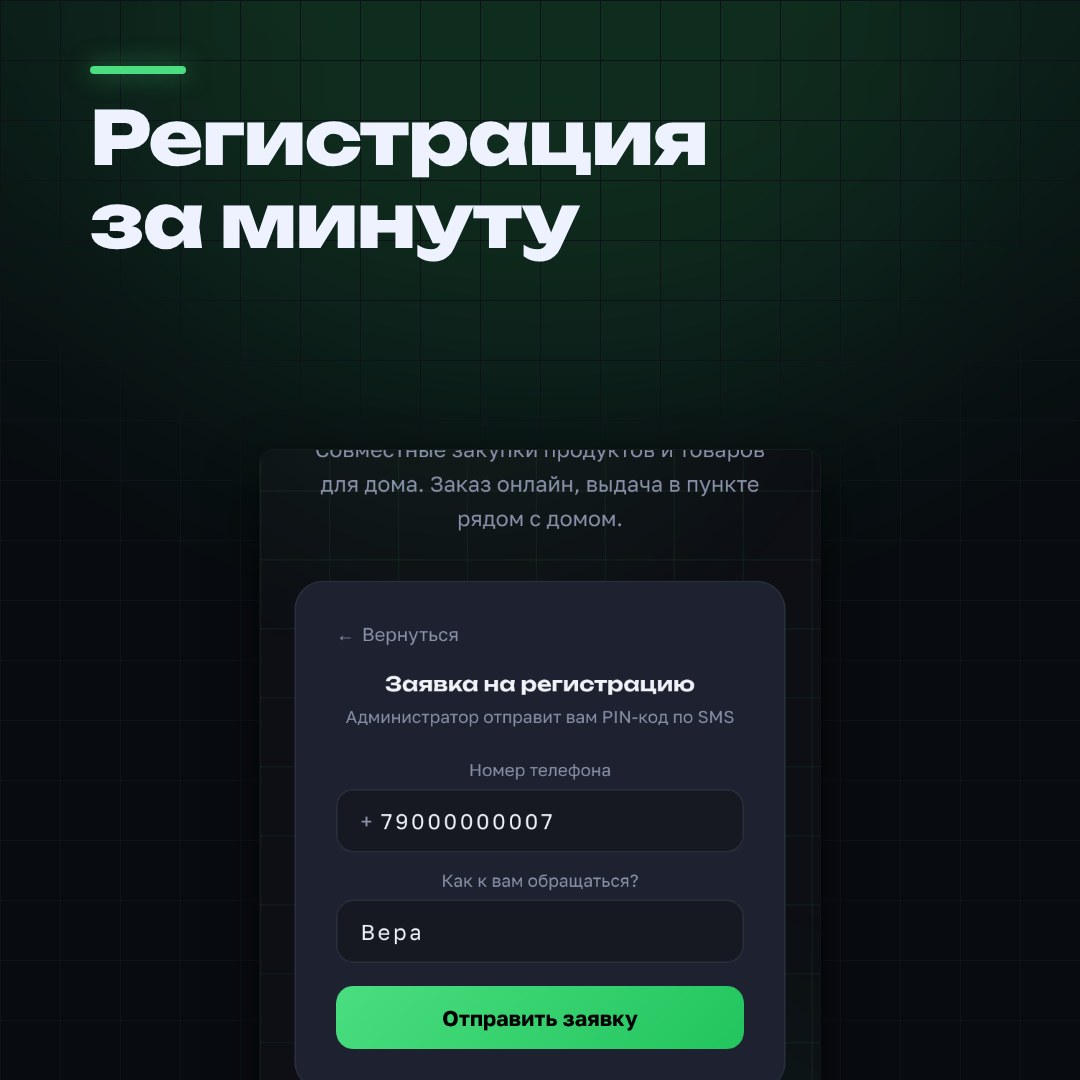
🔑 How to sign up in the app
You sign up once, with your phone number. Two ways:
💬 Via MAX — if the "Registration" screen has a "Via MAX" button: tap it and send the bot the code from the screen. No need to wait for a PIN.
✅ With a request: "Sign up" → "Submit request" → enter your phone and name → get a PIN code and sign in with it.
📌 The PIN is one-time and only for signing in to our app. Don't forward it to anyone.
📌 Right after signing in, add your email in the profile — it's a backup way to sign in.
📌 You stay signed in: open the app at least once every two weeks and you won't need a code again.
👉 Link to the app: [your link]
Full guide 👇
https://ordergrow.ru/en/start-registraciya?utm_source=shop&utm_medium=nabor
#groupbuying #guide
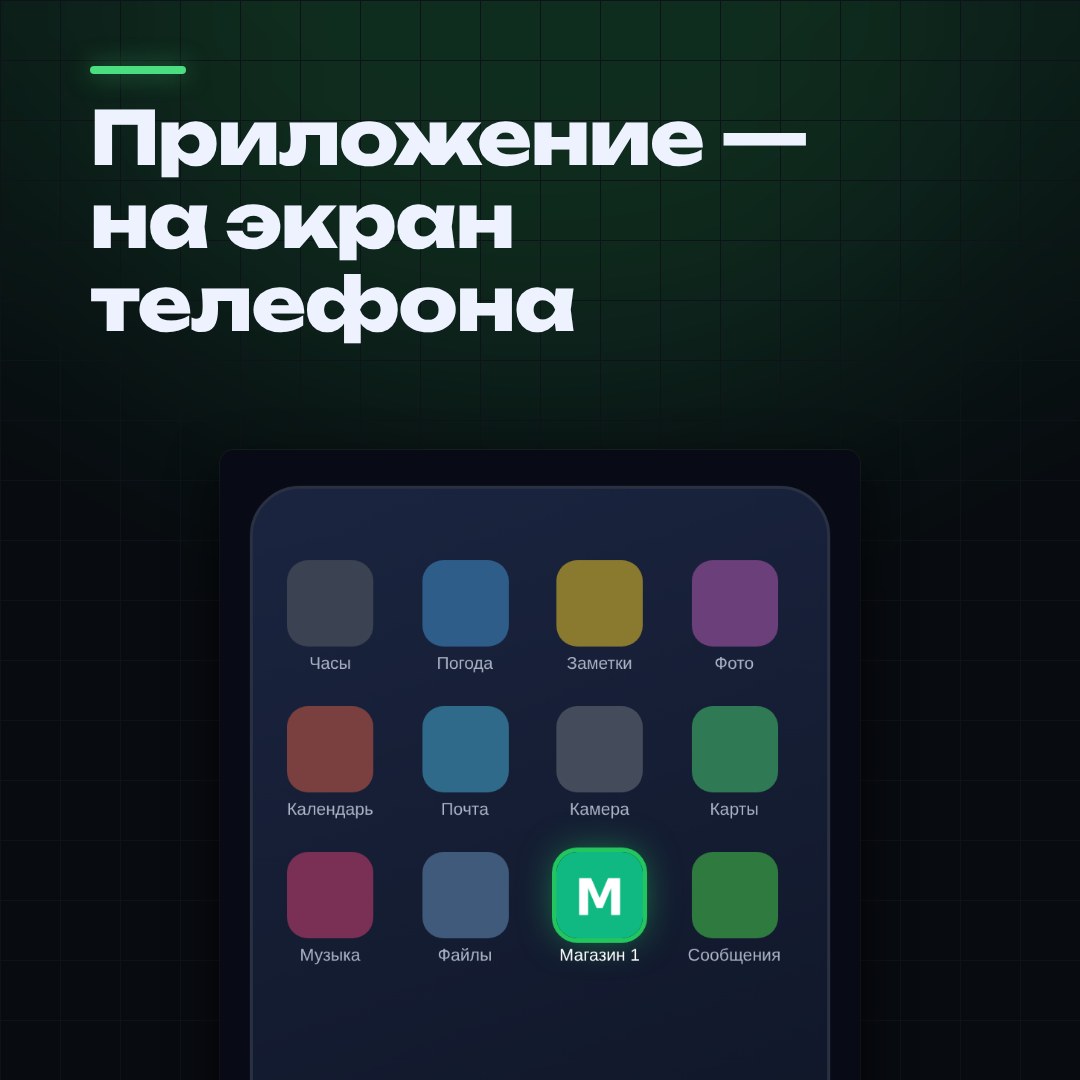
📲 Add the app to your home screen
It opens with one tap, full screen, and order notifications work. Nothing to download.
🤖 Android: open the app in Chrome or Yandex Browser → browser menu → "Install app"
🍏 iPhone: open it in Safari → "Share" → "Add to Home Screen"
📌 If your phone offers a "shortcut" or an "app", choose the app.
📌 Can't do it? We'll help when you come for your order.
Step by step 👇
https://ordergrow.ru/en/start-ustanovka?utm_source=shop&utm_medium=nabor
#groupbuying #guide
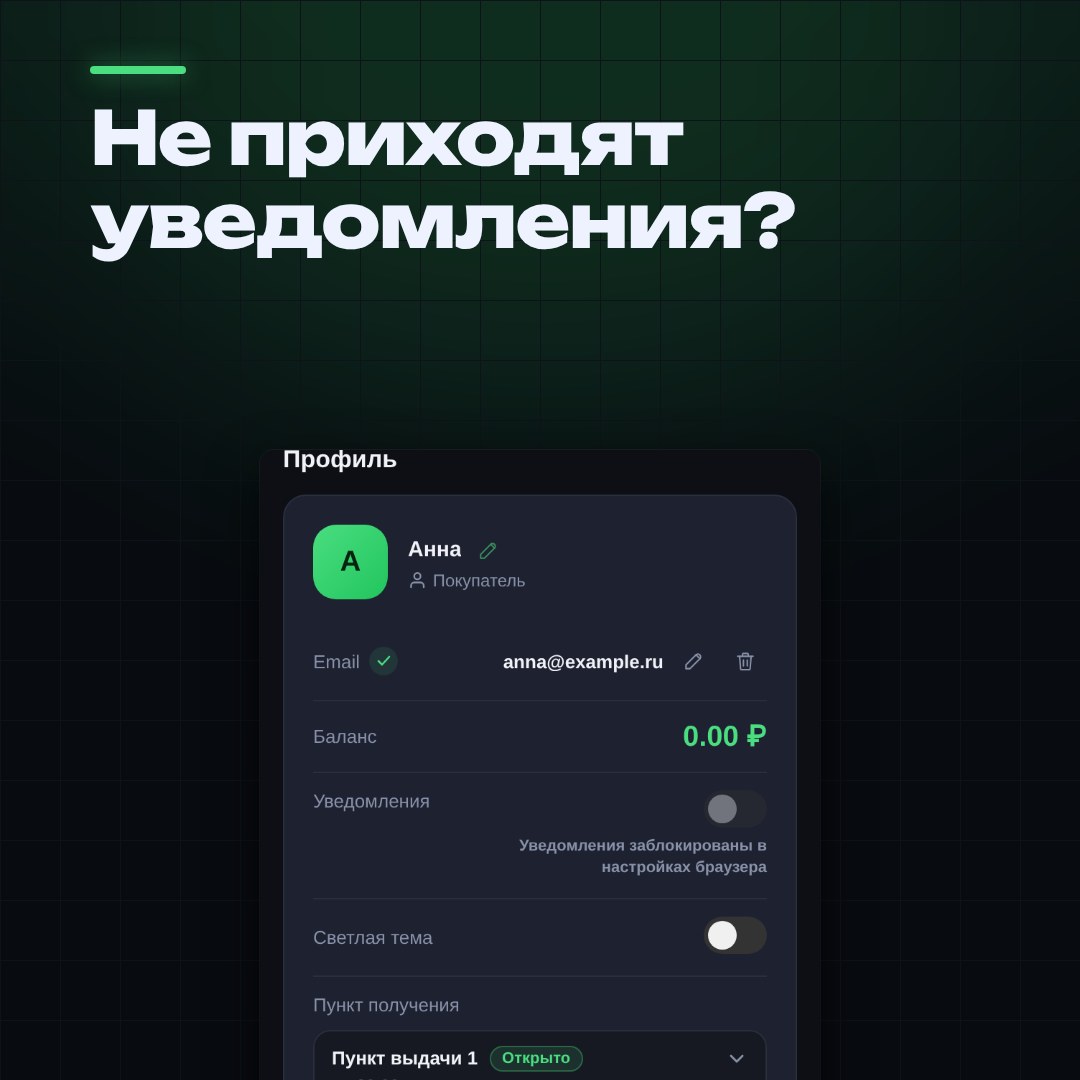
🔔 Not getting order notifications?
Most often they are blocked in the browser settings on your phone. The app can't fix this by itself — they can only be allowed in the phone's settings, on each phone separately.
✅ Profile → "Notifications" → turn on
✅ If it says "blocked in browser settings", allow notifications for your browser in the phone's settings
✅ On iPhone, first add the app to your Home Screen, then turn on notifications
📌 Missed one? Everything is saved in the app under "Notifications" and "News".
What to check if it doesn't work 👇
https://ordergrow.ru/en/start-uvedomleniya?utm_source=shop&utm_medium=nabor
#groupbuying #guide
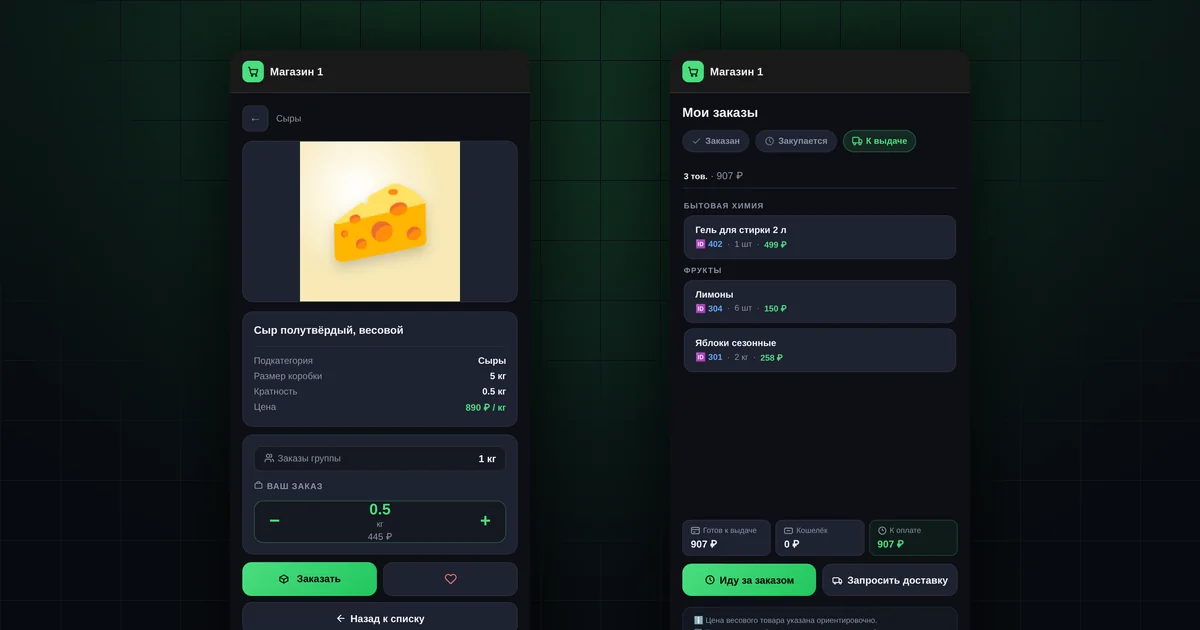
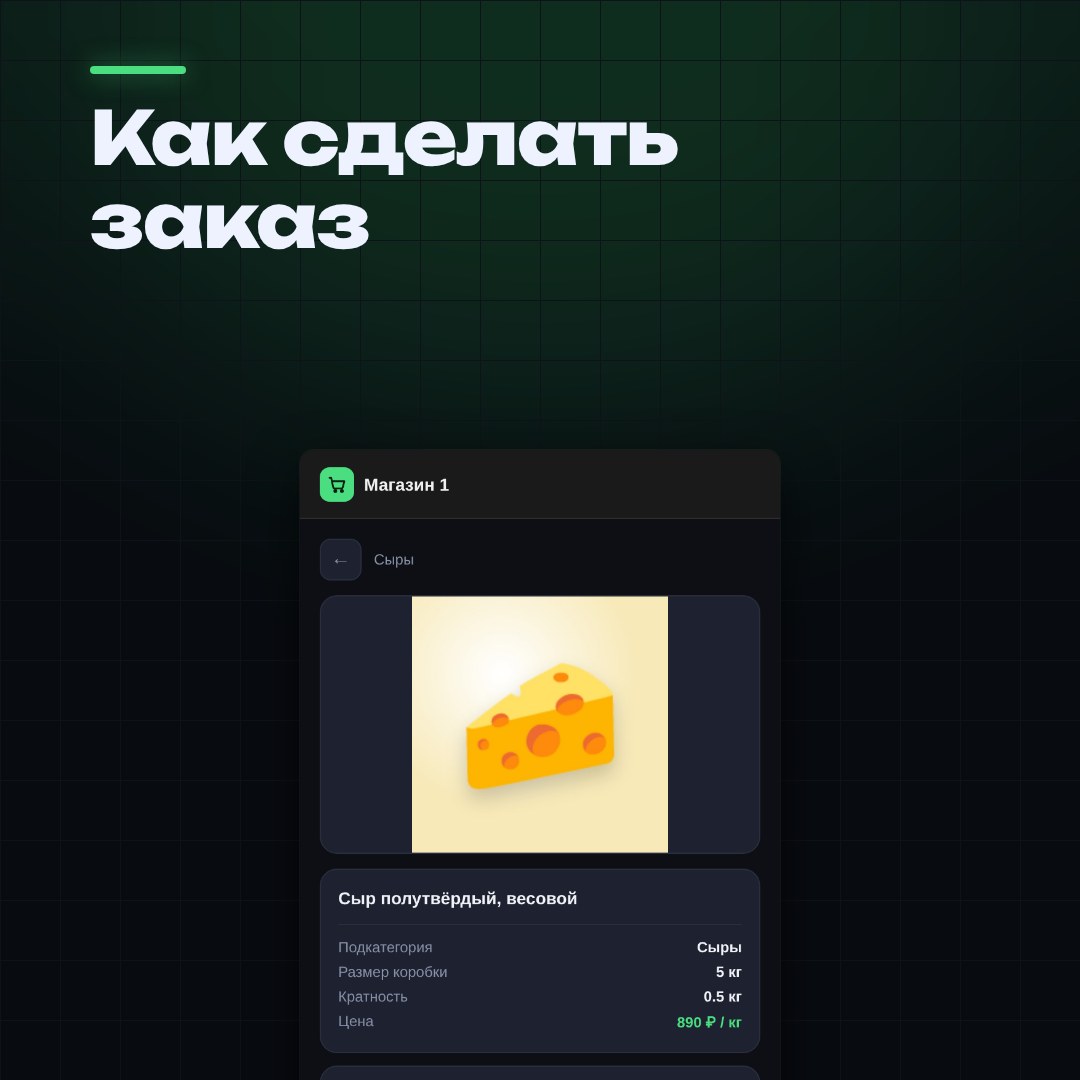
🛒 How to place an order
✅ Find a product in "Catalog", "Hits" or "Collections"
✅ Choose the quantity with "−" and "+"
✅ Tap "Order" — done
📌 "Step" is the order increment: cheese in 0.5 kg steps can be 0.5, 1 or 1.5 kg.
📌 "Group orders" shows how much everyone has ordered — you can see if the box will fill up.
📌 You can't change the quantity: cancel and order again. You can cancel while the collection is open.
📌 The timer on a product shows how long until the collection ends.
Details 👇
https://ordergrow.ru/en/start-kak-zakazat?utm_source=shop&utm_medium=nabor
#groupbuying #guide
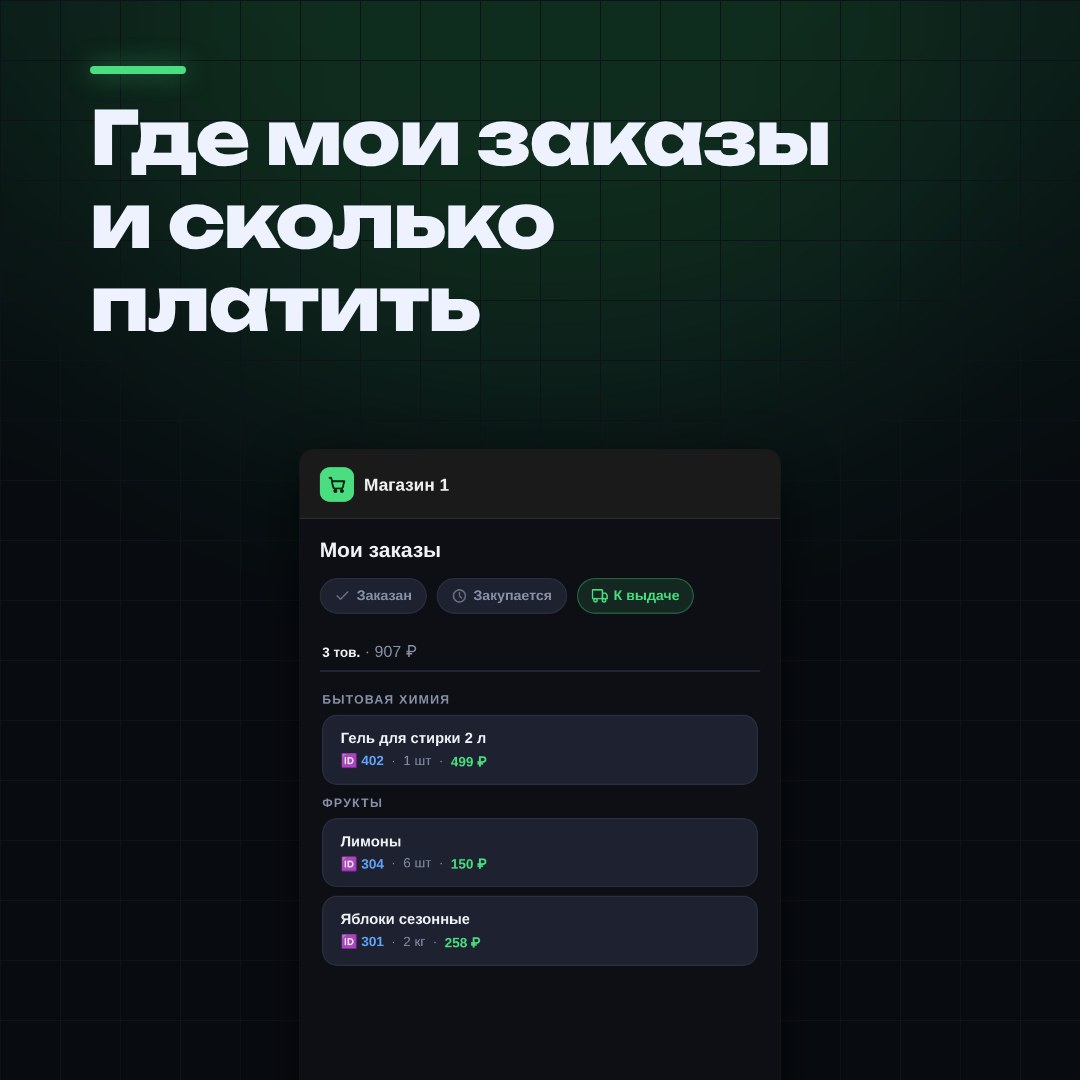
📦 Where to see your orders and how to collect them
The "Orders" section has three tabs:
🟡 "Ordered" — the collection is open; you can cancel
🔵 "Purchasing" — we're ordering from the supplier
🟢 "Ready" — you can collect it
💰 At the bottom of "Ready" you'll see "To pay" before you come.
🚶 "Pick up order" — tell us when you're coming and we'll have your order ready.
📍 Pickup address and hours are in "Profile".
Details 👇
https://ordergrow.ru/en/start-moi-zakazy?utm_source=shop&utm_medium=nabor
#groupbuying #guide
How to use the kit so you get fewer questions?
- Repeat the guides. A single post at launch is not enough: new buyers keep joining, and others forget. A good rhythm is one guide every one or two weeks, in turn.
- Answer with a link. If a question keeps coming up, send the link to the guide instead of explaining in the chat.
- Set things up at pickup. A buyer who comes to collect an order is standing next to you. In a minute you can add the app to their home screen, turn on notifications and add their email together. Pickup checklist.
- Put the card at your pickup point. The A6 card has a QR code that opens the buyer guide.
Can you adapt the guide texts to your shop?
The group posts can be edited before publishing however you like: it is your post. The guide pages themselves are shared by all shops. That is why they describe every sign-in method and every section, while buyers see in the app only what your shop has turned on.
Questions and answers
Do you need to sign up to open the guides?
No. They are public pages; send them to anyone.
Will the guides work if my shop has no delivery or no MAX sign-in?
Yes. The guides describe all options, and buyers see in the app only the ones you have turned on.
Where can I ask a question the guides don't answer?
Ask the AI assistant on the site. It answers from the site's materials.
Read next