Previously all buyer interaction in OrderGrow started with registration: to see the assortment and prices, a visitor had to create an account in the app or bot. That works when the buyer arrives on a recommendation from an organizer they already know. But for a new visitor — from a website, an ad, a search engine — registration before seeing any goods was often a reason to leave.
The public shop page removes that barrier. A shop gets a dedicated link that opens a catalog with photos, prices and categories. The visitor browses the assortment and looks for what interests them — the way it works in any online store. Registration only appears at the checkout step.
How to enable the shop page
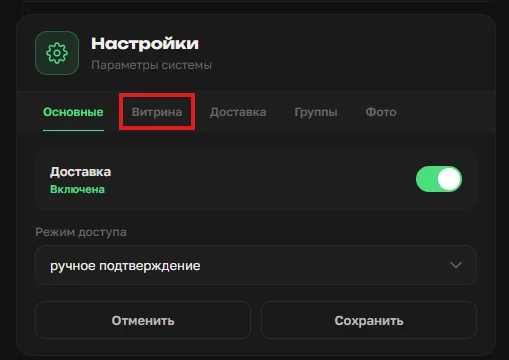
A dedicated "Shop page" tab has appeared in shop settings. It opens from the main settings screen, next to "General", "Delivery", "Groups" and "Photos".
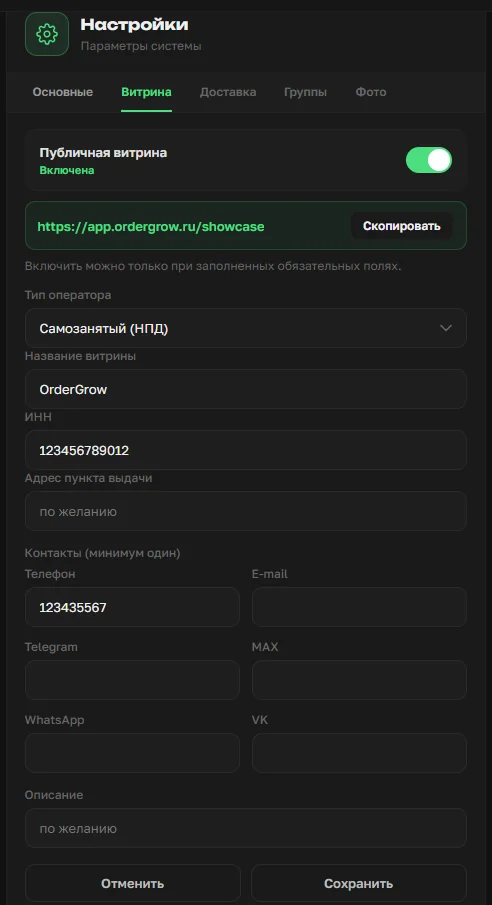
Inside the tab: a "Public shop page" toggle, a link of the form [subdomain].ordergrow.ru/showcase with a copy button, and a form with the shop's fields — operator type, shop name, tax ID, pickup address, contacts and description. The toggle can only be enabled after the required fields are filled in — this guarantees the visitor sees a proper shop info page instead of an empty stub.
What to show on the shop page
Not every product in the catalog should appear on the public page: some of the assortment is reserved for the internal group, some isn't ready for public exposure. Publishing control lives in a dedicated "Shop page" column in the product matrix.
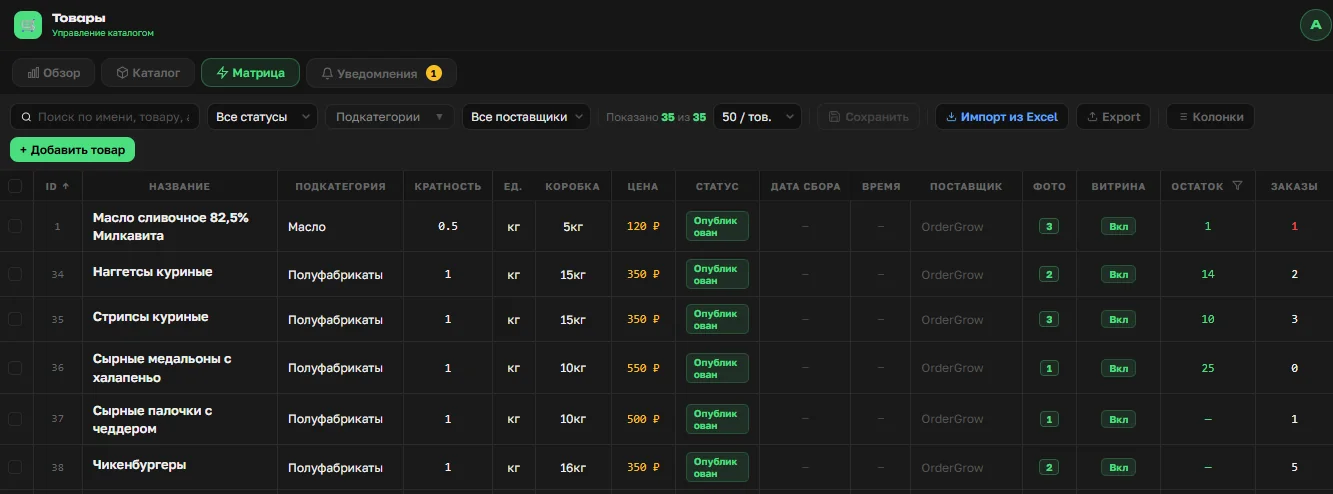
Each row has an On/Off toggle. A product with the toggle on lands on the public catalog; with the toggle off it remains inside the app for registered buyers only. The setting is independent — showing on the shop page doesn't change how the product behaves in collections.
What a new visitor sees
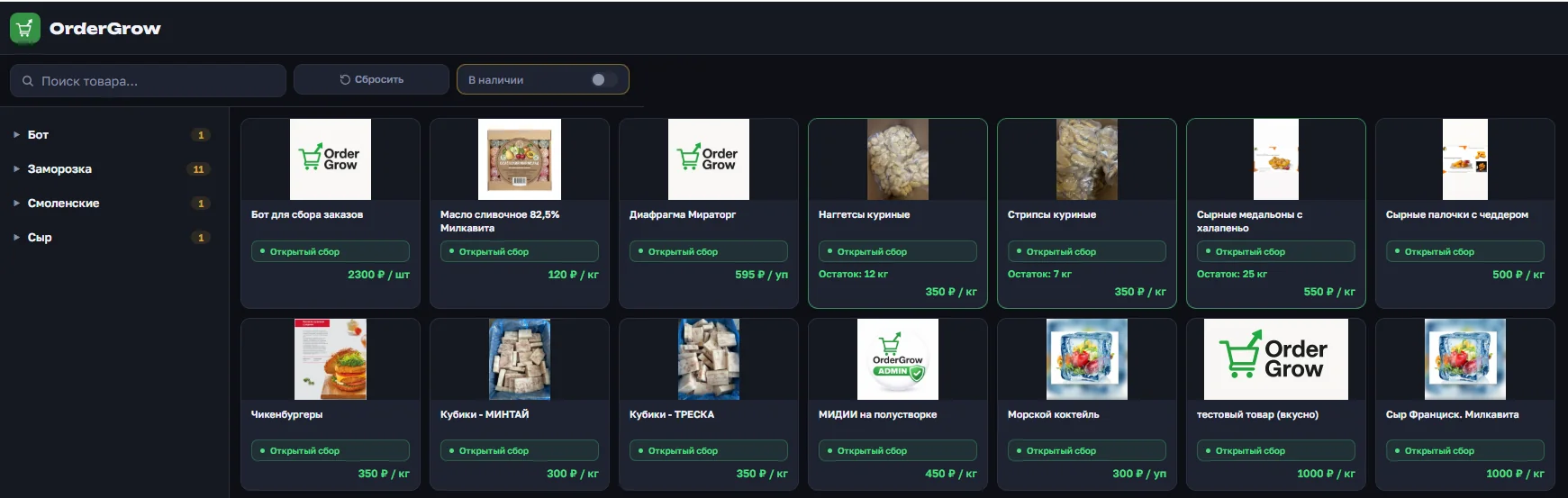
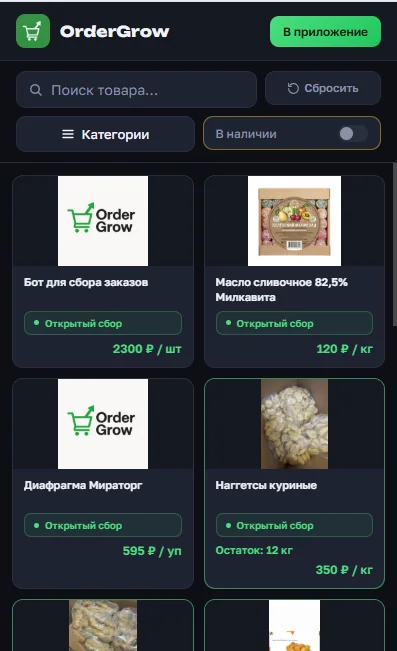
The shop page opens immediately — no auth, no mandatory fields on entry. There's a search box, a category filter, an "In stock" toggle, and cards with a photo, name and price. At the bottom of each card — the collection status: "Open collection", planned date and other tags.
The shop page adapts to any screen — from a wide monitor to a phone: on a large display products fit into 6–7 columns, on mobile — into two. Categories are shown as a side panel on desktop and collapse into a "Categories" button on mobile.
When the visitor taps a product card, a popup asks for registration. The wording is soft: not a demand, but an explanation — "to open the card and place an order". A "Continue browsing" option lets them go back to the catalog without signing up.

What a registered buyer sees
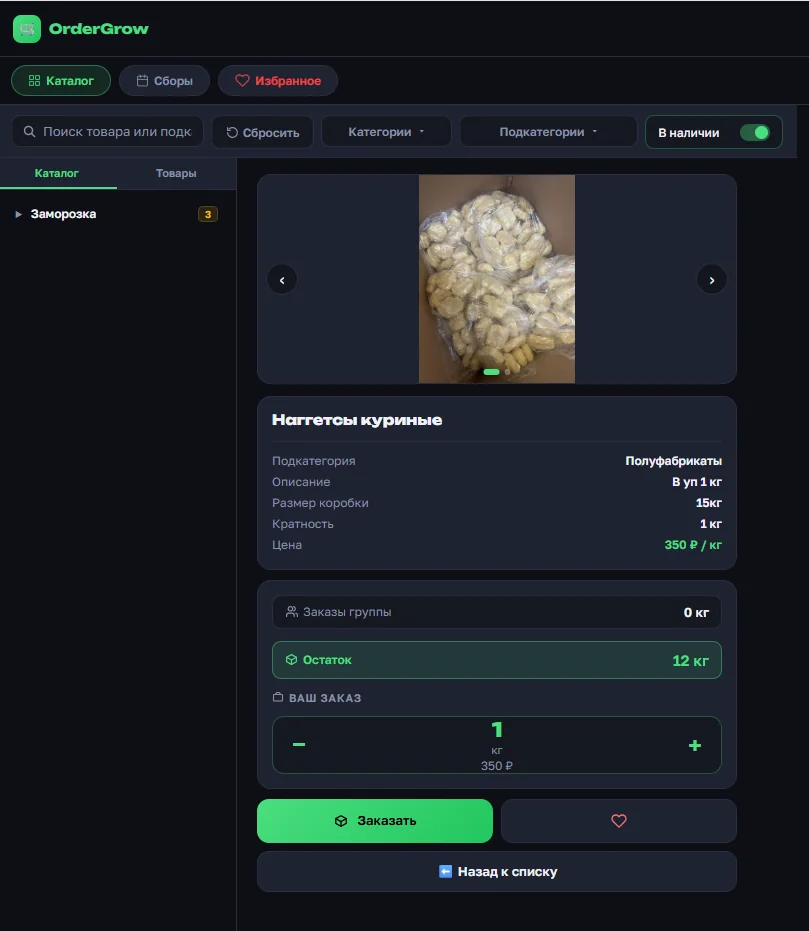
After registration the shop link opens with full access: a click on a card leads to a detailed product page with a photo gallery, description, package size, step and price.
On the same page — a "Group orders" block with the total volume already ordered by others, a "Stock" block with the available quantity, and a "Your order" counter for placing the order. One page is enough to decide: order, add to favorites, or go back to the list.
The "In stock" toggle — what it's for
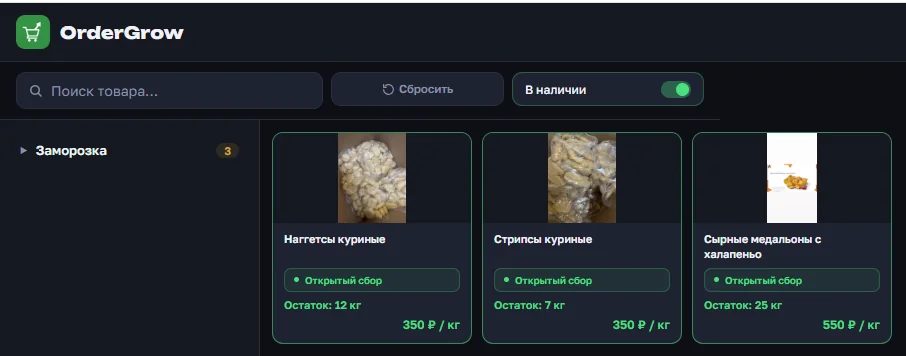
The shop page has a visible "In stock" toggle. It switches the catalog to a mode that shows only products with a defined stock that physically exists. Some categories may disappear in this mode — if no product in them passes the filter.
Where the shop page works
The public shop page opens via a direct link in a browser — on a computer, phone or tablet. It doesn't live in the Telegram bot: there, buyer interaction still begins after tapping Start. This is deliberate — the shop page is designed for traffic from search, social media and ads, where visitors arrive via a link rather than through a messenger.
Who this is for
The shop page helps any shop that wants to expand its buyer base beyond its current group: a group-buying organizer signing up members in a new district; a supplier who needs to show assortment and prices to wholesale buyers; a made-to-order seller for whom the shop page replaces a separate website. Setup takes a few minutes — and the link can go straight into classifieds, social posts and ad campaigns.