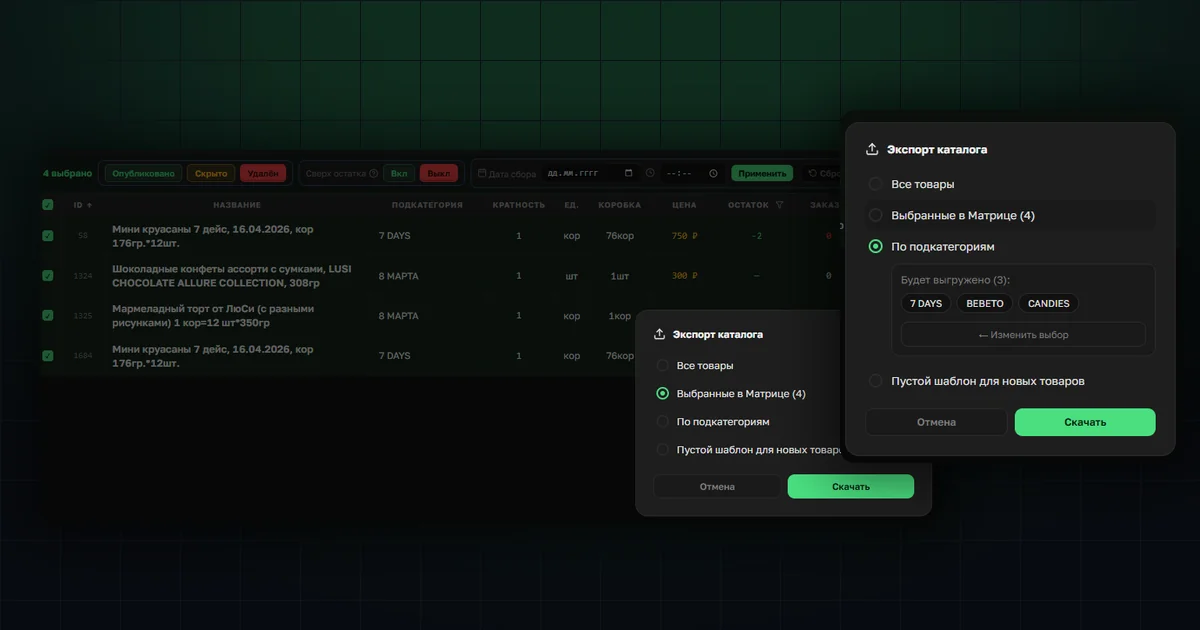
Previously, the "Export" button in the "Products" section instantly exported the entire matrix, with no options — and then you had to find the item you needed in the full list. Customers asked for selective export, and for adding new products, for a blank form to fill in separately instead of going through the in-app product card. We covered working with the catalog via Excel in detail in "Managing your catalog in Excel" — this article builds on that one.
Now, clicking "Export" opens a selection window instead of an instant download — with three modes instead of one, plus a separate blank template for new products.
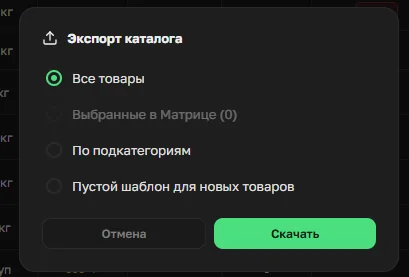
Exporting items selected in the Matrix
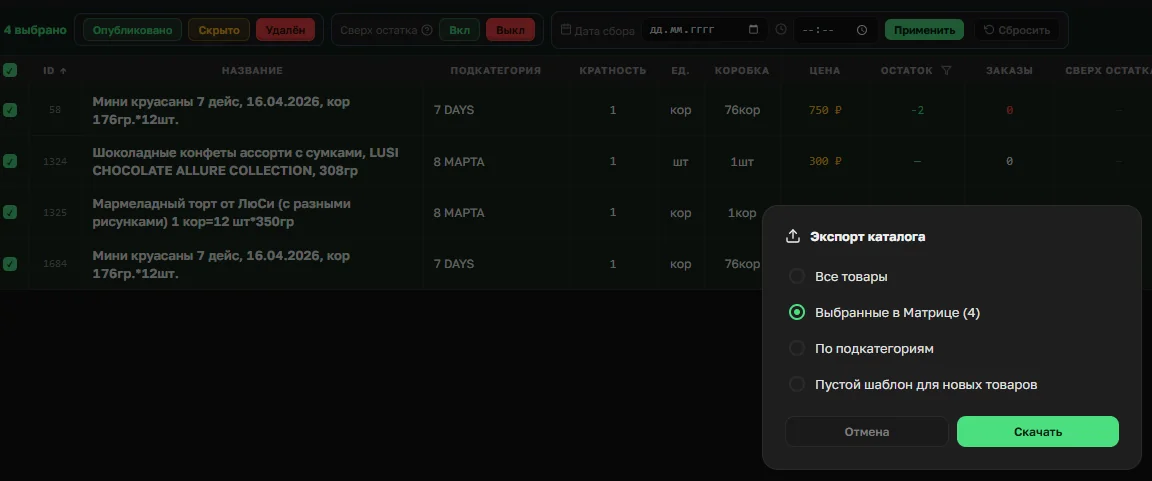
In "Products" → "Matrix" you can narrow down the assortment with filters — for example, pick subcategories, then specific items within them. The number selected is shown in the counter in the top-left corner.
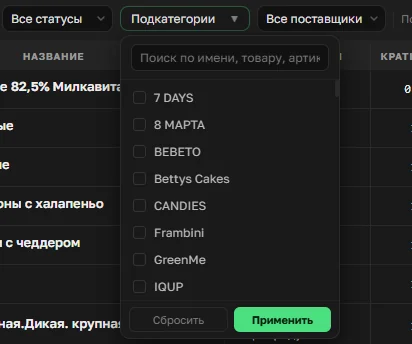
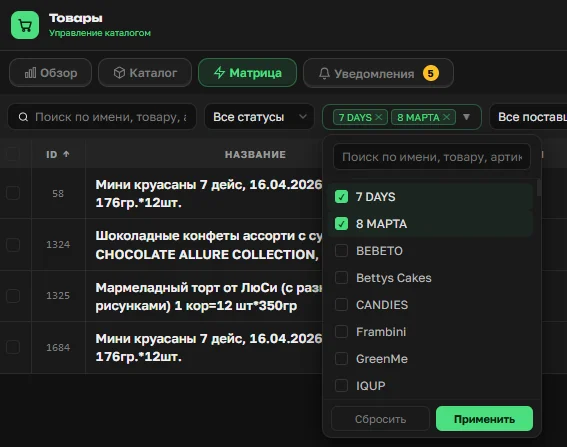
Clicking "Export" opens a window with a "Selected in Matrix" option, already showing the number of checked items. Just click "Download": only the selected items are exported to Excel, and you can immediately set collection end dates and times, statuses, and prices for them without scrolling through the whole matrix.
Exporting by subcategory — without selecting in the Matrix
A second way to get the same result — without manually picking items first. In the "Export catalog" window, choose "By subcategory," check the subcategories you need in the list that appears, confirm the choice — the window shows how many subcategories and what exactly will go into the file. Then click "Download."
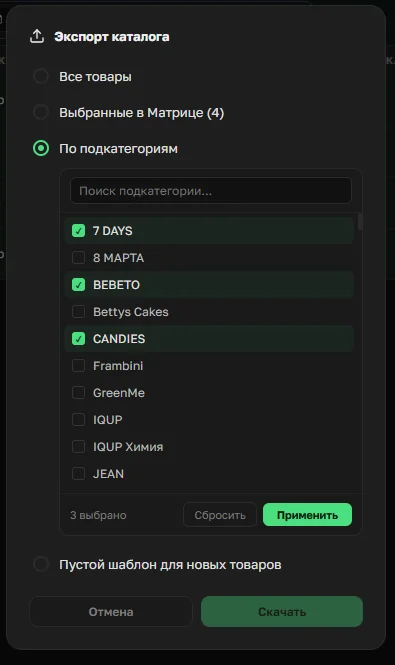
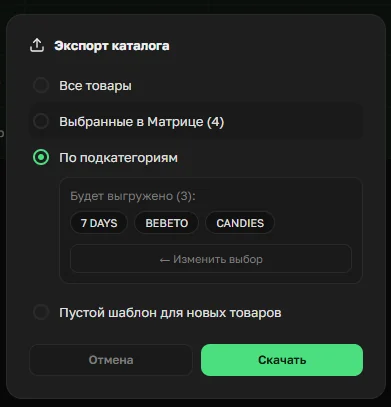
The difference from the first method: there you pick specific items in the Matrix; here you export whole subcategories at once, with no manual picking inside them. This method is especially handy in the OrderGrow mobile app: working with the full-size Matrix on a phone screen is awkward given the screen size, while picking subcategories in a compact window works without that limitation.
A blank template for new products
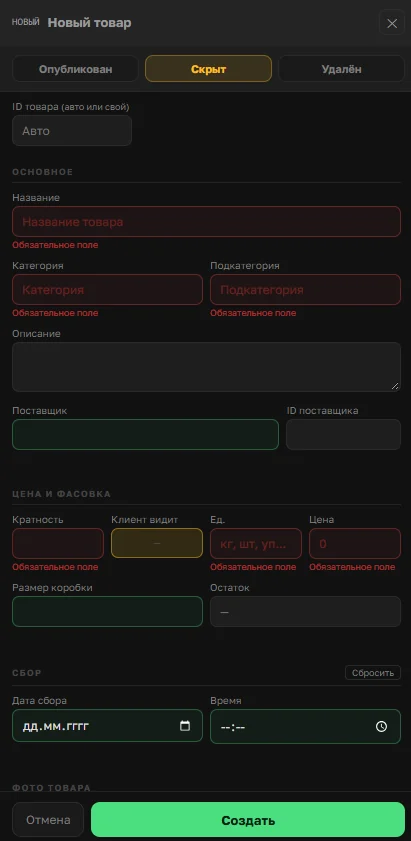
The third option in the same window is "Blank template for new products." It's an alternative to manually filling in the new-product card in the app: instead of a form with required fields, you can download a blank template, fill it in in Excel, and upload it back. The system checks it's filled in correctly and adds the products.
What's available in the mobile app
All three export methods work in the desktop version of OrderGrow. In the mobile app: "All products," "By subcategory," and "Blank template for new products" — exporting items selected in the Matrix isn't available on mobile.
What's next
Selective export and the blank template are live now, in the same "Export catalog" window. Try the group-buying app in full, catalog work via Excel included, at OrderGrow Lab — seven days free, no card required.