Until now, a group buying organizer in OrderGrow worked with one model: collect orders, buy from the supplier, hand over. Anything outside preorder required a separate tool — a spreadsheet, a chat, a third-party service.
Stock tracking adds a second model right into the same catalog: some products live by the previous collection logic, some — by the new one, with free stock on the shelf. The same customer group, one interface. The setting is independent: products without a specified stock work as before, nothing needs reconfiguring.
Stock and orders in the matrix
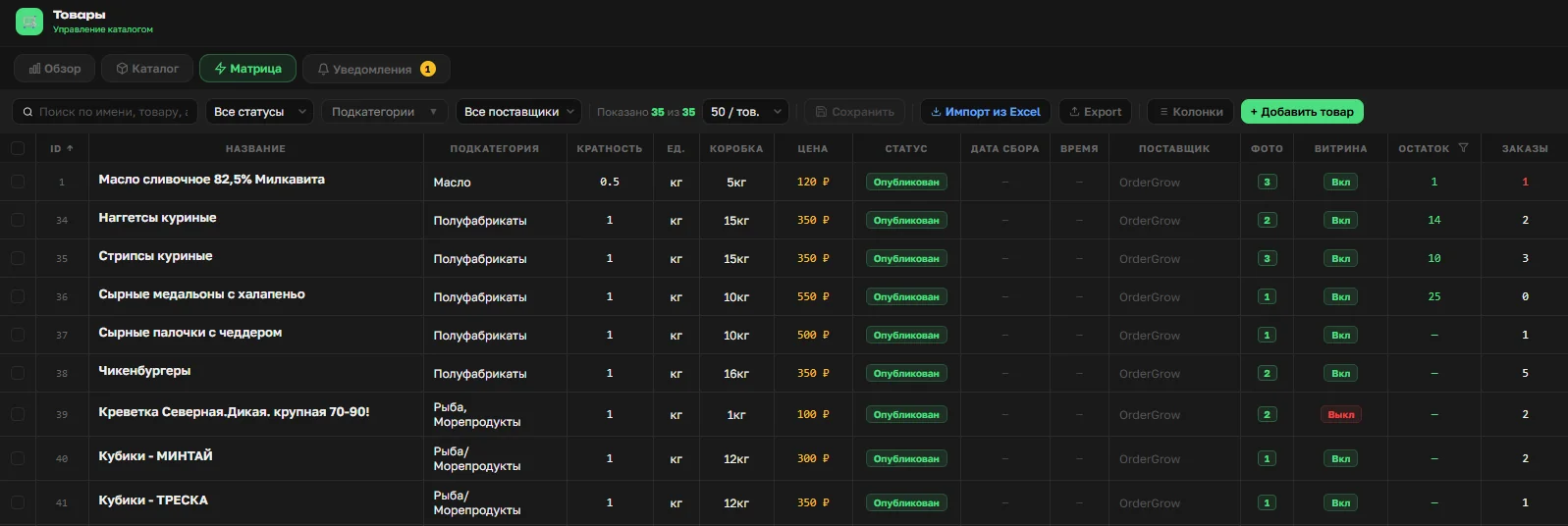
The Matrix section — where the organizer manages the whole assortment — has two new columns: "Stock" and "Orders". "Stock" shows the free quantity available to order. "Orders" — how much has already been booked by customers. Red highlighting draws attention to products with zero or negative values.
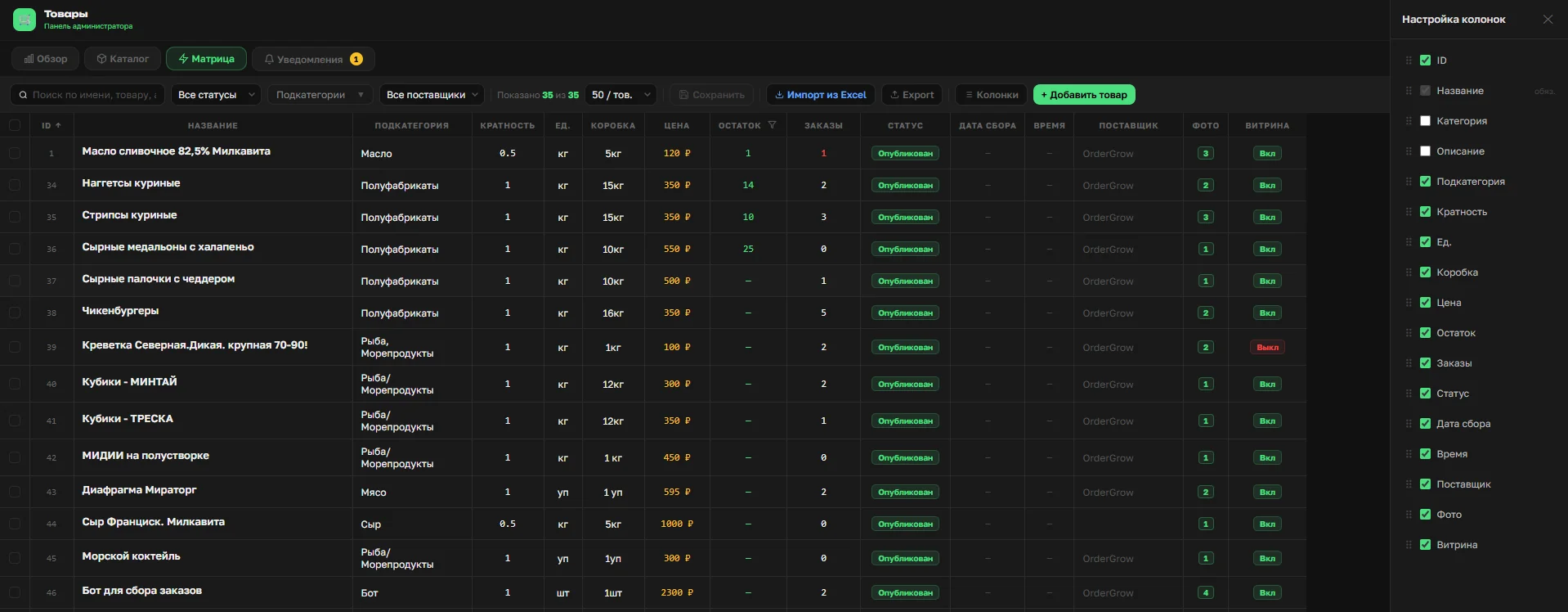
The order of columns in the matrix is configurable. The "Columns" button on the right side of the header opens a control panel: any column can be hidden or rearranged. The organizer keeps on screen only what matters for the current task — screen size stops being a limitation.
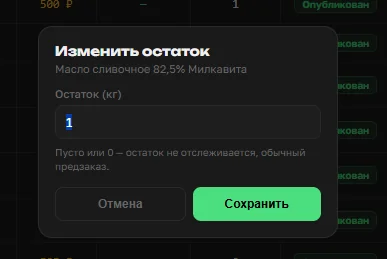
Stock can be edited directly from the matrix. A click on the cell in the "Stock" column opens a popup with an input field. The "Save" button — and the value updates across the system instantly.
What the customer sees
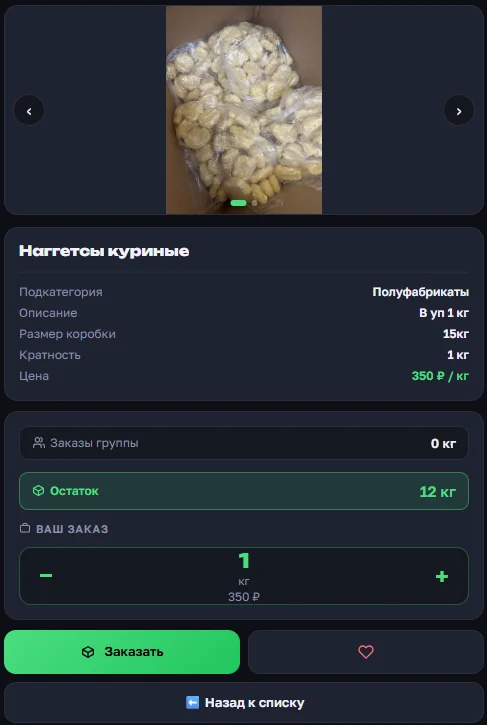
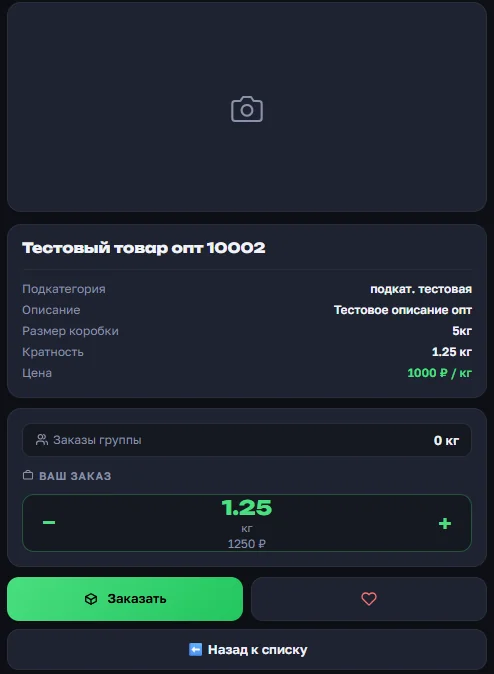
The product card for an item with a defined stock now has a separate "Stock" block with the highlighted quantity. Next to it — the familiar "Group orders" block with the total volume already ordered. The customer sees both indicators at once and understands: this product can be picked up now, no need to wait for the collection to close.
If a product's stock is not defined, the "Stock" block does not appear in the card. The product works as before — the order is placed before the collection closes, and the customer waits for the supplier purchase.
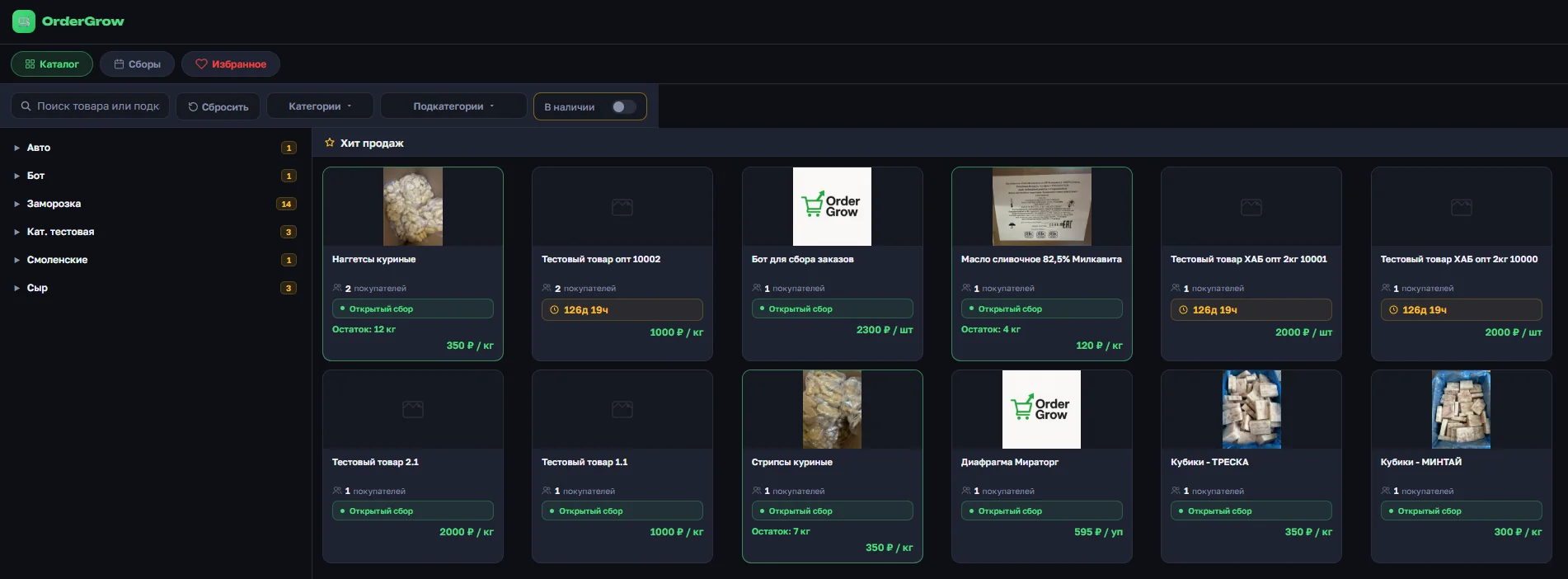
In general lists, the customer also distinguishes in-stock products from preorder ones. In the "Best sellers" section, cards with stock are marked with a green border:
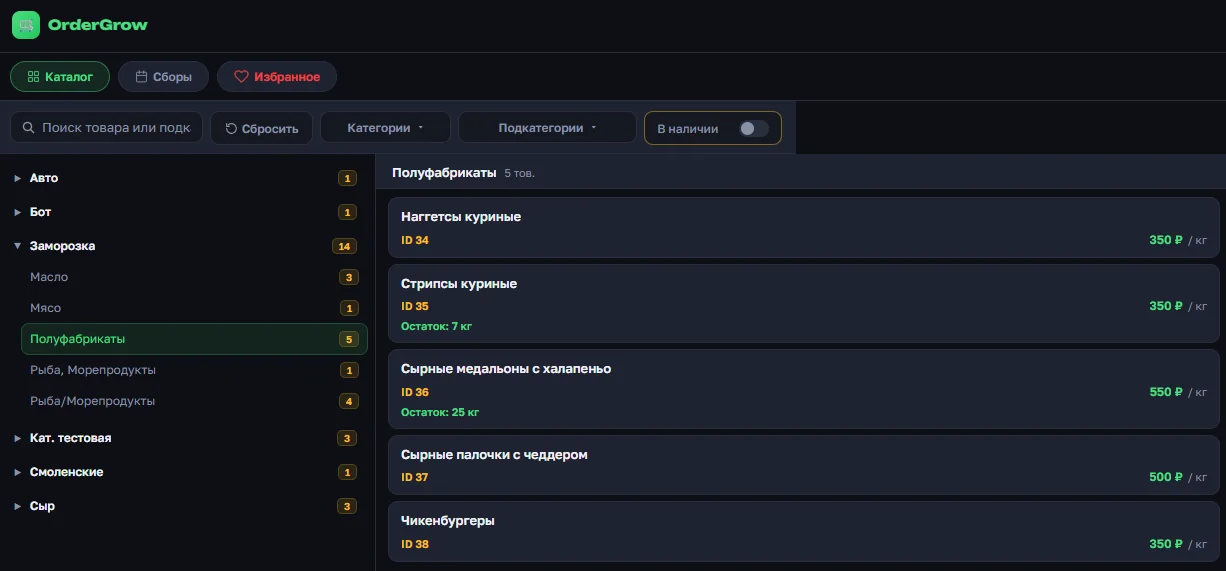
At the subcategory level, before opening a card, in-stock products display a "Stock: N kg" line. The customer navigates the assortment without opening each product:
Order with a stock check
The order placement process looks the same to the customer — they pick a quantity and tap "Order". What changed is the internal logic: the system verifies the quantity against the free stock before confirming the order.
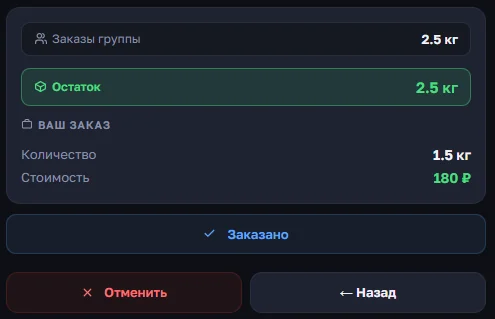
If the customer tried to order more than available, the system places the order for the actually available quantity and shows an explanation. The rejection isn't "hard": the customer sees how much they got and decides — keep the order or cancel it.
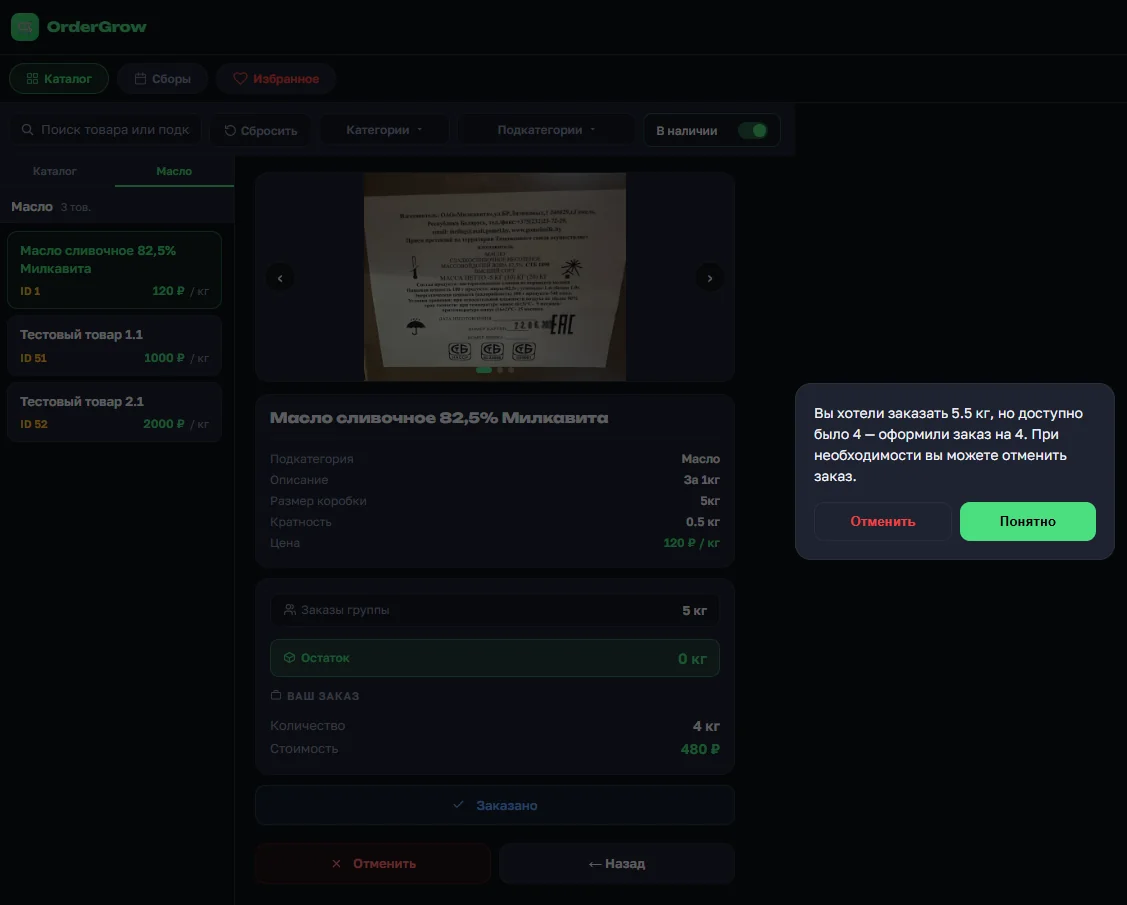
If they confirm — the order is fixed, and the free stock is recalculated for all other customers in real time. If they cancel — the order is dropped and the reserved quantity returns to the free stock.
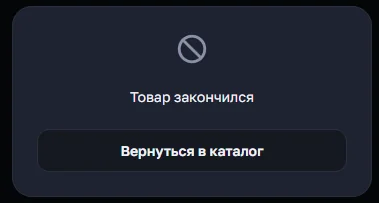
The principle is "first to order — first to get". If the entire free stock is already reserved by other customers, and someone else opens the card of such a product — a "Out of stock" message with a "Back to catalog" button is shown. Not even a single unit can be ordered.
The stock check prevents negative stock from appearing in the system due to customer orders. Negative stock can only occur from manual adjustments by the organizer — and there's a separate mechanic for those cases, described below.
Notifications about problem items
Stock tracking adds three new situations for the organizer that can't be held in mind or tracked manually:
- Hidden, has free stock. Part of the stock isn't booked by orders, but the product card is hidden — customers physically cannot order, and the stock could have been sold out.
- Published, but can't be ordered. All free stock is reserved. Customers see the card and get a rejection when trying to place an order — a bad experience worth closing by hiding the product.
- Negative stock. More was handed out than there was on the shelf — manual reconciliation is needed. Usually happens after manual quantity edits on delivered orders.
For these scenarios, the "Products" section now has a "Notifications" tab with a badge for the number of problems. Inside — three expandable lists by scenario type with specific products:
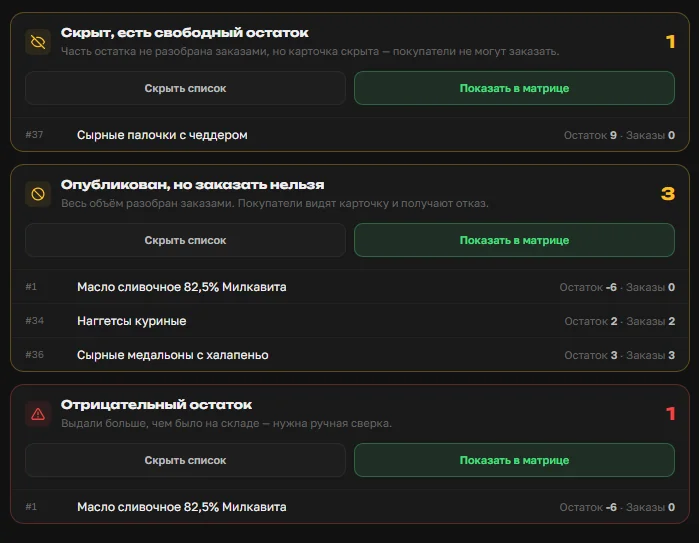
Each type has two buttons: "Show list" and "Show in matrix". The second button opens the matrix with the filter already applied: the organizer sees the problem items directly in the familiar working interface and takes action — hide, restock, adjust the stock.

The "In stock" toggle in orders
The "Orders" section has an "In stock" toggle. When it's off — the organizer sees all orders: both for in-stock and preorder products. Mixed mode by default, familiar working order.
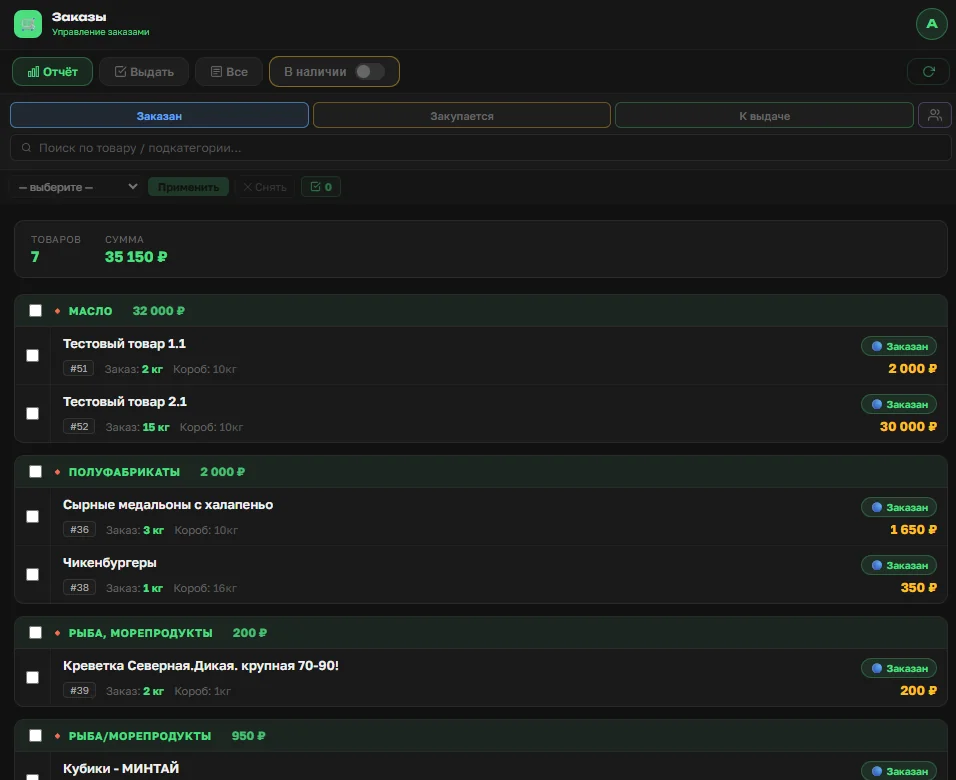
When the toggle is on — the list narrows down to orders on in-stock products. The organizer focuses on the fast part of the assortment: it goes through the "Ordered → Ready for pickup" cycle without the supplier purchase step.
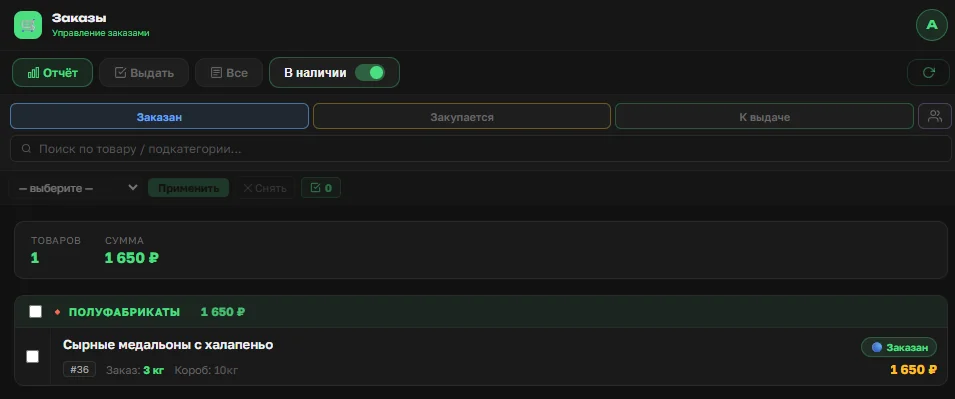
The toggle does not apply in the "Order pickup" section — on first attempt to use it, the system shows an explanation:
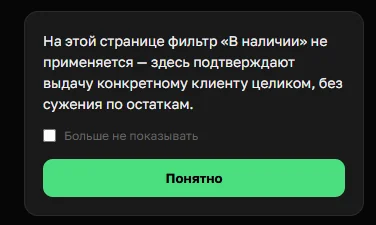
The logic is simple: at pickup, the organizer confirms the delivery of the order to a specific customer as a whole. The customer takes both what was in stock and what was purchased for their collection. Splitting these positions at pickup makes no sense.
Stock protection in the Telegram bot
Stock tracking also works in the Telegram bot, but in a simplified form. Bot functionality has always been limited by Telegram's capabilities: complex interactive popups with "Cancel / Got it" buttons, like in the app, are not available here. So the logic is simpler — the bot checks stock and doesn't allow placing an order if there isn't enough.
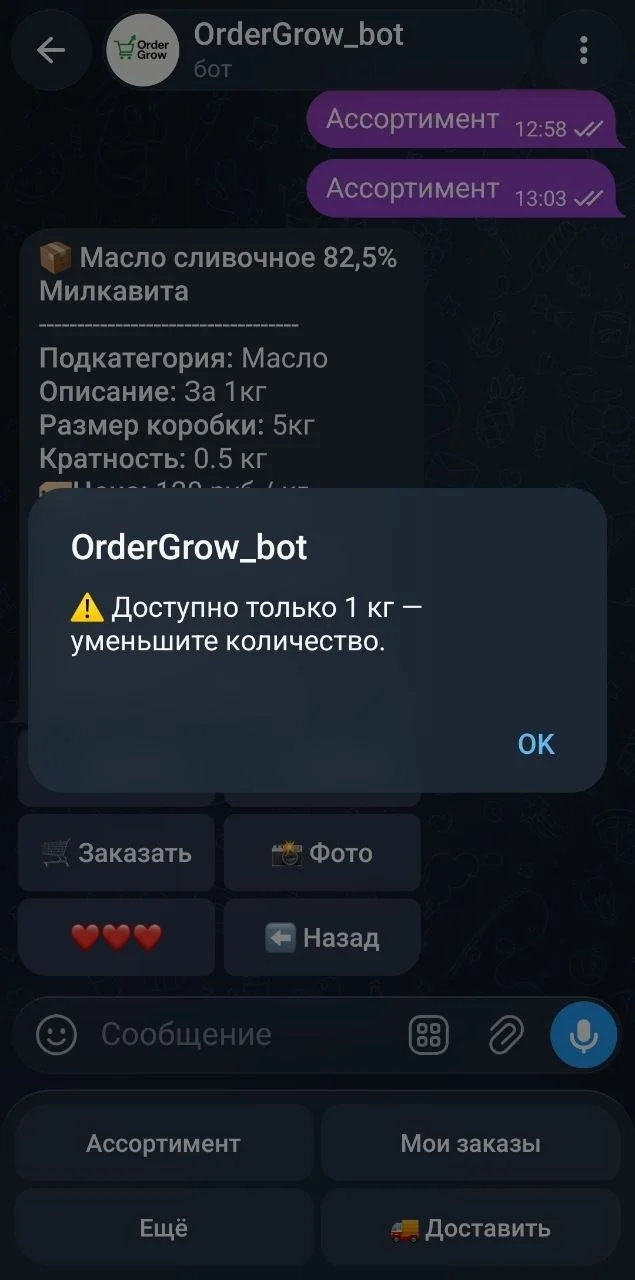
If the customer enters a quantity larger than available through the bot, the bot shows a popup: "Only N available — reduce the quantity". The order is not placed, and the customer returns to input and changes the quantity manually.
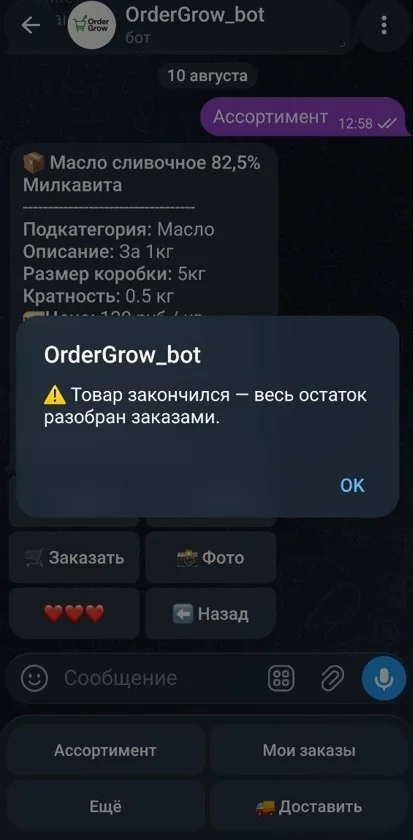
If all free stock is reserved, the bot shows a message on order attempt: "Out of stock — all stock is booked by orders". The logic is the same as in the app: ordering is not possible, the customer goes back to the list.
Auto-correction of quantity with "keep or cancel" choice, like in the app, is not available in the bot — this is a tradeoff for messenger simplicity. For the full experience, the customer can switch to the PWA app via a link available in the bot.
What this changes in practice
The main consequence — in-stock products lose the supplier purchase step. An order goes through the "Ordered → Ready for pickup" cycle without an intermediate stage, and the customer can pick up the item right away.
For the organizer this means two things. First — a new revenue source: what's already on the shelf can be sold without waiting for the next collection. Second — a new type of customer: one who wants to pick up today, not next week. Both modes work in the same catalog, for the same group, without splitting into "shop" and "collection" from the customer's point of view.