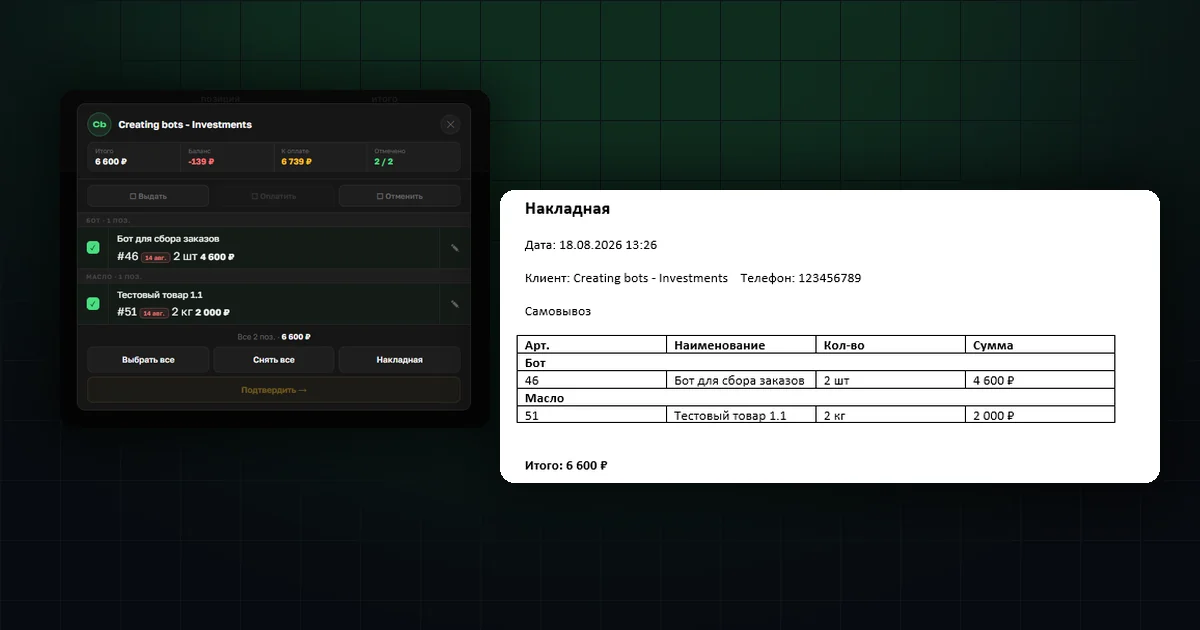
A handover almost always needs a piece of paper: to check the order against the customer, hand over with the goods, keep a copy. Until now organizers made it by hand — retyping positions into a spreadsheet or reading them out from memory.
Now the waybill is generated from the app. Tick the customers or the specific items, and you get a ready Word file that only needs printing.
Waybills from the customer list
In the "Orders" section, on the "Hand over" tab, every customer now has a checkbox. As soon as at least one is ticked, the summary strip turns into an action row: on the left, how many customers are selected; on the right, the "Waybills" button.

It's the same on a computer: a checkbox column on the left, the action row above the table.

The document includes all of the customer's items with the "Ready for pickup" status. If several customers are ticked there's still one file, with each waybill on its own page: print the batch and hand them out without sorting sheets.
The order of waybills in the file matches the order of customers on screen, so you won't be hunting for someone in the stack. The file name is built from the shop name and the date — for example SP_Kopeyka_Pickup_2026-08-18.docx — so documents don't get mixed up in your downloads folder.
A waybill for specific items
The second entry point is the handover card. When a customer collects only part of the order, tick the items you need and press "Waybill" in the bottom row of buttons.

Only the ticked items go into the document, and at their actual quantities. If the weight was corrected during handover, the waybill shows the corrected value rather than what the customer originally ordered.
Quantities can be corrected right here — the pencil next to an item opens the editor. You'll need it constantly: goods sold by weight almost never match the ordered amount gram for gram. Correct the weight on the scales, generate the waybill straight away, and the document shows the new value.
The card doesn't close after generating: printing shouldn't interrupt the handover. Generate the document, carry on ticking items, confirm the handover — the sequence doesn't change.
What's in the document
The header: the date and time it was generated, the customer's name, their phone and a "Pickup" note. Then a table — article number, name, quantity and amount. Items are grouped by subcategory, as in the catalog, which makes picking the order off the shelves easier. At the end, the total on a single line.
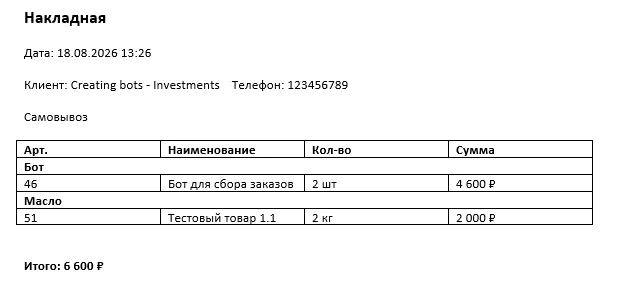
What the waybill doesn't show is the customer's balance and the amount due. That's the organizer's internal accounting: it can hold overpayments from earlier rounds, prepayments and offsets. On a document handed to a customer those figures only confuse. The waybill answers one question: what exactly the customer took and for how much.
There's no waybill number either — this isn't a formal accounting document but a working sheet for handover. Waybills in a batch are told apart by the "Customer" line.
Printing changes nothing
Generating the document doesn't change order statuses. Printed it and the customer didn't show up? No harm done — the order stays exactly as it was. You can print before handover, after it, and as many times as you like.
A couple of details for when two people work together. If another administrator handed a customer everything while you were ticking boxes, that customer simply won't appear in the document — no empty waybills. And items the customer arranged for delivery don't go into a pickup waybill: they'll travel their own route.
Delivery already had waybills
If you work with delivery, the mechanics are familiar: on the "Confirmed" tab you tick deliveries and press "Waybills". The one difference is that there a preview window opens first, showing the number of waybills, the list of customers and the total.
Pickup has no such window: the document starts building as soon as you press the button. The contents are visible on screen anyway, and an extra confirmation step at handover, where there's a queue, would only slow things down.