In short
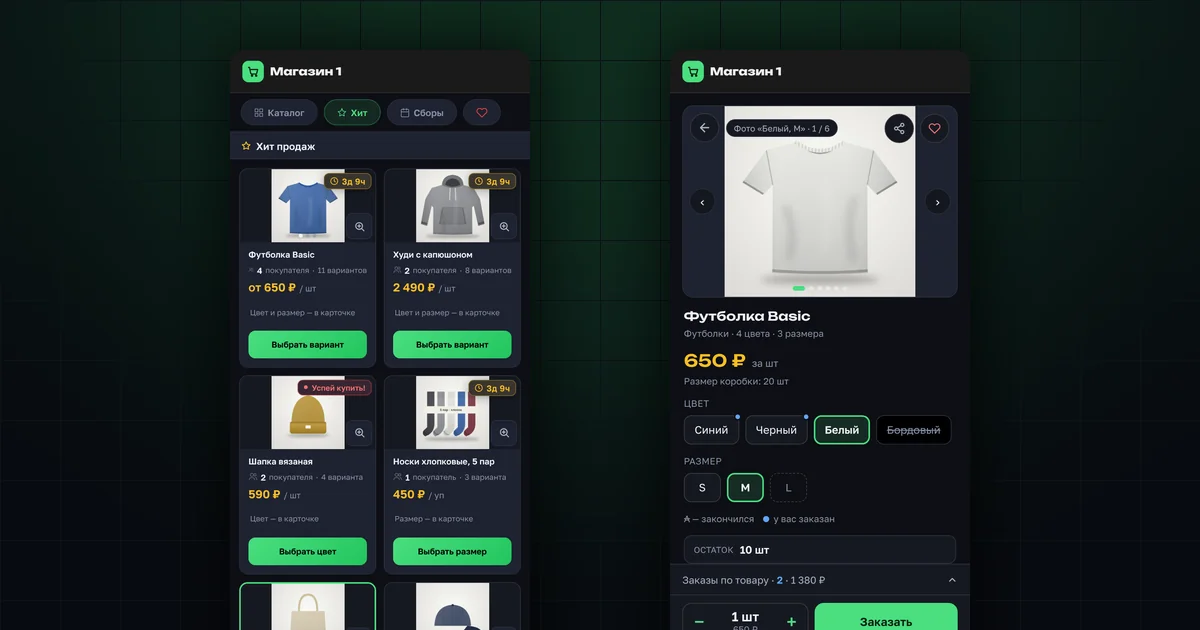
- One tile per model: a "from …" price, the number of variants and a "Choose variant" button.
- On the card, color and size are picked in two rows of chips, in any order.
- You can see which combination doesn't exist, what's sold out and what you've already ordered.
- A new card: "Share" and "Favorites" on the photo, "Order" always at the bottom of the screen.
- Your orders for the model are on the card, with cancellation.
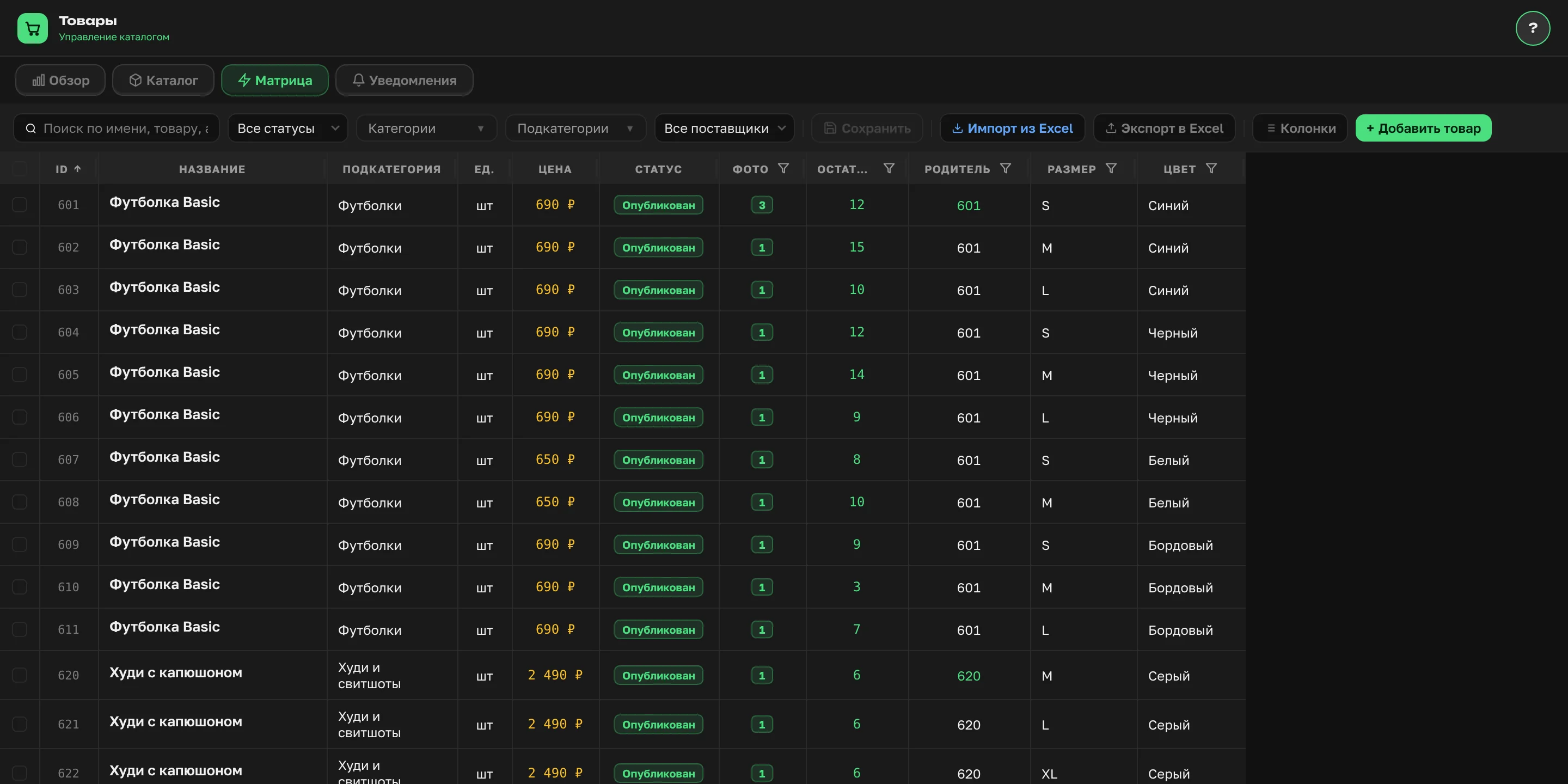
- A model is set up with the "Parent" field in the matrix, the product form and Excel.
- Color and size appear in "Orders", reports, Word waybills and messages.
- Shops without variants don't need to change anything.
How do you show a product in several colors and sizes as one card?
Previously each color and size was a separate product and a separate tile, and color and size had to be written in the name. The model got lost among its own variants.
Now all variants of one model are shown as one tile. It shows the lowest price as "from", the number of variants and a "Choose variant" button. If the variants differ only in size or only in color, the button reads "Choose size" or "Choose color". After ordering, the tile shows "Ordered: 2 variants" and an "Another variant" button.
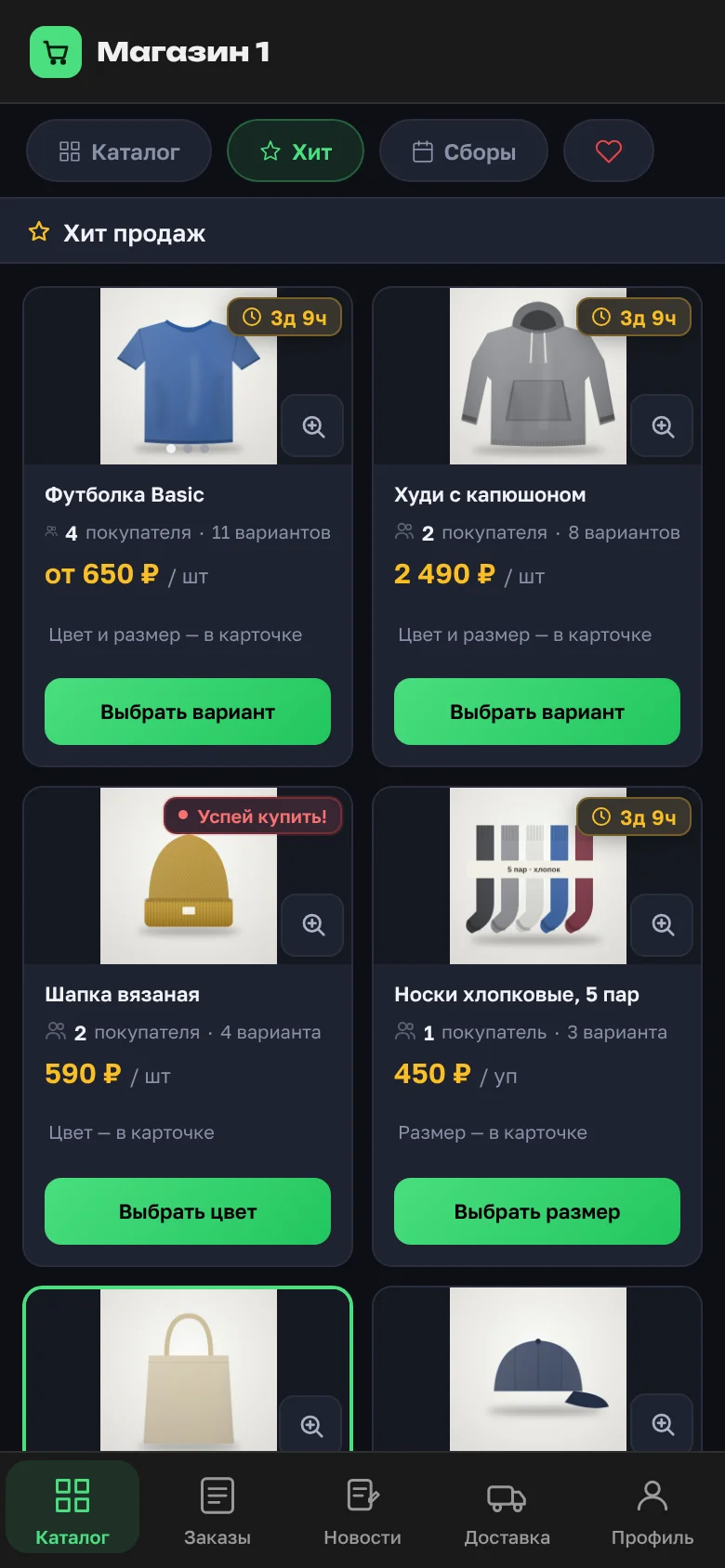
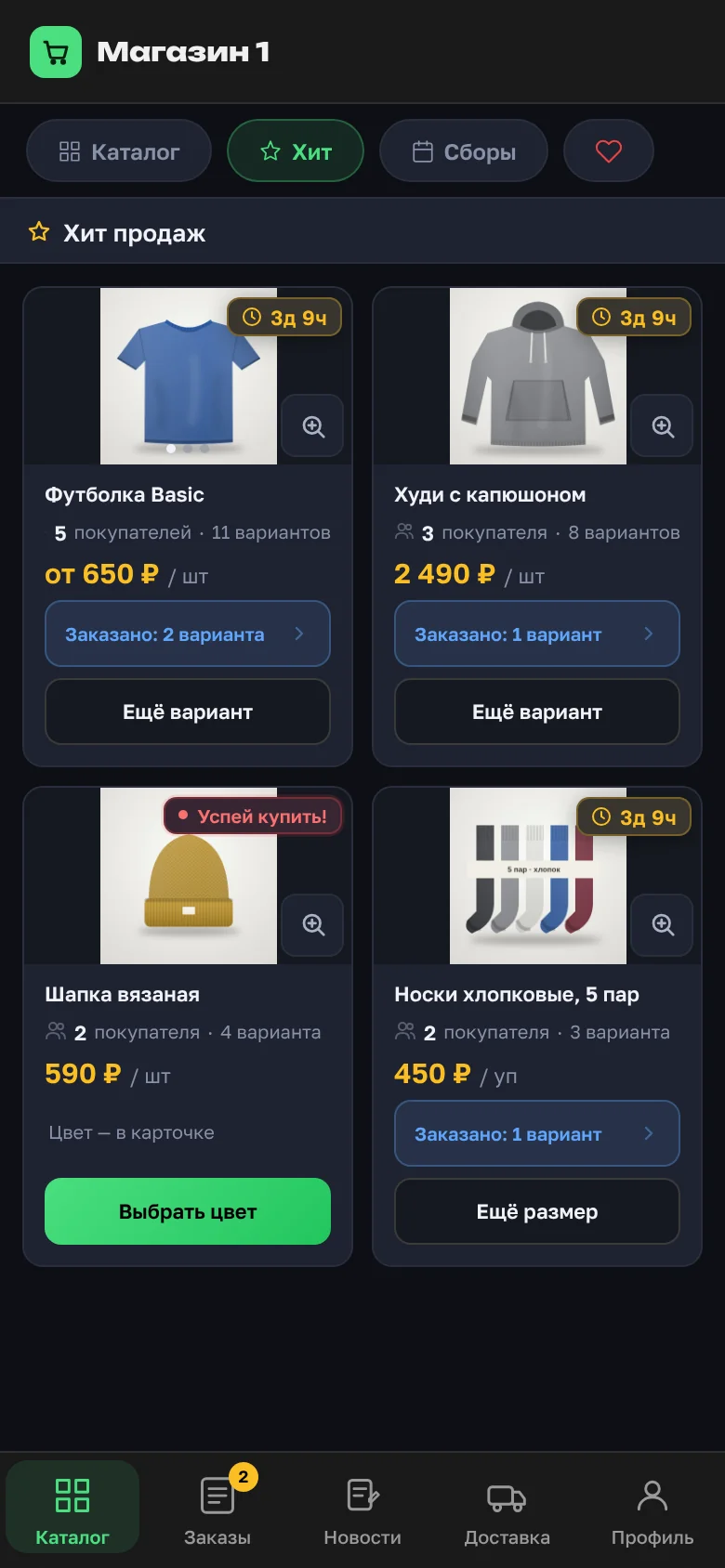
All lists work this way: subcategory, search, "Hits", "Favorites", "Collections" and the shop's public showcase.
How has the product card changed?
The card has changed for all products, with or without variants. The "Favorites" button used to sit next to "Order", with "Back to list" below them. Now there are three round buttons on the photo: "←" returns to the list, "Share" sends a link to the product, and "Favorites" adds it to your favorites.
The description is collapsed and opens with "Show more". On a phone, the panel with the quantity counter and the "Order" button is pinned to the bottom of the screen and stays in place however far you scroll the card.
How does a buyer pick a color and size?
Under the name, the card shows what there is to choose from, for example "4 colors · 3 sizes". Color and size are two rows of chips, and you can start with either:
- the combination doesn't exist — the chip is pale with a dashed border;
- the variant is sold out — the name is crossed out;
- the variant is already ordered — a blue dot;
- the selected chip has a green border.
Until a variant is chosen, the button reads "Choose color and size". Once it is, the card shows the photo of that variant with a caption, the box size, stock and the order deadline. "Share" gives a link straight to the selected variant. Variants without color and size, such as pack sizes, are shown in a "Variant" row with their names.


Where does a buyer see their orders for a model?
The card now has an "Orders for this item" line with the number of orders and the total. It opens a sheet with all of the buyer's orders for this model, each with a cancel button. A hint at the bottom says: "Choose another variant to order more". After cancelling, the catalog tile immediately shows "Order" and the stock again.

How does the organizer set up a model with variants?
The product matrix and the product form now have "Parent", "Size" and "Color" fields. You can sort and filter by them, and hide the columns. How the product matrix works is covered in a separate article.
- Pick the main product of the model and put its own ID in the "Parent" field.
- For the other variants, put the main product's ID in "Parent".
- Fill in "Color" and "Size" — or just one of them if the variants differ only in that.
All products with the same "Parent" are shown as one tile and one card. The price on the tile is the lowest, shown as "from". Each variant has its own orders, stock and pickup.
The same works through Excel: when exporting, the "With variant fields" switch adds three columns. Without it the file is the same as before, and old files still upload unchanged — more about the Excel catalog.
The "Alerts" tab for products has two new checks: "Variant group without a parent" and "Variants with different collection dates".
Where does the organizer see an order's color and size?
Wherever there's an order, by one rule:
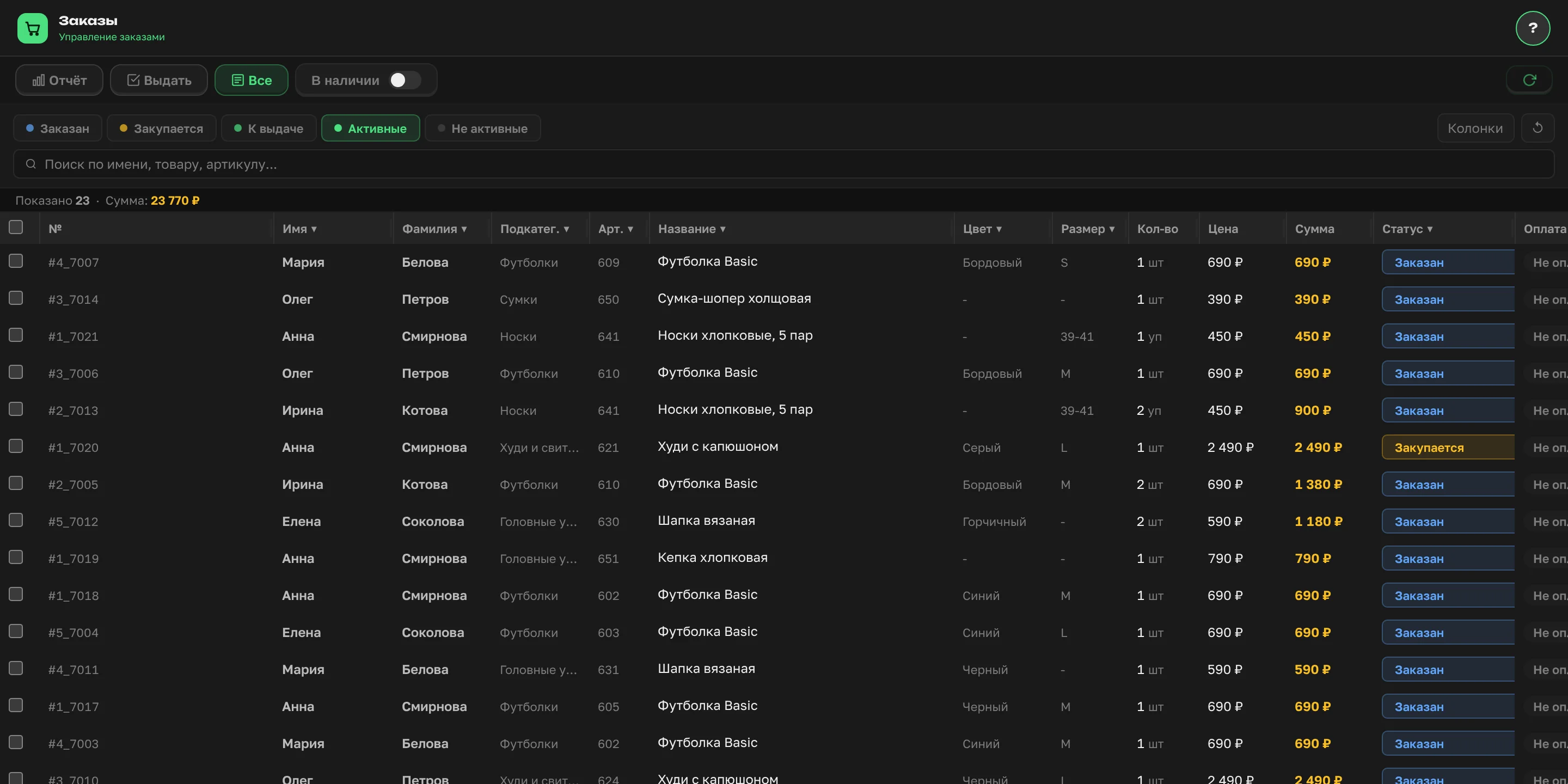
- tables — "Color" and "Size" columns: "Orders" → "All" (with filter and search), statistics and its Excel export;
- lists — purple chips under the name: the collection report, pickup, the quantity window, delivery, "Collections", a member's cart, the home feed;
- text — in brackets: "Basic T-shirt (White, M)". This is how an order's contents are copied and how the name appears in bot messages.
Word waybills now have "Color" and "Size" columns, and the table fits within the page margins.
Tables keep their column widths: the order number is shown in full, and the rest scrolls sideways. If a column is narrow, its header is cut with an ellipsis, and the sort and filter icons stay visible.
What changes if you don't use variants?
Nothing. Variants are an option, not a mandatory catalog rebuild. Products without a "Parent" are shown as before, each as its own tile. The new tile and card work for all products, so the catalog simply looks tidier. What else changed in the buyer's catalog: size and color filters, the new search and the bottom bar.
What don't variants do?
- They don't merge orders: each variant is ordered and handed over separately, with its own price and stock.
- They don't set a shared order deadline: each variant has its own. If the dates differ, the "Variants with different collection dates" check will show it.
- They don't create variants by themselves: the organizer links them with the "Parent" field.