In short
- Comment for the courier: up to 1,000 characters, on in every shop.
- Staff note on a delivery: up to 300 characters, hidden from the buyer.
- The chosen delivery time is shown in the list and on the card.
- At delivery handover you can cancel product orders, not just the request.
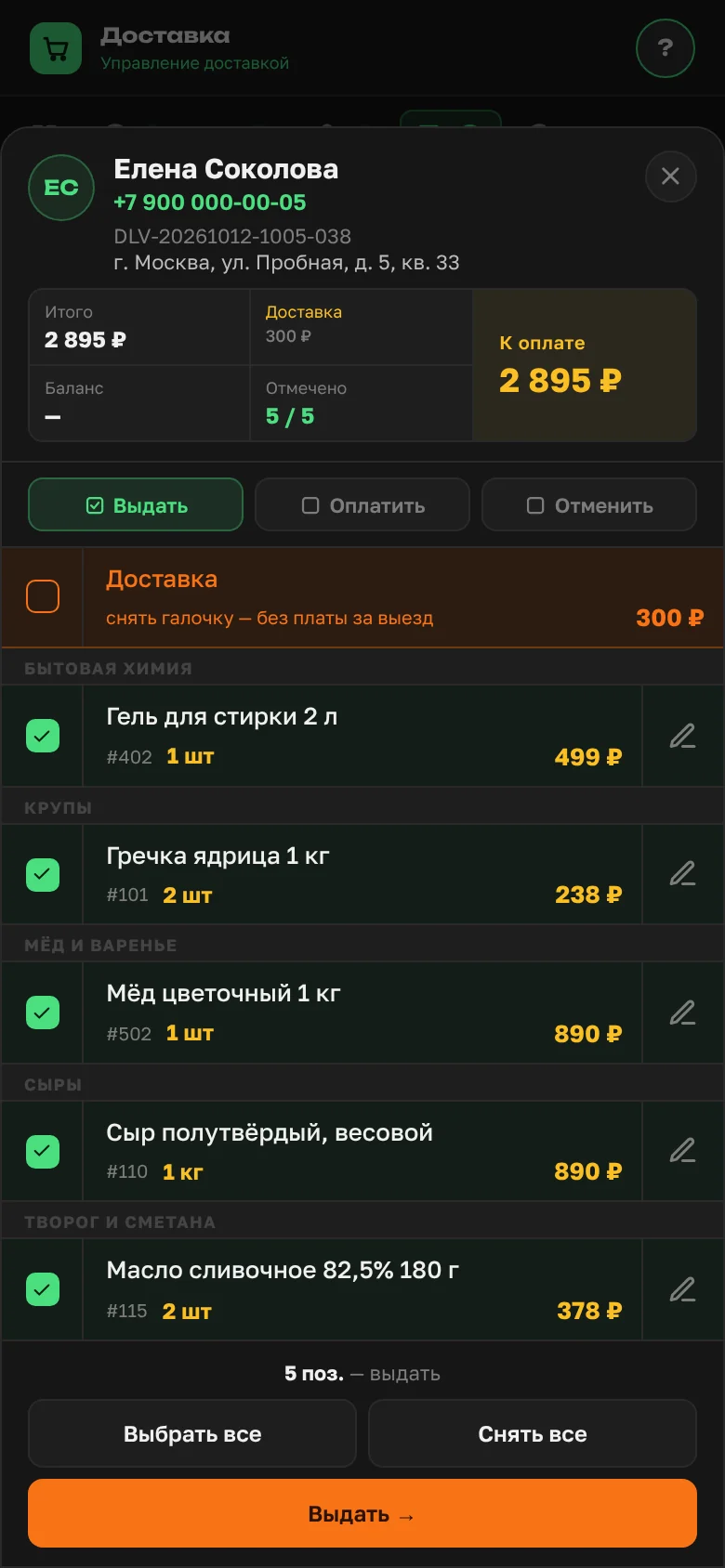
- The delivery fee can be waived by unchecking "Delivery".
- "A→Z" and "Z→A" sorting by product, last name and first name.
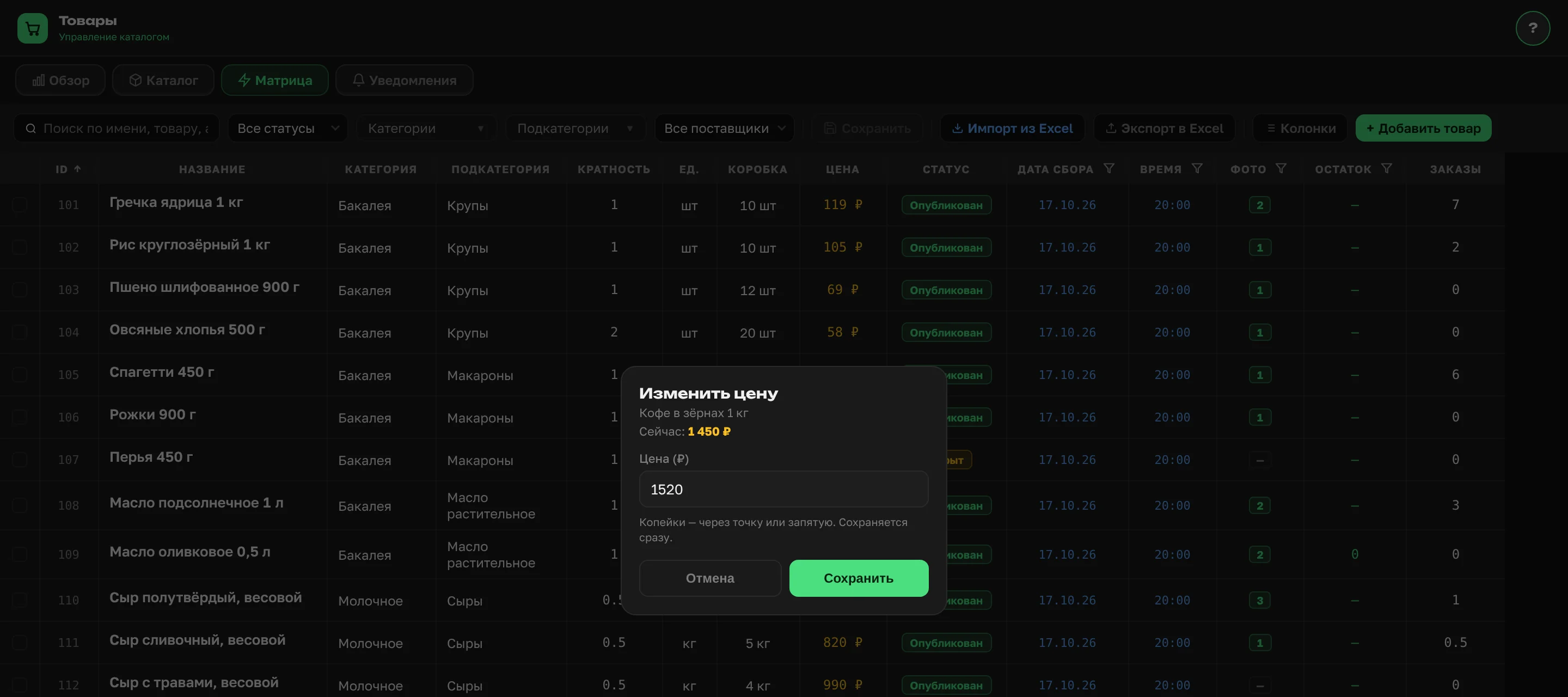
- A price in the matrix is changed by tapping it, showing old → new.
How does a buyer leave a comment for the courier?
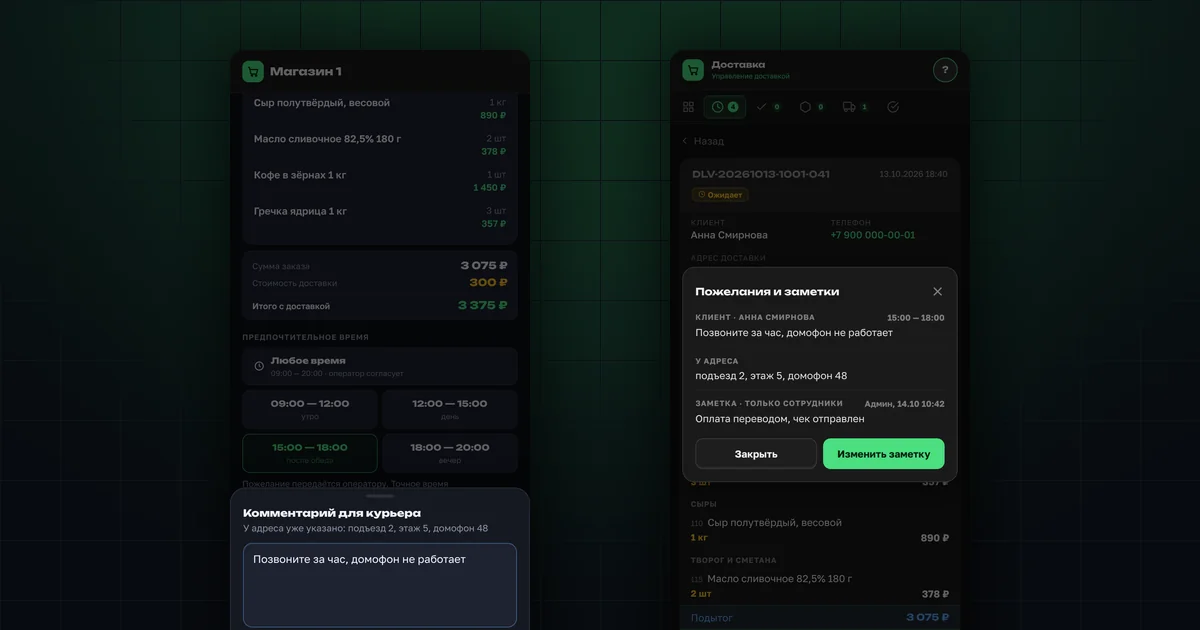
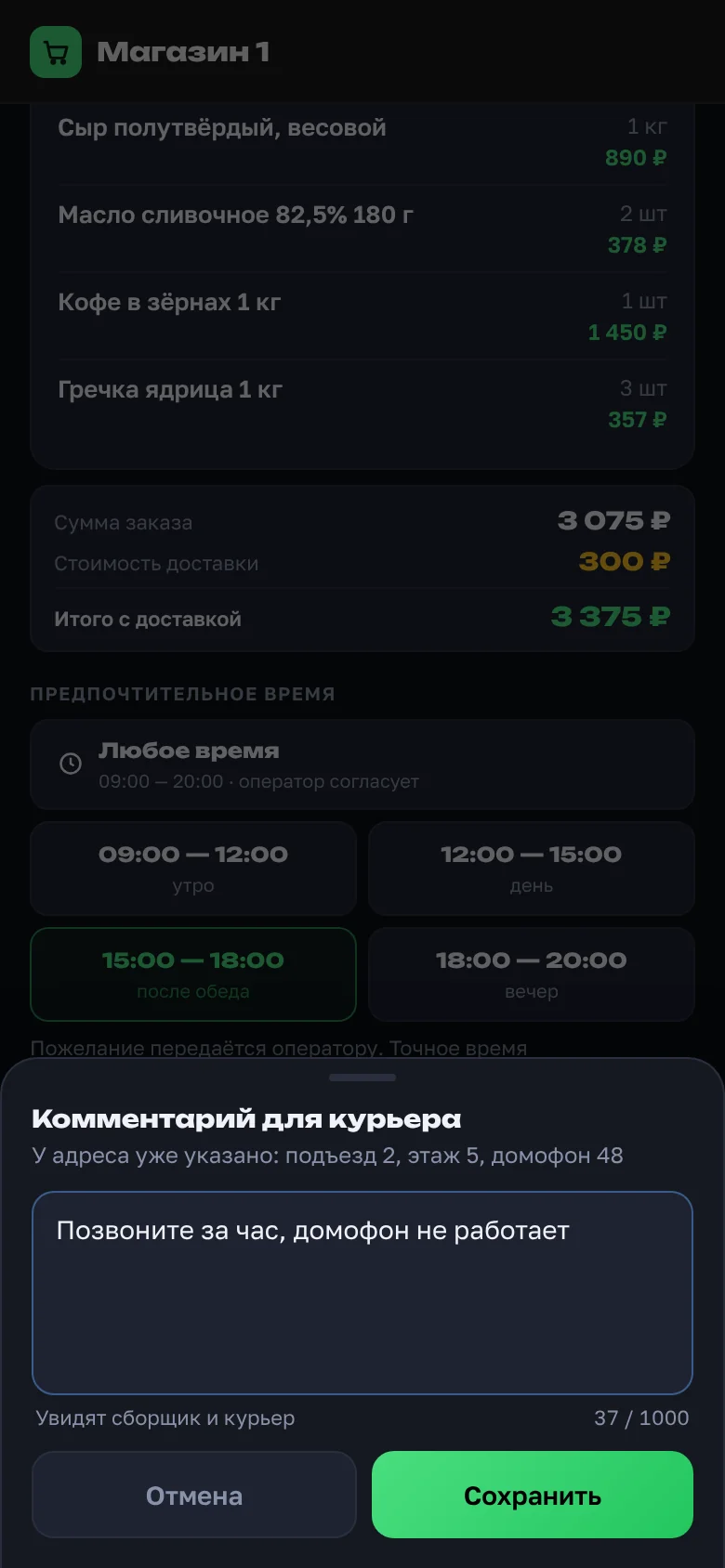
When booking a delivery, there is now an "Add a comment for the courier" line. Tap it, write what's needed — "call an hour ahead", "the intercom doesn't work", "leave it with the neighbour" — and save. Up to 1,000 characters.
Above the field, the app shows what is already set for the address: entrance, floor, intercom. There's no need to repeat it in the comment. The comment is sent with the request.
Where does the organizer see the comment and the chosen time?
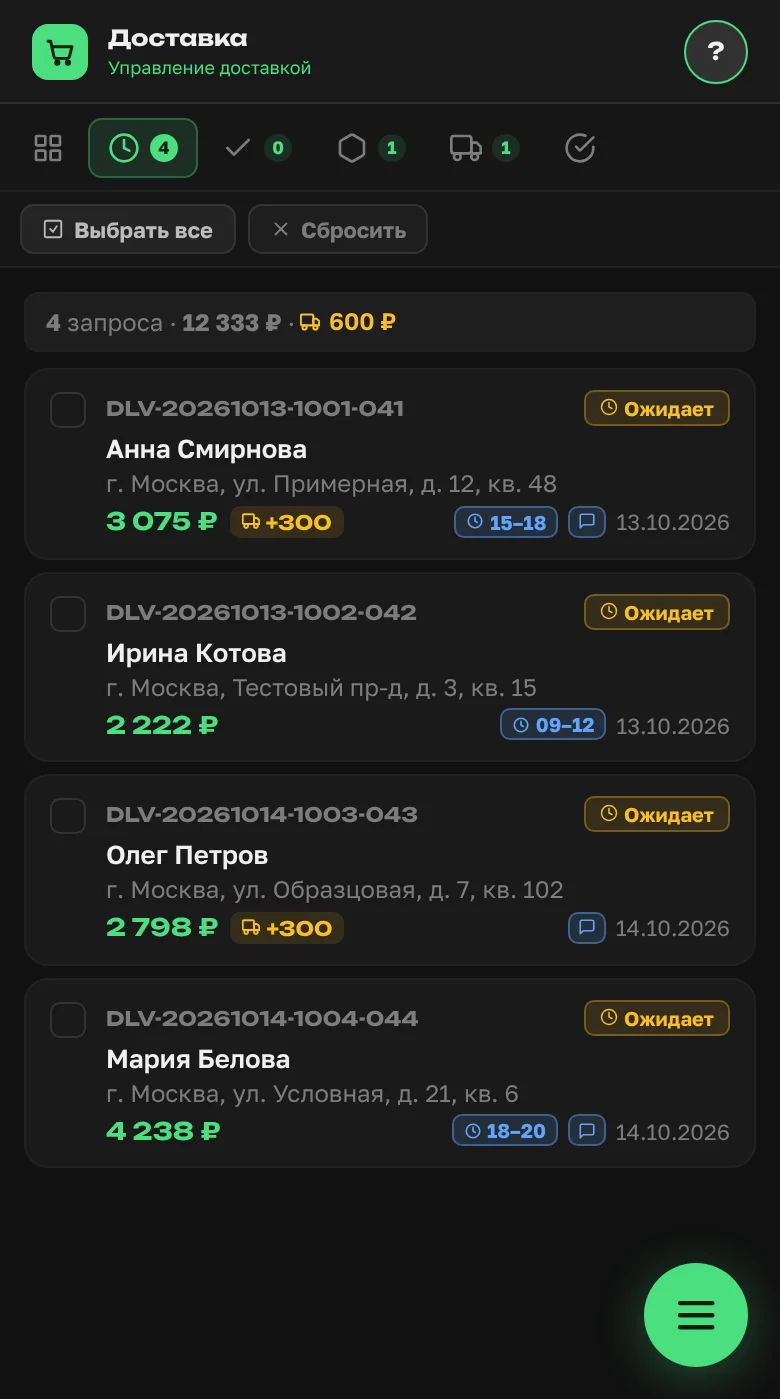
The delivery list now shows which requests have a comment and what time the buyer chose, for example "15–18". Previously the time was only in the notification; now it's in the list and on the delivery card. Grouping deliveries by time is easier.
The delivery card shows a short line with the start of the comment. Tap it to open "Wishes and notes" with the full text and the address details. The card doesn't stretch, even if the delivery has 30 products.
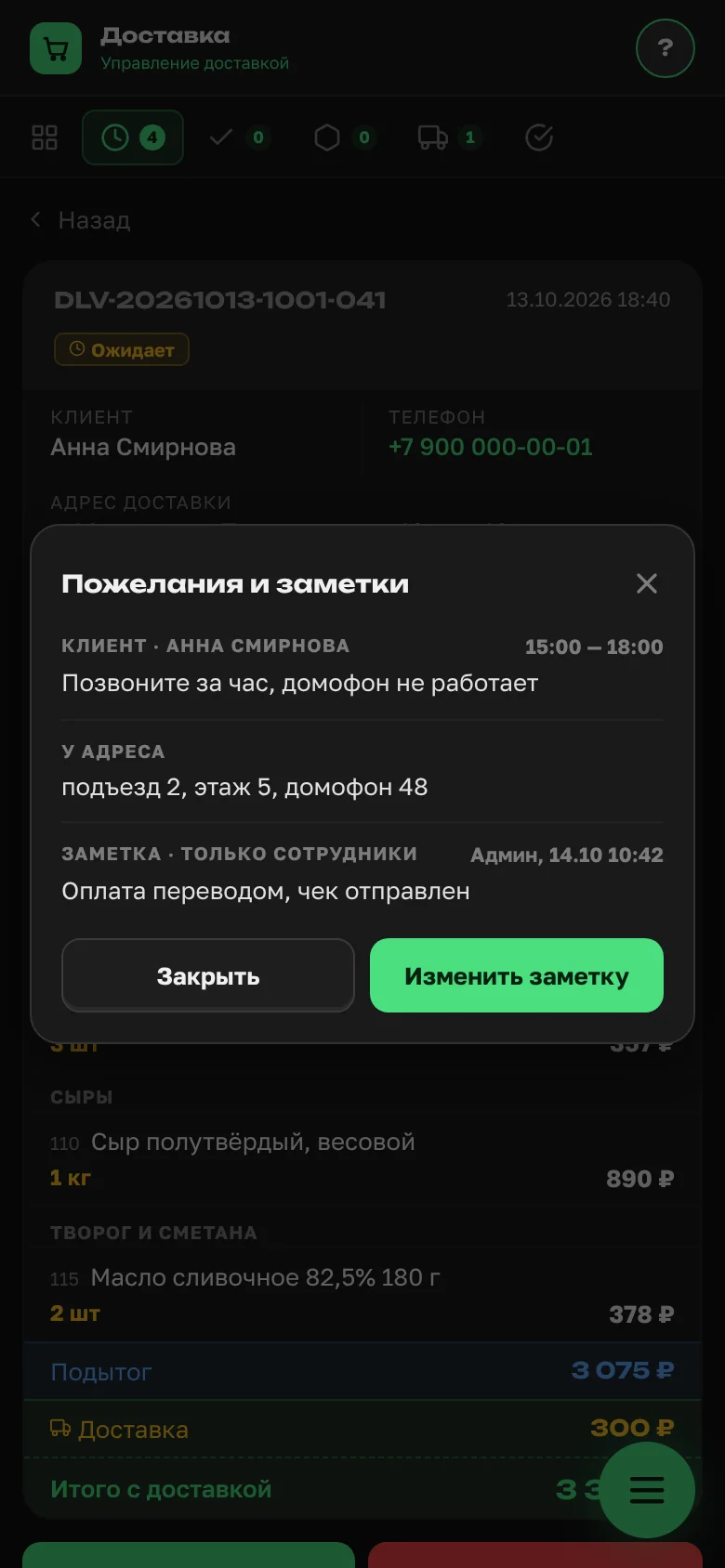
The courier knows about the intercom and the time in advance, so there are fewer calls to the buyer and fewer failed deliveries. How delivery works overall — zones, time slots, cost — is covered in the article on delivery management.
The comment is on in every shop. You can turn it off under "Settings" → "Delivery".
How do you add a delivery note the buyer can't see?
The organizer can add their own note of up to 300 characters to any delivery: a link to an invoice or a photo, an arrangement with the buyer, a reminder for the courier. Only staff see the note; the buyer doesn't. Links in the note open on tap. Next to it you can see who changed it and when.
How do you cancel orders right at delivery handover?
Sometimes at handover the buyer refuses part of the order, or an item turns out to be damaged. Such items can now be cancelled right in the delivery issue window. This doesn't cancel the delivery request — it cancels the product orders themselves.
- In the issue window, choose the "Cancel" action, next to "Issue" and "Pay".
- Mark the items being cancelled, or tap "Select all".
- Tap "Cancel →", check on the confirmation screen what is under "Cancelling" and what is under "Not cancelling", and tap "Apply".
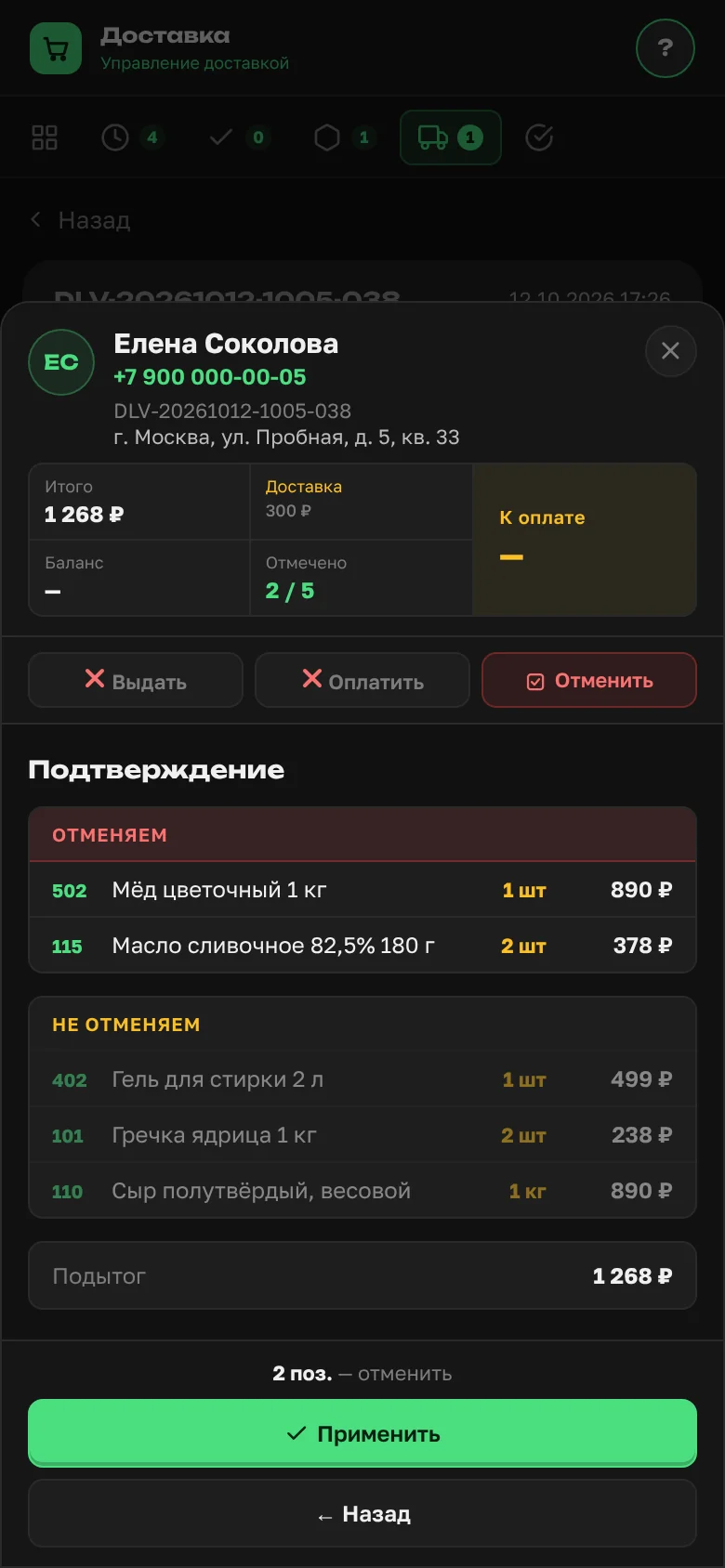
Only items with the "Ready for pickup" status can be cancelled. After cancelling:
- the item gets the "Cancelled by admin" status, and the buyer is notified;
- the product stock goes down by the cancelled quantity: the software assumes this item won't be delivered. How stock is tracked is covered in the article on stock management;
- if a delivery that is already on its way has nothing left to hand over, it closes by itself: "Completed" if something from it was issued, "Cancelled" if not.
You can also cancel an item earlier, while packing the delivery: each product line has a "Cancel item" button.
Can you skip the delivery fee?
Yes. In the issue window, above the products, there is a "Delivery" line with a checkbox and the delivery fee. Uncheck it, and the fee isn't added to "To pay" and is recorded as 0 for this delivery. If the fee has already been paid, the line shows "(paid)" without a checkbox. In "Cancel" mode the delivery fee isn't charged.
How do you sort orders by product, last name or first name?
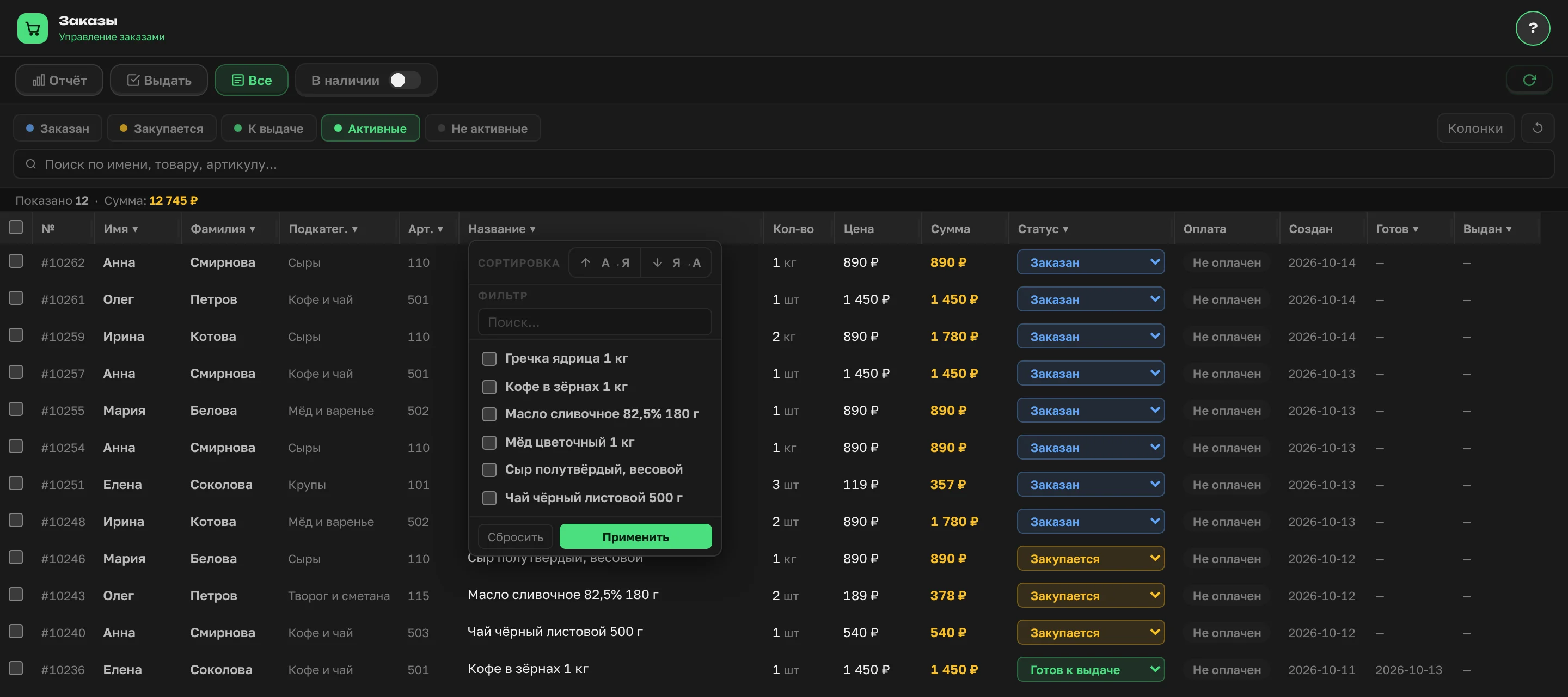
In "Orders", on the "All" tab, the "Product", "Last name" and "First name" column menus now have "A→Z" and "Z→A" buttons. Orders from one buyer or for one product line up together. This helps when you pack orders before pickup or check a delivery from the supplier.
Sorting works together with filters and is reset with "Clear filters". The column menus are tidier too: long product names wrap onto a second line, and the menu no longer slides under the neighbouring columns.
How do you change a product price right in the matrix?
In the product matrix you can now change a price straight from the table: tap the price, the "Edit price" window opens, enter the new one and save. You can type "1 500", "1500,50" or "1500.50" — the app understands all of them. After saving, it shows the old price and the new one, for example "Price saved: 1 450 → 1 520".
How do you browse a large catalog faster?
In the matrix, the "Shown 50 of 3080" counter and the "Items per page" choice have moved down next to the page controls. Everything for navigation is in one place, and the top bar is free for actions. Your chosen number of items is remembered.
What changed on the home page and in delivery packing?
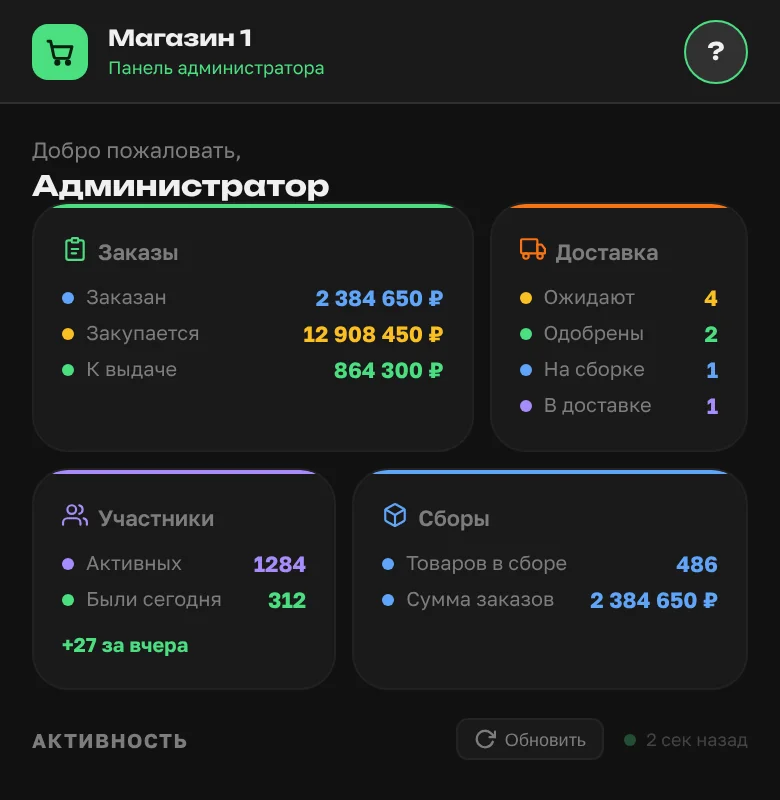
Home page. The "Ordered", "Purchasing" and "Ready" totals and the collections total no longer spill out of their tiles, on phone or desktop. On desktop, a number that is too long is shortened to a form like "398.7M", and the full amount appears on hover.
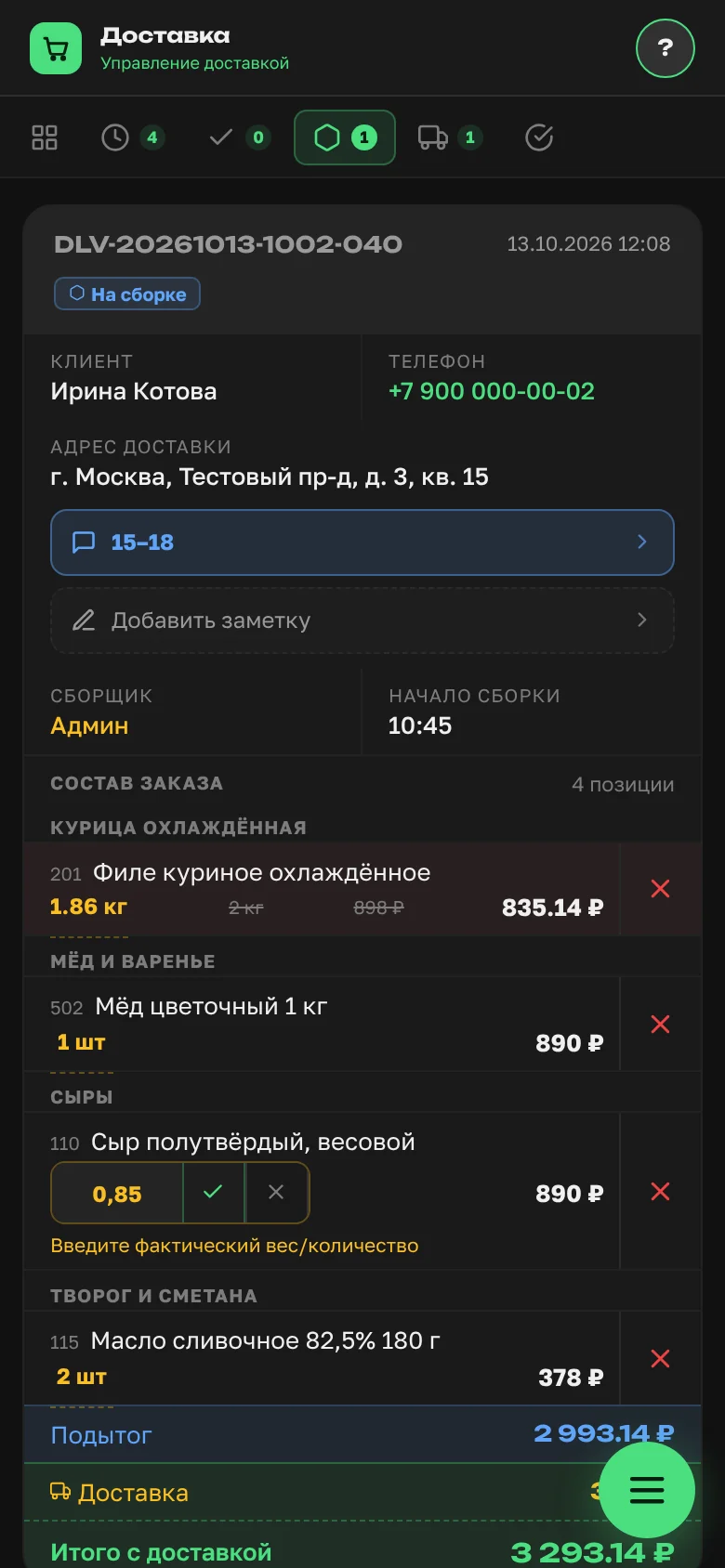
Delivery packing. When the actual quantity differs from the ordered one, you can correct it right in the product line. Next to the field are two small buttons: "✓" confirms, "✕" reverts. The separate "Save / Cancel" bar at the bottom of the screen no longer appears. On a phone the buttons are larger, so they're easy to tap. Changes are kept in the packing draft and go into the system when the delivery is marked with "Packed → to delivery". What happens to a delivery next is covered in the article on completed deliveries.