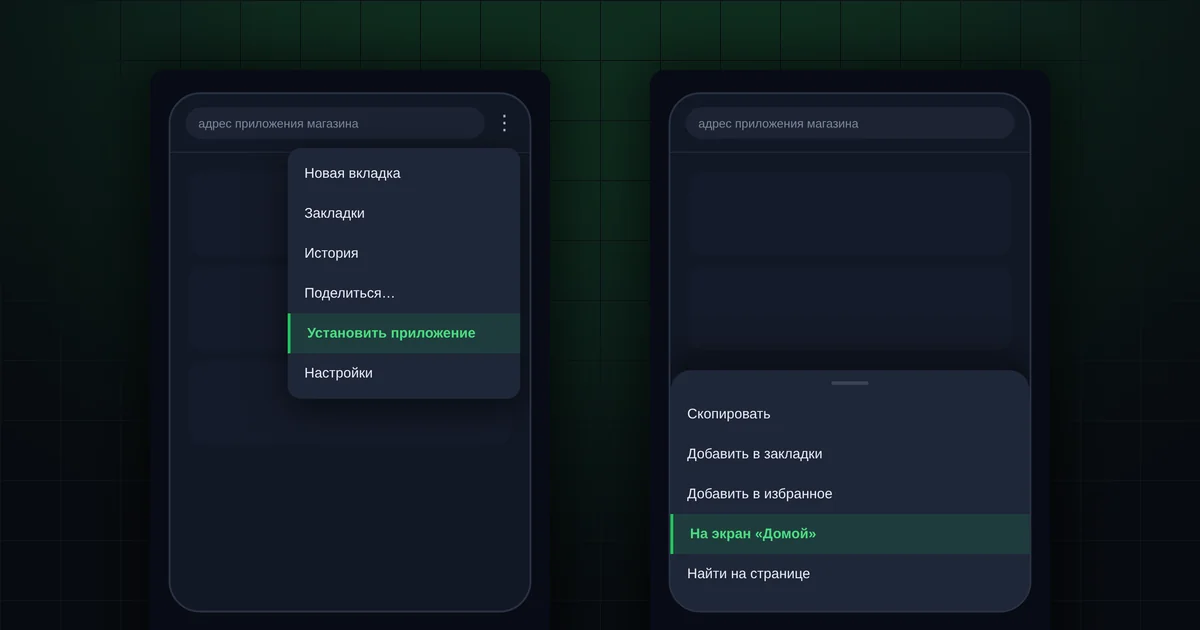
In short
- Nothing to download from an app store.
- On Android, use Chrome or Yandex Browser; on iPhone, use Safari.
- Choose "Install app", not a shortcut.
- On iPhone, notifications only work if the app is added to the Home Screen.
- The app doesn't work without internet.
Why add the app to your home screen?
- No need to look for the link. The icon is always at hand, like any other app.
- The whole screen for the app. It opens without the address bar and browser tabs.
- Notifications. On iPhone they don't work at all without the icon; on Android they are more reliable with it.
How do you add the app on Android?
- Open the shop's app link in Chrome or Yandex Browser.
- Open the browser menu: three dots or three lines, usually at the top right or the bottom.
- Choose "Install app" or "Add to Home screen", then "Install".
- The icon appears on your home screen.
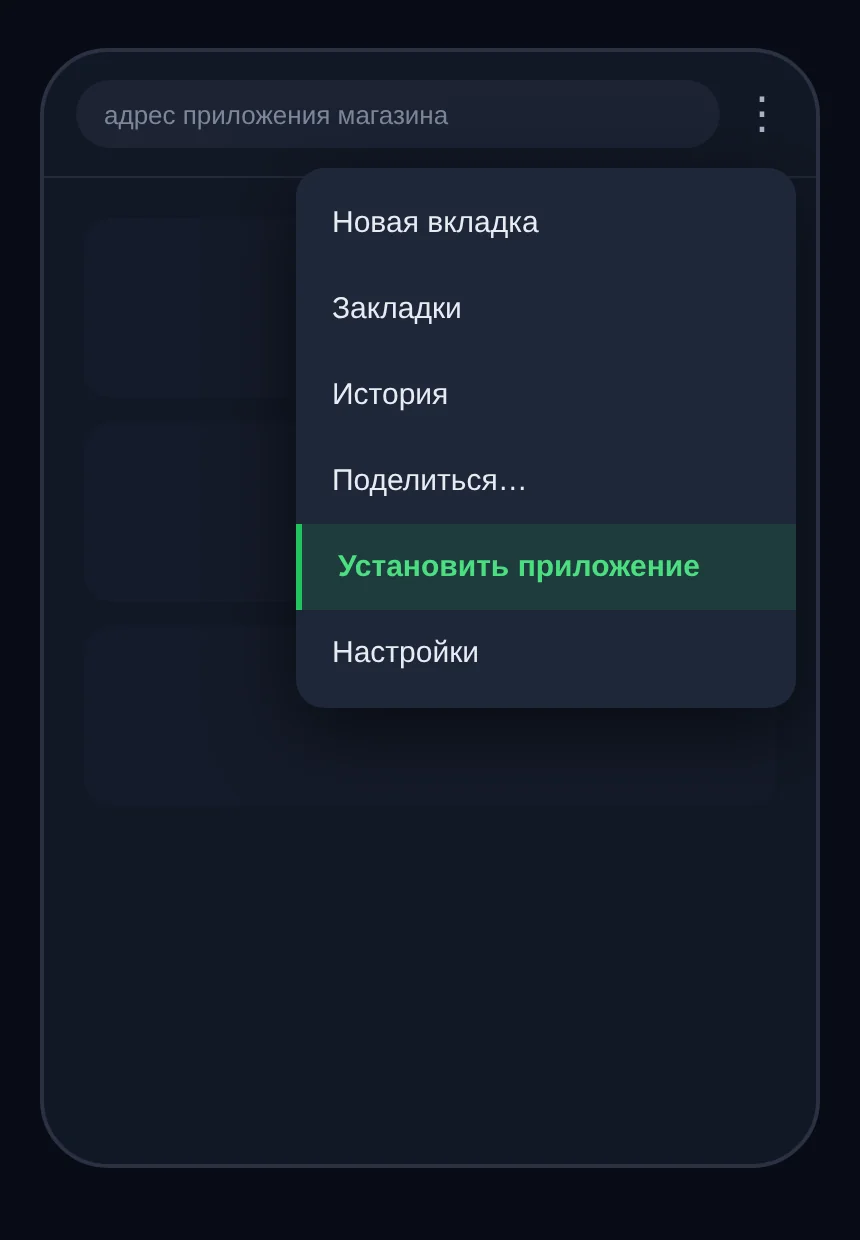
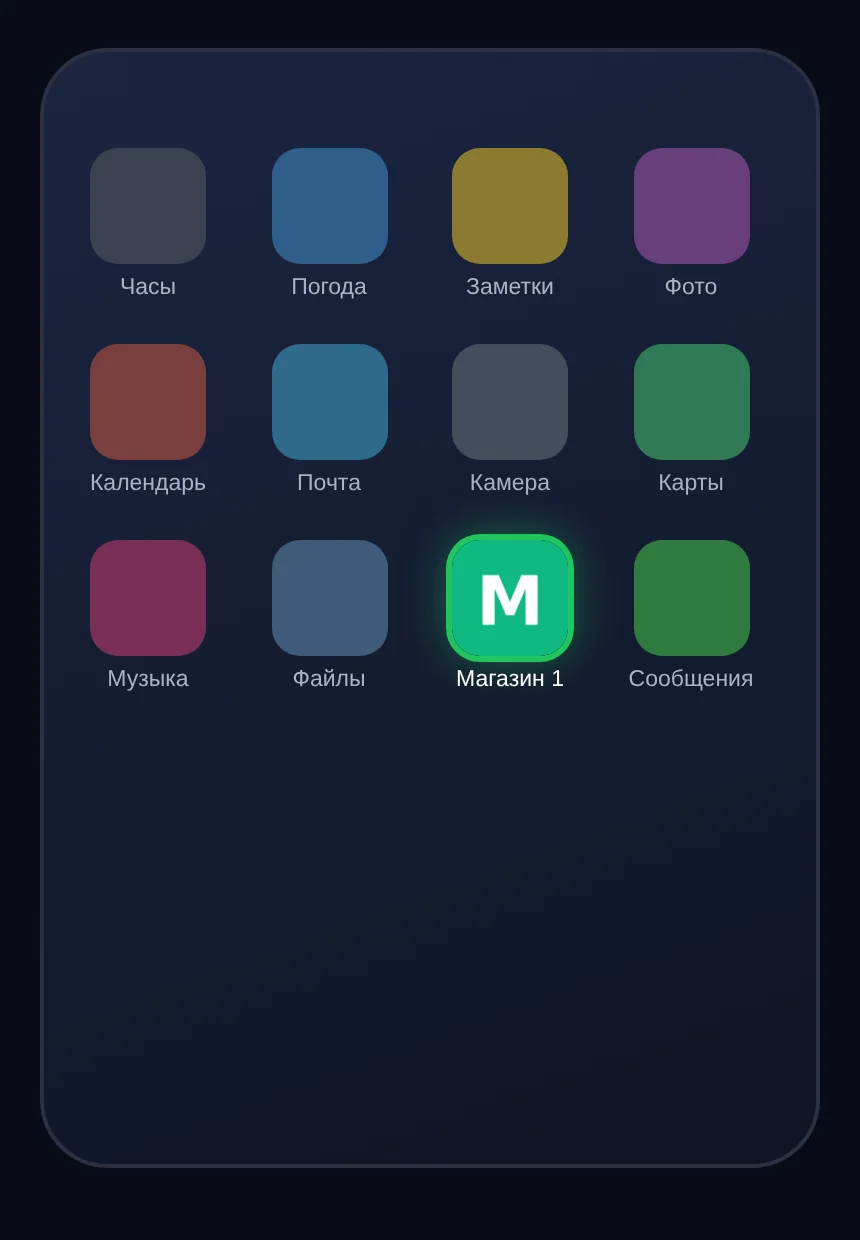
Menu item names depend on the browser and phone version. Look for an item with "install" or "home screen".
How is a shortcut different from an app?
Sometimes the phone offers a choice: create a shortcut or install the app.
- A shortcut opens the page in a browser tab, with an address bar, like a regular website.
- An app opens in its own full-screen window, like any app on your phone.
Choose the app: it is more convenient, and notifications are more reliable.
How do you add the app on iPhone?
- Open the shop's app link in Safari.
- Tap the "Share" button (a square with an upward arrow).
- Choose "Add to Home Screen", then "Add".
- Open the app from the new icon.
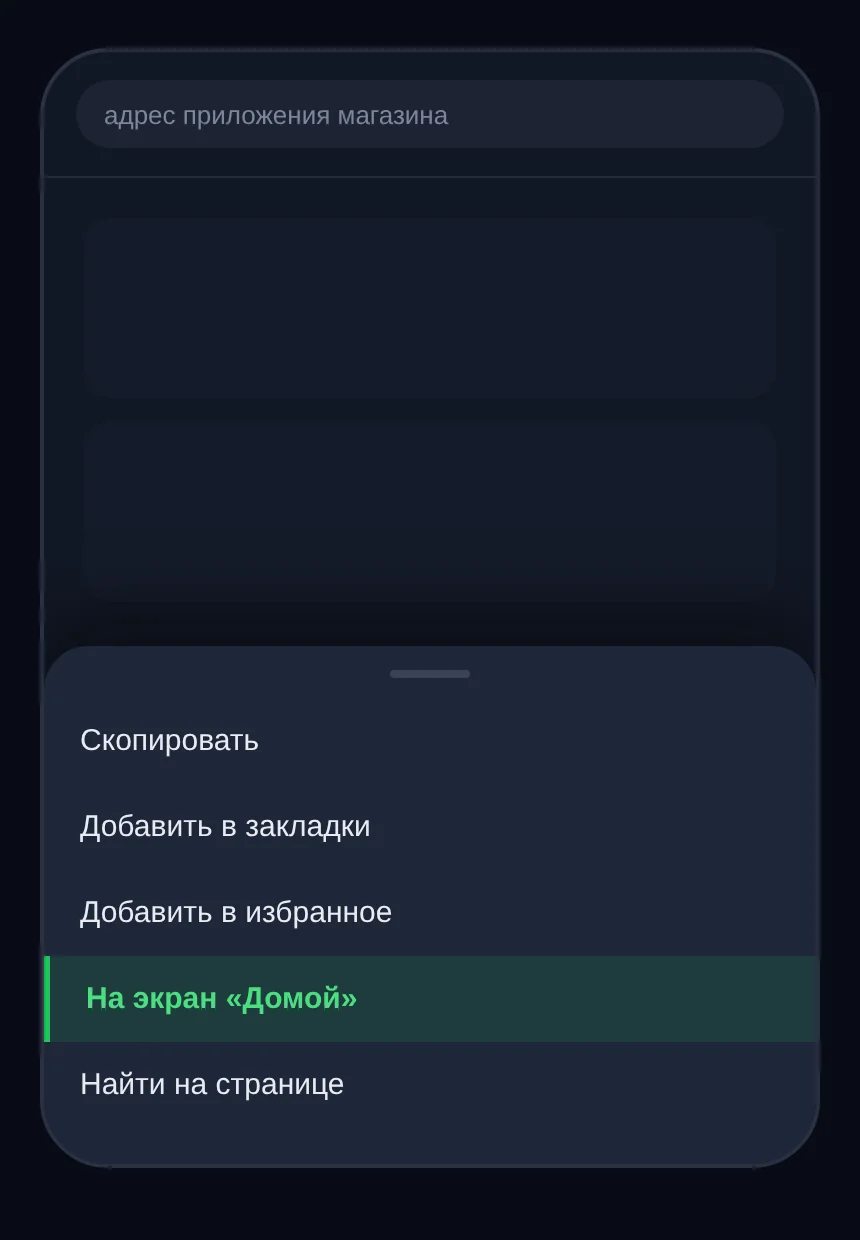
After installing, you may need to sign in again: iPhone keeps the app's sign-in separate from Safari.
What if there is no "Install" option?
- Check the browser. You need Chrome or Yandex Browser on Android, or Safari on iPhone. Some browsers don't have this option.
- Update the browser to the latest version.
- Ask your organizer for help when you come to collect your order. It takes a minute.
Does the app work without internet?
No. The catalog, stock and order statuses update when you open the app, so it needs internet. The icon is a quick way in, not a copy of the shop on your phone.
What's next?
Turn on notifications to learn your orders are ready without checking manually. All guides: "Buyer guide".
In the app's "Profile", you can choose a light or dark theme.
Questions and answers
Do I need to download the app from an app store?
No. The icon is added from the browser.
What happens to my orders if I delete the icon?
Nothing: orders are stored by the shop, not on your phone. You can add the icon again at any time.
Can I add the app to a computer the same way?
Yes, Chrome and Yandex Browser on a computer have an install option in the menu.