In short
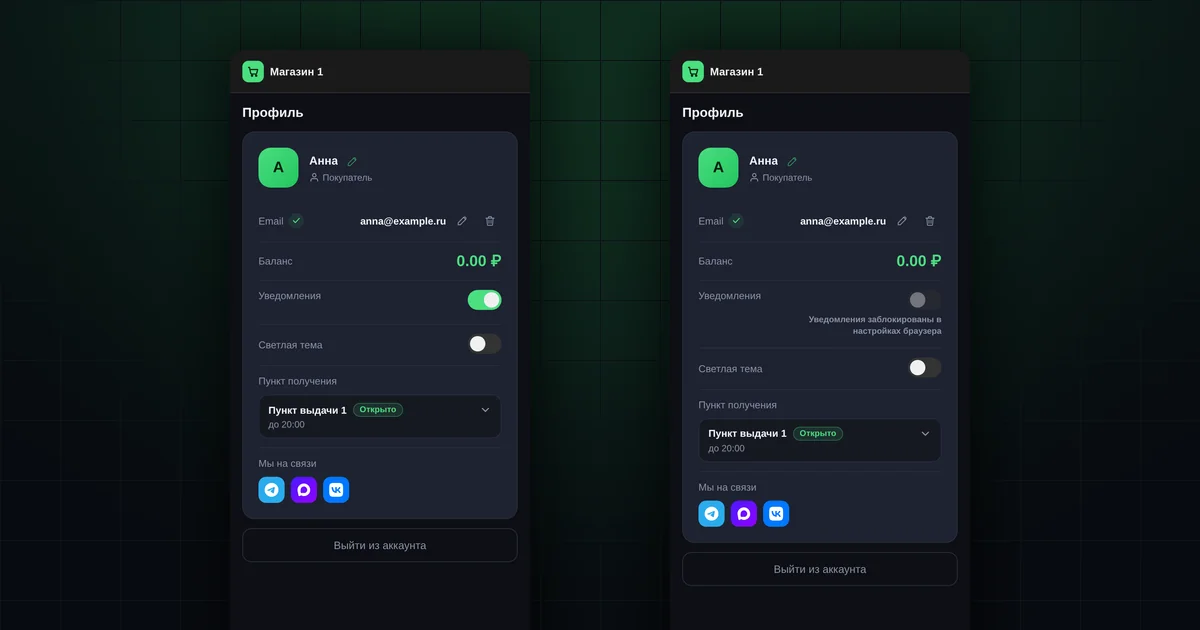
- Notifications are turned on in the app: "Profile" → "Notifications".
- "Notifications are blocked in browser settings" means permission has to be given in the phone's settings.
- On iPhone, notifications work only after the app is added to the Home Screen.
- Notifications are turned on separately on each phone.
- Anything you missed is always in the app, under "Notifications" and "News".
What do notifications tell you about?
Notifications arrive when something happens with your order:
- your order has gone to purchasing;
- your order is ready for pickup;
- the quantity or price has changed, for example when the weight is confirmed;
- the organizer has cancelled an item;
- your visit to collect the order is confirmed;
- the delivery status has changed;
- a product in "Favorites" is available to order again.
Without notifications, you only find out by opening the app.
How do you turn on notifications in the app?
- Open the app and go to "Profile".
- Turn on the "Notifications" switch.
- The browser asks for permission. Tap "Allow".
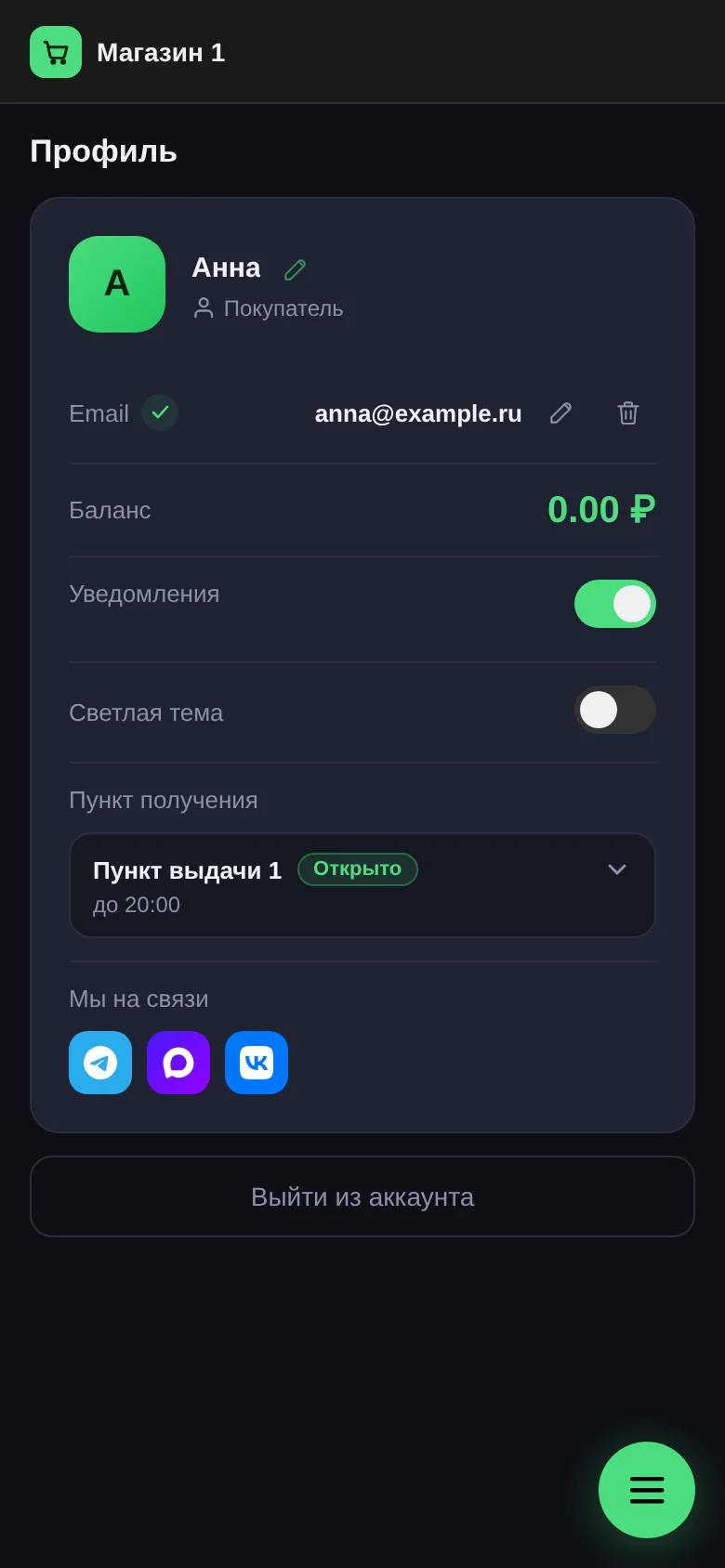
If there is no "Notifications" line in the profile, your shop hasn't turned them on yet. Ask your organizer.
What does "Notifications are blocked in browser settings" mean?
It means that at some point "Block" was tapped when the browser asked for permission, or notifications are blocked for the browser as a whole. The app can't ask a second time: the phone doesn't let it. Permission has to be given manually in the phone's settings.
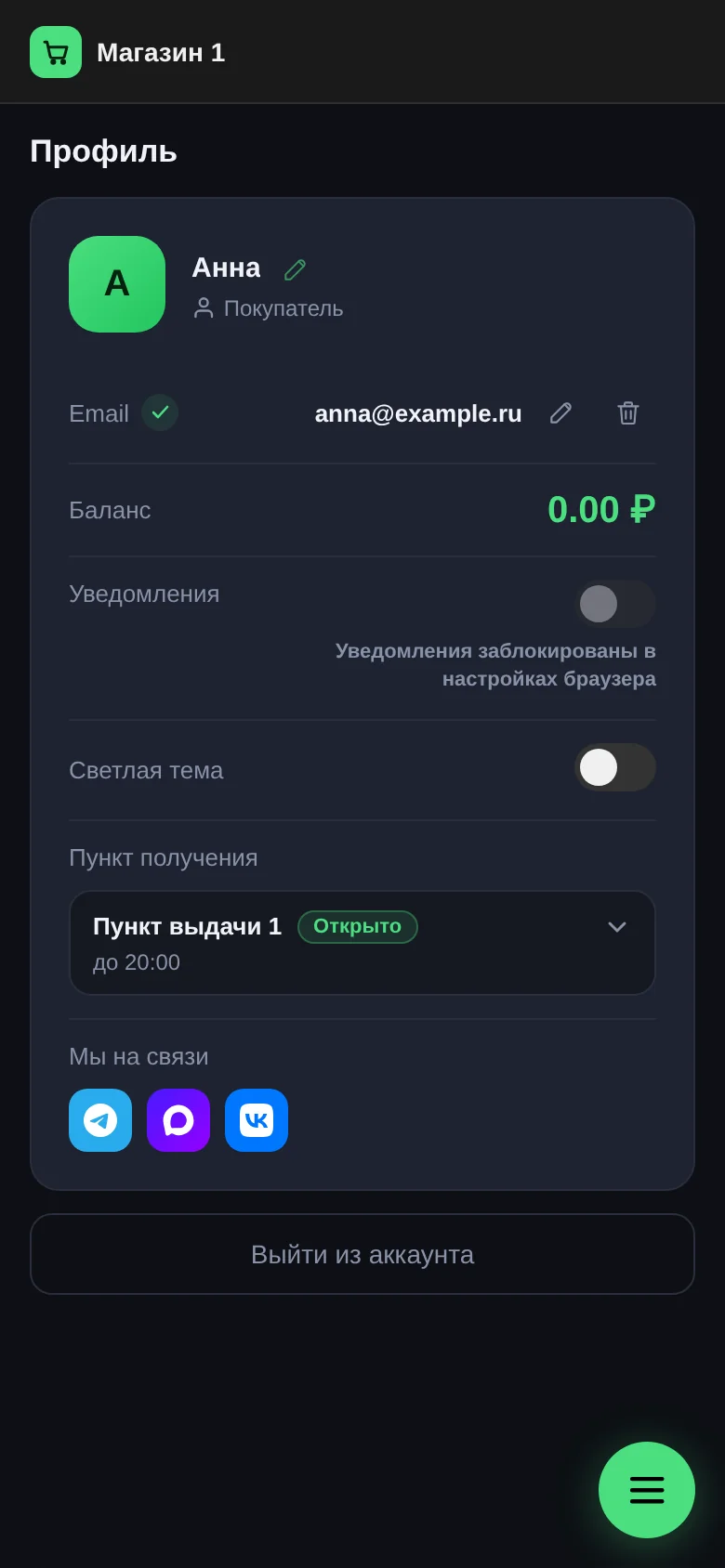
How do you allow notifications in the phone's settings?
Phone menus differ, so here is the general idea: find the browser or the shop's app in the settings and allow it to send notifications.
Android
- Phone settings → "Apps" → the browser you open the shop in (usually Chrome or Yandex Browser) → "Notifications". Turn them on.
- If notifications are still blocked, open the shop in the browser and tap the icon to the left of the address. In the site permissions, turn on "Notifications".
iPhone
Settings → "Notifications" → find the shop's app in the list → turn on "Allow Notifications".
Then go back to the app and turn on the "Notifications" switch in "Profile" again.
Why does iPhone need the app on the Home Screen first?
iPhone allows notifications from websites only if the site has been added to the Home Screen as an app. In a regular Safari tab, you will see a hint instead of the switch: "Add the app to your Home Screen to enable notifications".
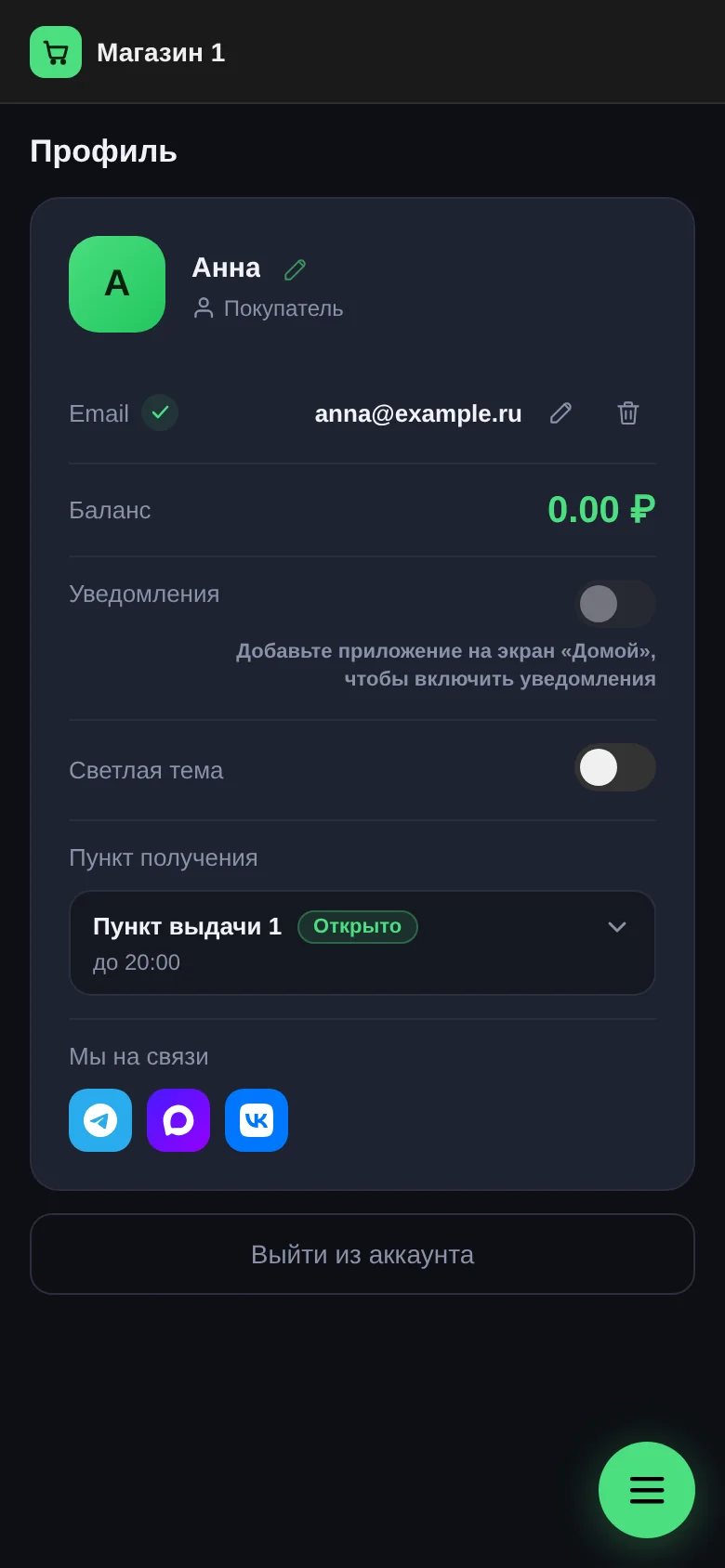
How to add it. Turn on notifications in the app opened from the icon.
What does "Not supported by this browser" mean?
Your browser can't receive notifications from websites. Open the shop's app in Chrome or Yandex Browser on Android, or in Safari on iPhone, and add it to your home screen.
Notifications are on but don't arrive — what to check?
- Do Not Disturb or Focus mode. While it is on, notifications arrive silently or aren't shown.
- Battery saver. In this mode, the phone may limit the browser in the background.
- Is it the right phone? Notifications are turned on separately on each phone. In "Profile", next to the switch, you can see on how many devices they are on.
- Was the phone offline? If the phone was without internet for a long time, a notification may not have arrived. The event is still recorded in the app under "Notifications".
What if you have two phones?
Turn notifications on on each one: open the app on the second phone, sign in and turn on the switch in "Profile". Notifications will then arrive on both.
If it still doesn't work
Ask your group buy's organizer to help when you come to collect your order. Together it takes a minute.
All guides: "Buyer guide".
Questions and answers
Can I get notifications without the home screen icon?
On Android, yes, through the browser. On iPhone, no: you need the icon on the Home Screen.
Where can I see notifications I missed?
In the app: the "Notifications" and "News" menu items.
How do I turn notifications off?
With the same "Notifications" switch in "Profile".