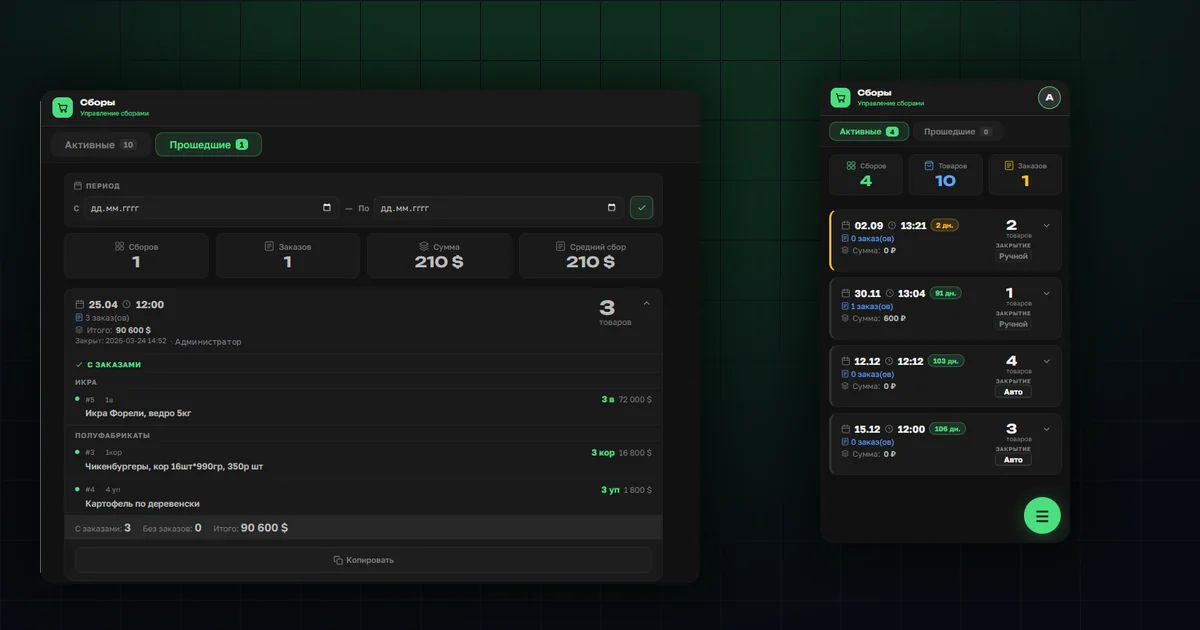
Tallying orders is the most laborious part of a group purchase. Orders arrive out of order, they have to be grouped by product, counted, matched against the supplier's box size and handed over. By hand that takes an evening.
In the OrderGrow group buying app it is a single action. Opening a collection and setting deadlines is covered in a separate guide — this one is about what happens next.
What the Collections section shows
The section works on desktop and in the mobile app. Products are grouped by end date and time: one deadline, one collection.
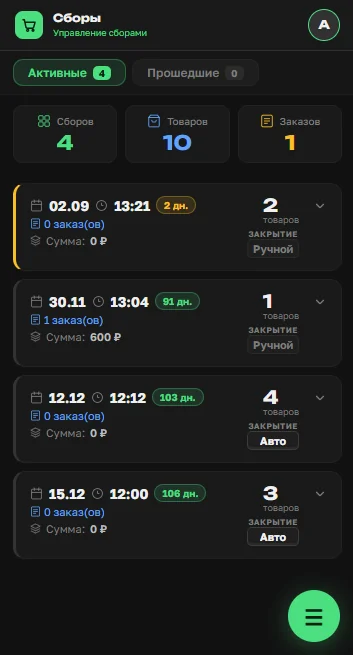
The counters on top show how many collections are active, how many products they cover, how many orders came in and for what amount. That is enough to see where things stand without opening anything.
Each collection shows its end date and time, days remaining, the number of orders, the amount, the product count and the closing mode.
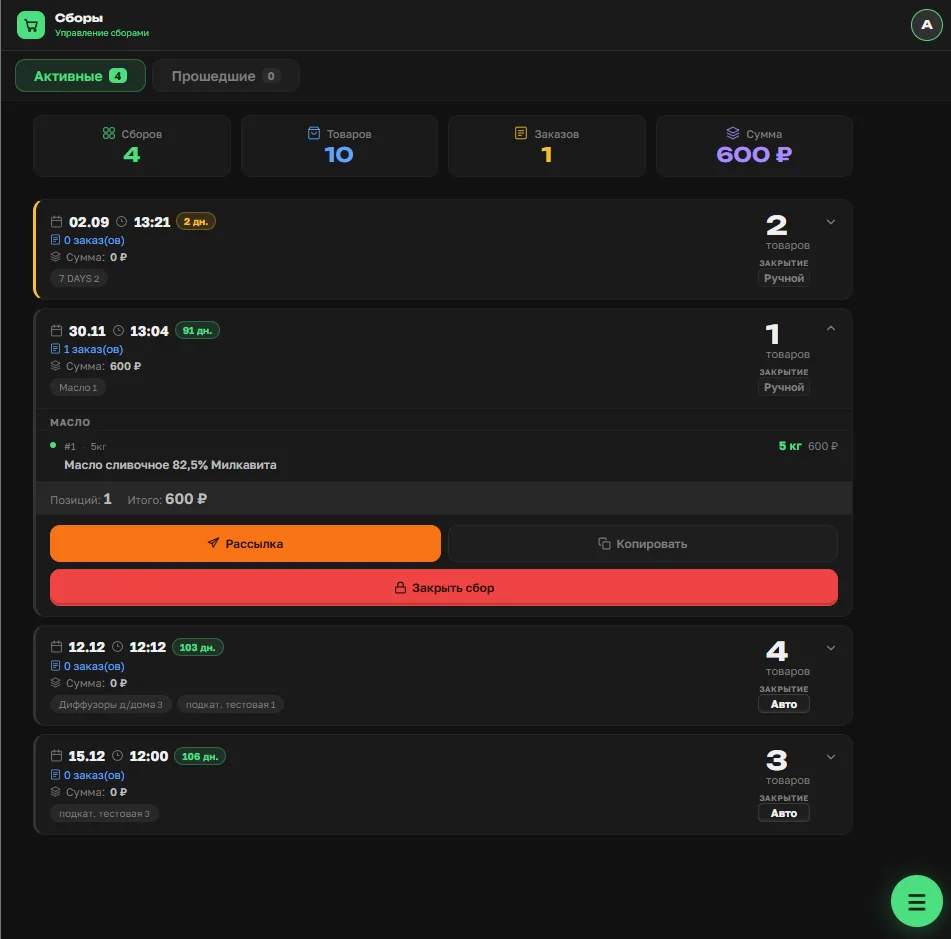
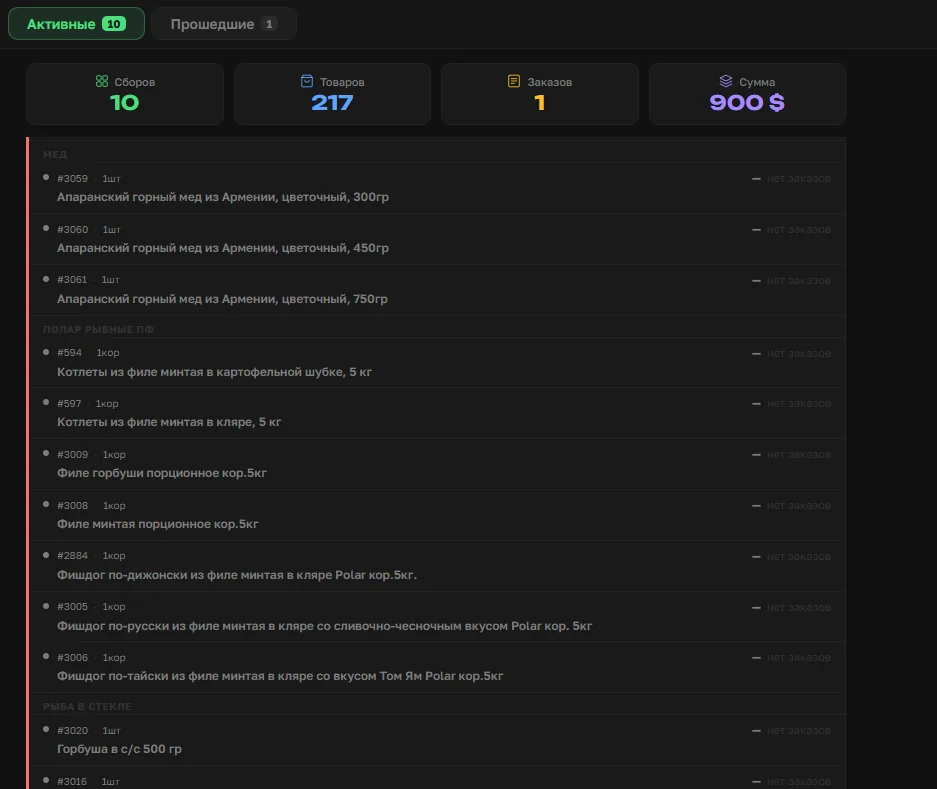
Tap a collection and it expands into the list of products it contains, grouped by subcategory. This is where you check nothing was left out and see orders per product.
Manual or automatic closing
Every collection has a closing mode switch. This is the one place in collections where the group buying organizer makes a real decision.
Automatic — the collection closes itself at the stated date and time. Right when the deadline is hard: the supplier takes the order until a given hour and you are afraid of forgetting.
Manual — the collection waits for your button. The end of the ordering window does not stop customers from ordering: while the collection is open, orders keep coming in. Use it when you are gathering late orders or waiting on the supplier.
Telling customers about the collection
Opening a collection sends nothing. Telling customers is a separate action, and there are two ways.
Copy. The button under a collection builds a ready message with the product list, prices and working links. Paste it anywhere: Telegram, Max, WhatsApp, VK, Odnoklassniki or a group buying forum.
📋 Collection list
🗓 30.11 ⏰ 13:04
📦 Butter
🆔 1 — 120 ₽/kg
👉 Butter 82.5%
ℹ️ Prices are current as of publication.
ℹ️ The actual price is on the product card.
The link opens the products of that collection with its end date and time.
Mailout. Sends the same list to the shop's Telegram group or to the customer feed. Sending to a group requires a connected Telegram bot.
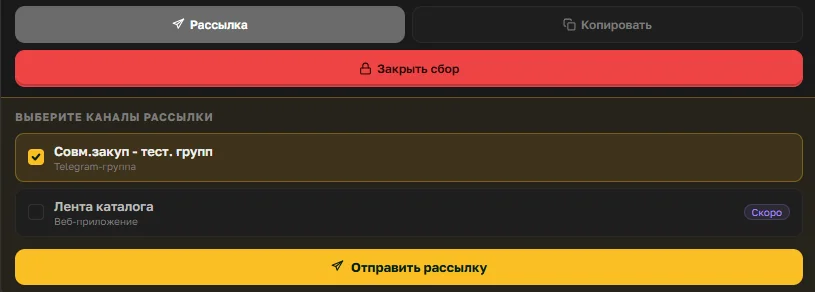
What happens when a collection closes
Press «Close collection» and wait. The system does four things for you:
- Every product in the collection goes to «Hidden».
- Every order moves from «Ordered» to «Being purchased».
- Customers get a notification listing what they ordered.
- A final report is built per item, with quantities and amounts.
Tallying orders drops from hours to minutes.
How customers learn about the closing
The notification goes out on three channels at once: Telegram for anyone using the shop bot, the news feed in the app for everyone, and a push notification if the customer enabled notifications in their profile. Push works both on a phone with the app installed and on a computer in the browser.
The channels overlap on purpose. The organizer cannot know which one a given customer is using right now, and a message saying the order went to the supplier must not be missed.
That said, do not assume it reached everyone: not everyone uses Telegram and push depends on a setting. The one channel every customer sees is the feed in the app.
Where to find the report for a closed collection
The «Past» tab. It holds every closed collection, with a date range filter and counters: number of collections, orders, total amount and average collection for the period. Each one shows when it was closed and by whom — manually or automatically.
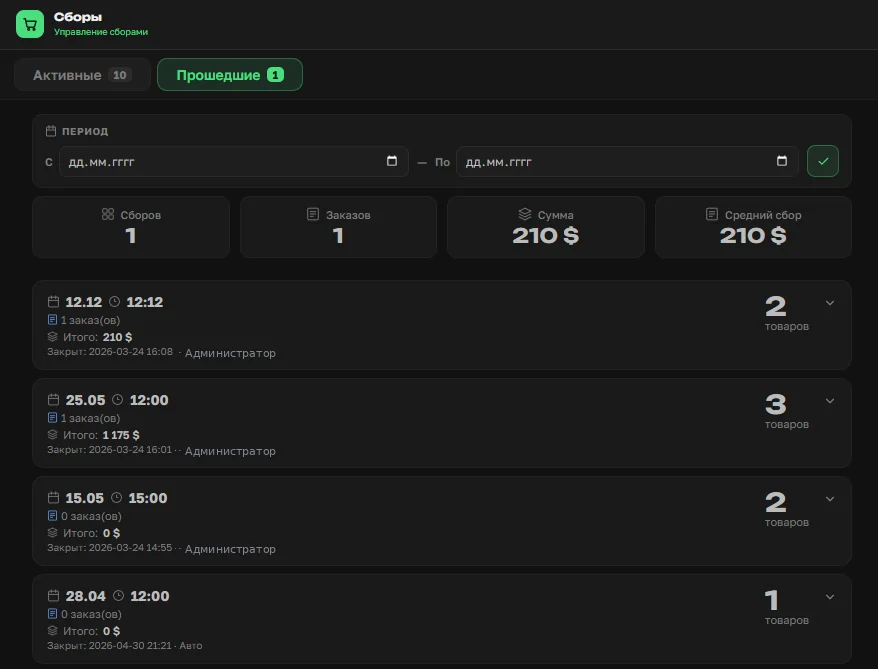
Expand a collection to see the totals for purchasing.
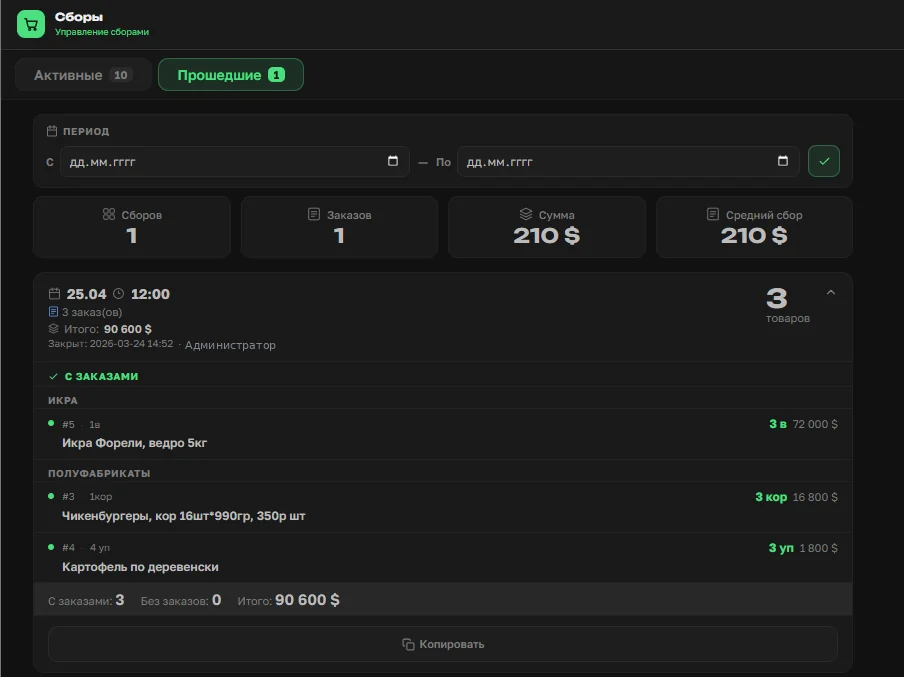
Reading the report to decide what to buy
When adding a product you set how many units the supplier's box holds. In the totals, the collected quantity is shown next to what a box requires: 3 packs of 4 means three packs were ordered against a box of four.
That is the basis for the decision. Eleven out of twelve — take the box, the remainder sells on. Two out of twelve — you are buying with your own money and ten packs sit in storage.
Items with no orders do not appear in the report: zero quantities are excluded automatically.
The organizer goes down the list and decides item by item what to order from the supplier and what to drop.
Handing the order to the supplier stays with you
Passing the order to the supplier is a manual action. The system counts and shows, the decision is yours: for each item you can order what was collected or drop it.
If you drop an item, the customer orders for it have to be cancelled separately, in the Orders section. That is covered in the guide on managing orders.
What closing a collection does not do
The order does not go to the supplier automatically. Closing fixes the contents and counts the totals, but sends nothing anywhere.
No invoices are issued. Payments and balance live in a separate section — the customer wallet.
Closing cannot be undone from inside the collection. It moves to «Past». To bring the products back into play, give them a new deadline in the matrix — that creates a new collection.
The report ignores items with no orders. A product nobody ordered will not appear there, so there is no point looking for it.
What comes next
The orders are counted and the decisions made. Next comes working with the orders themselves: statuses, edits, cancellations and late additions. That is the next guide.