In short
- An order's path: "Ordered" → "Purchasing" → "Ready for pickup" → "Issued".
- A product with all its orders moves to the next status with one button.
- Editing the quantity or price notifies the buyer right away.
- A buyer can cancel an order only until the collection closes.
- You can't add a product to someone else's order: only the buyer places an order.
Which statuses does an order go through?
| Status | What happens | Who sets it |
|---|---|---|
| "Ordered" | The collection is open; the buyer can cancel | The buyer places the order |
| "Purchasing" | The collection is closed; the goods are ordered from the supplier | Automatically when the collection closes |
| "Ready for pickup" | The goods have arrived; the buyer gets a notification | The organizer |
| "Issued" | The buyer has collected the order | The organizer at pickup |
| "Cancelled" | The buyer cancelled the order | The buyer |
| "Cancelled by admin" | The organizer cancelled the item | The organizer |
The buyer gets a notification when an order moves to "Purchasing" and to "Ready for pickup".
How do you move a whole product to "Ready for pickup" once it arrives?
- Open "Orders" → "Report" → "Purchasing".
- Products are grouped by subcategory. For each one you see how much was ordered ("Order:"), the box size ("Box:") and the total.
- Tap the status button in the product row: all orders for that product, from all buyers, move to the next status.
- Tap "Save". Until the changes are saved, you can undo them.
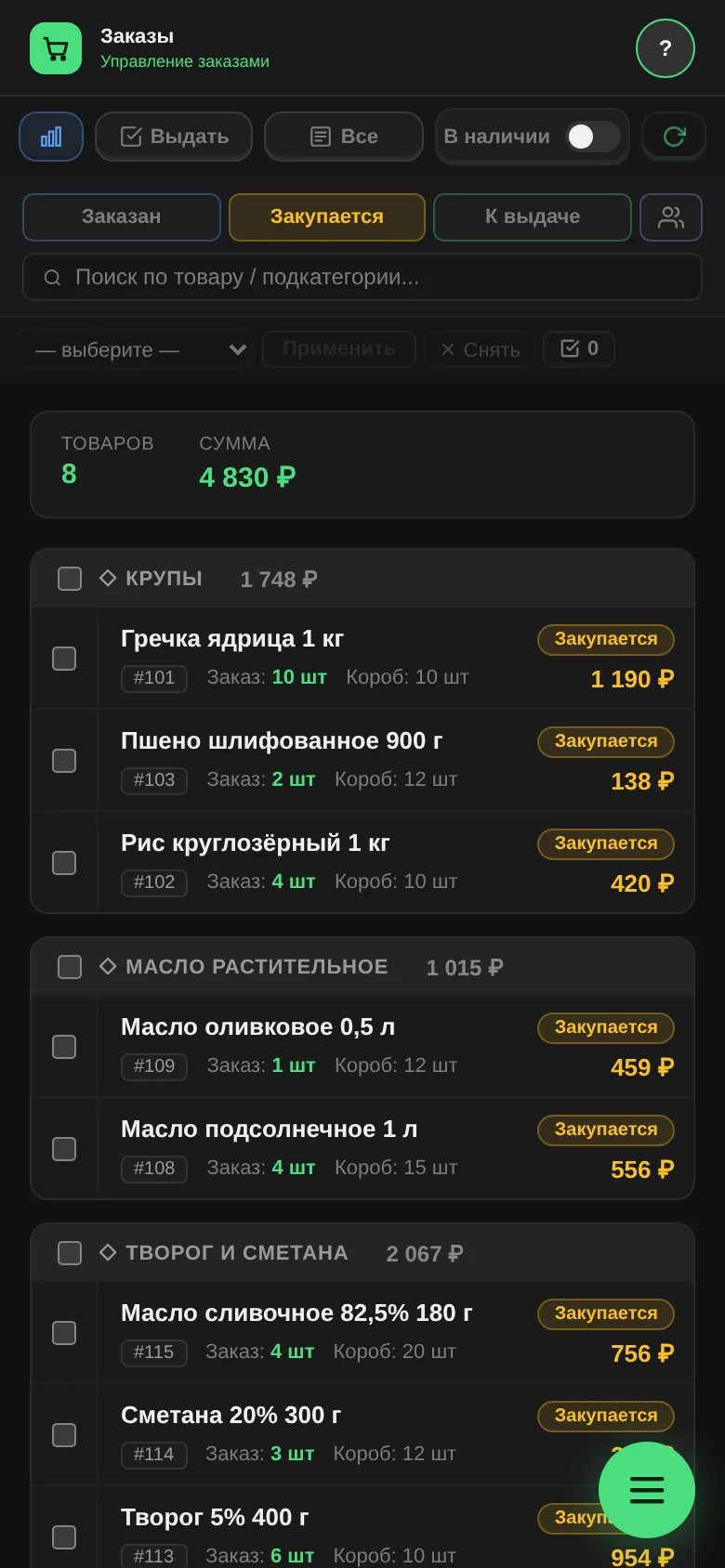
A tip for large collections. Select a whole subcategory with the checkbox next to its heading and move all its orders at once with "Change status to". This way the arrival of an entire delivery is recorded in one action.
Which buyers should come for their orders?
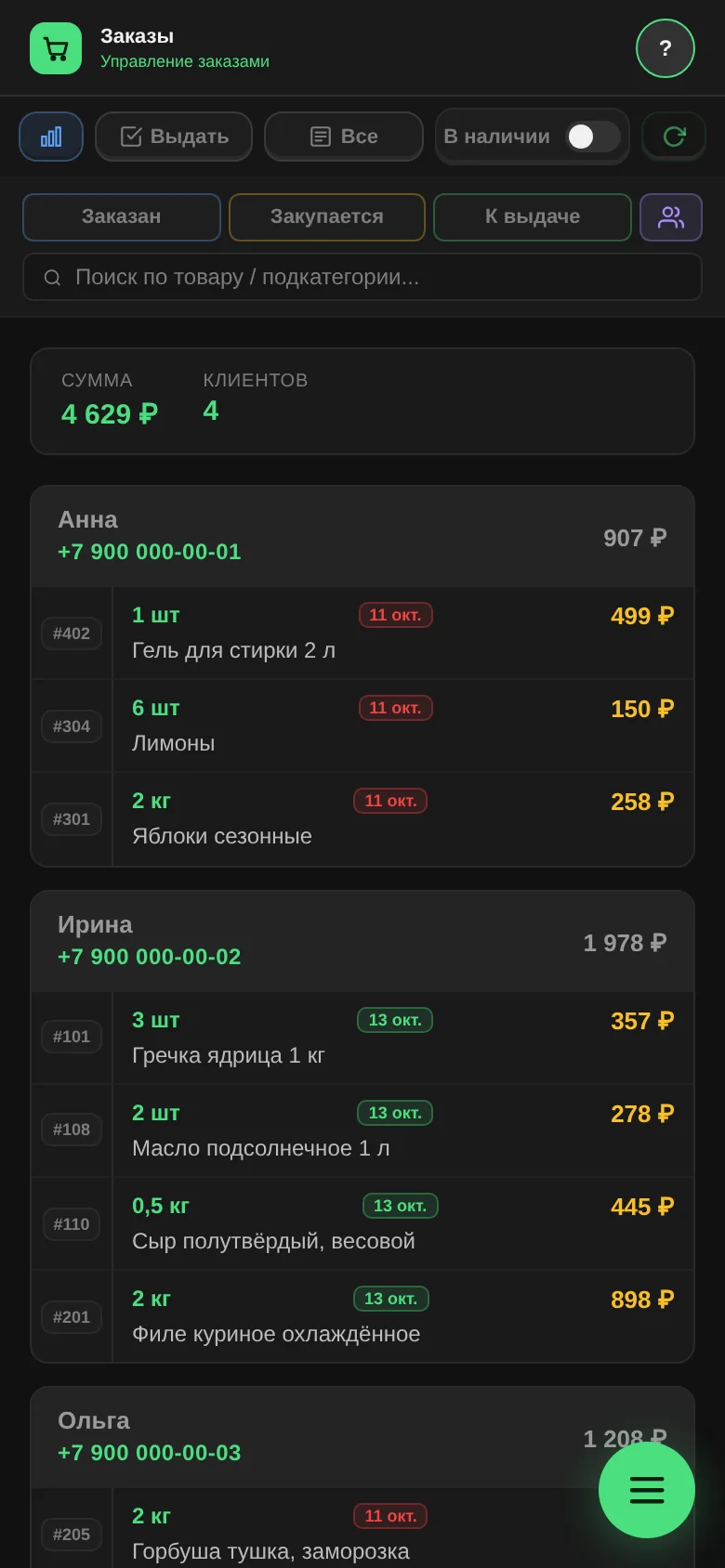
The "Report" → "By client" tab shows buyers with orders ready for pickup:
- name and phone number, which you can call straight away;
- the total ready for pickup;
- the date each item became ready. If an order has been waiting 48 hours or more, the date is highlighted in red.
Items the buyer has already requested for delivery are marked separately. Buyers who haven't picked up their orders for a long time also show up in Statistics.
How do you find a specific order?
The "All" tab is the full list of orders:
- "Ordered", "Purchasing", "Ready" give a summary by product;
- "Active" and "Inactive" show each order on its own row.
In the row view, you can search by name, product and SKU and filter by any column. Filters can be combined. Which columns are shown and how wide they are is set in "Column settings", and the setup is remembered.
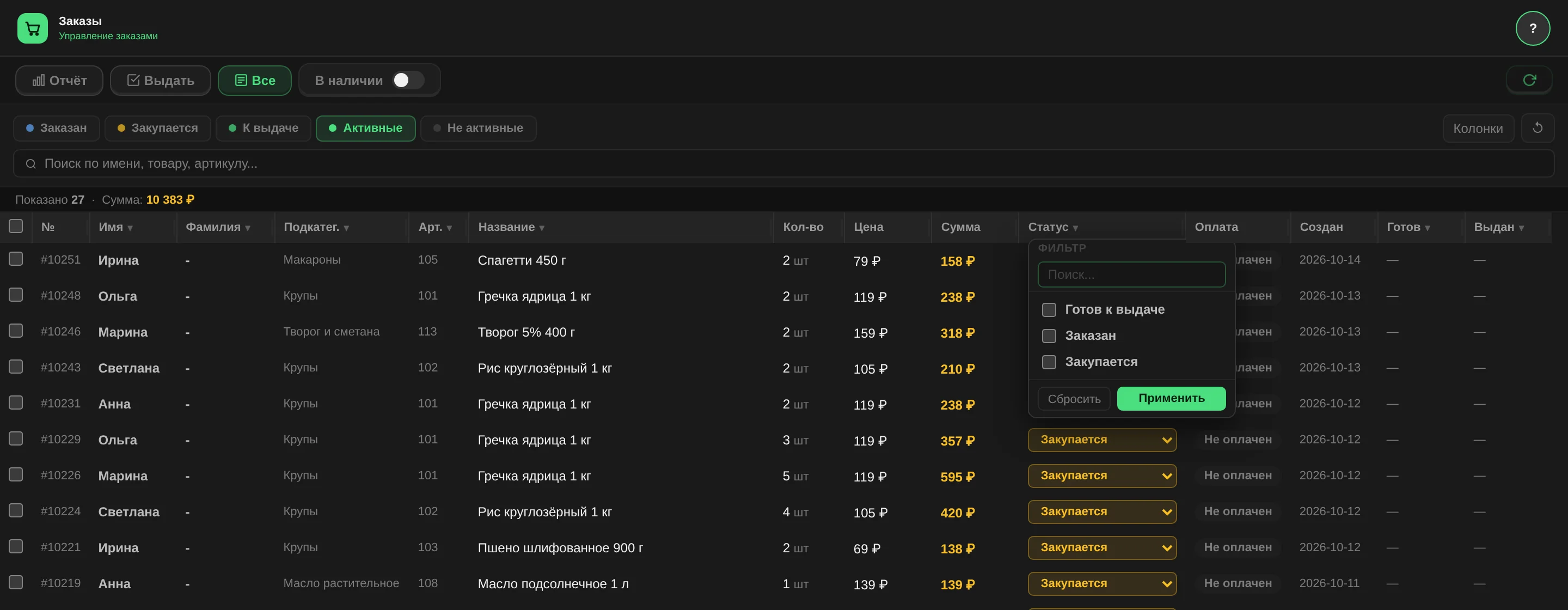
Here you can also change the status of a single order right in its row and mark payment: the "Payment" column, "Paid" / "Not paid".
The supplier delivered less, or the weight is different: how do you correct the order?
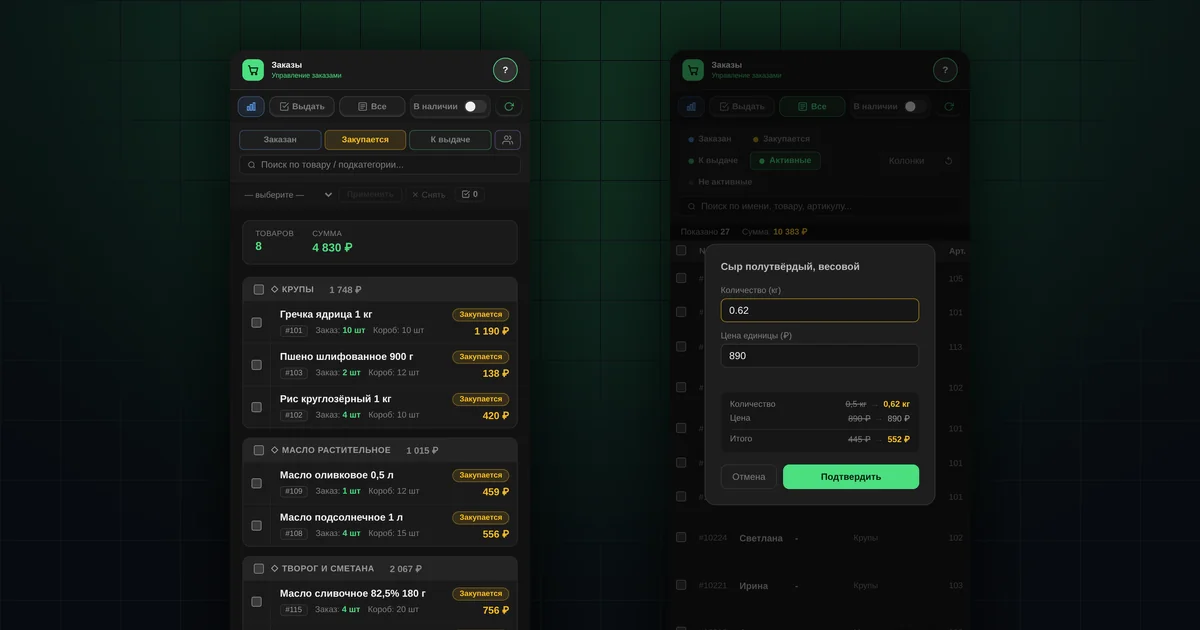
Tap the quantity or the price in the order row. The window shows what it was and what it will be, for both the quantity and the total.
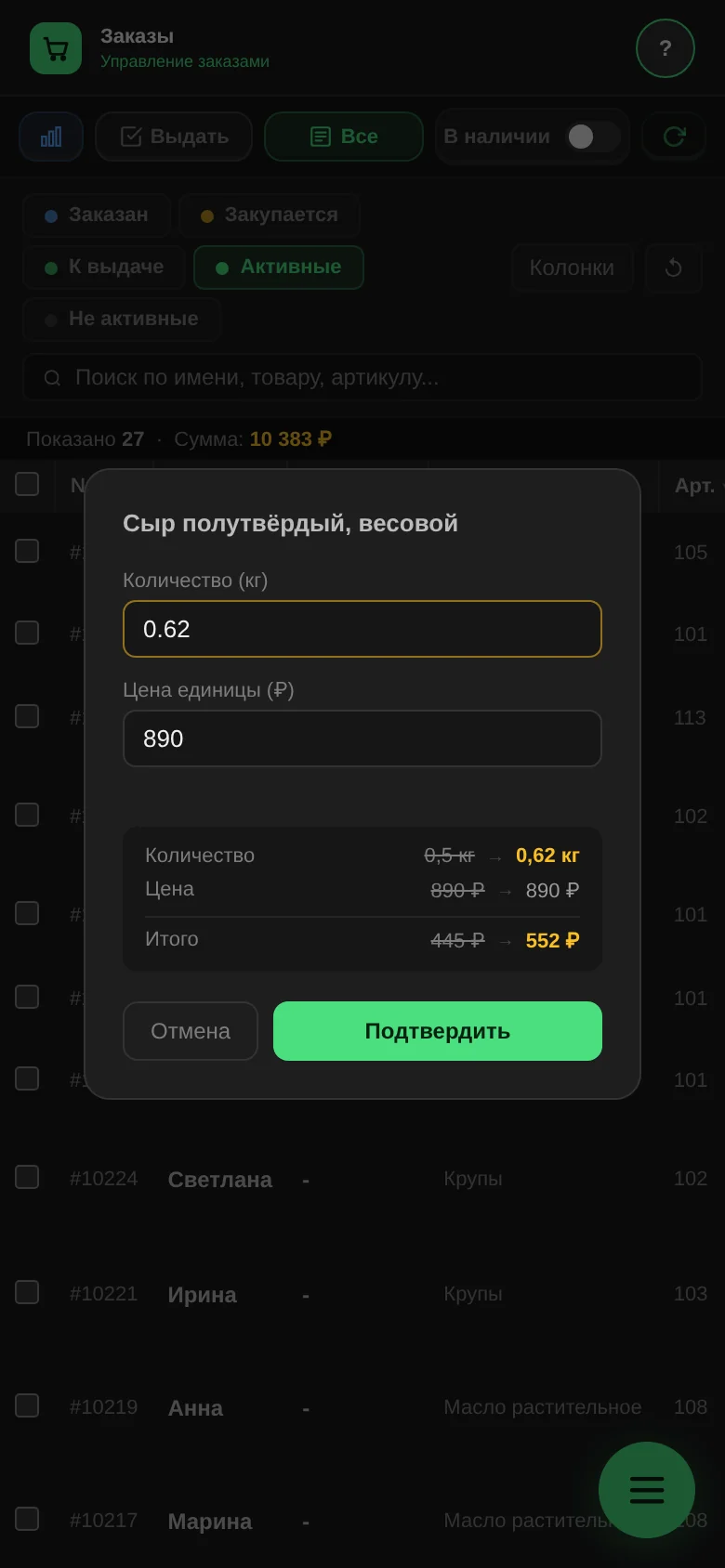
Once you save, the buyer gets a notification about the change in quantity or price. The number of buyers notified appears at the bottom.
If the goods didn't arrive at all, move the item to "Cancelled by admin". The buyer gets a notification about that too.
Can you add a product to a buyer's order?
No. Only the buyer places an order. The organizer can change the quantity or price in an existing order but cannot add a new item. This way every order has a clear author, and the buyer sees in the app exactly what they ordered.
How is a cancellation by the organizer different from one by the buyer?
- The buyer can cancel an order while it is "Ordered" and the collection is open. Once the collection closes, it can no longer be cancelled.
- The organizer can cancel an item at any stage. Such a cancellation counts as a non-delivery: if the product is sold from stock, the released quantity does not go back on sale.
What happens if two admins edit the same thing?
Before saving, the software checks which status the admin was looking at. If the order has been changed elsewhere in the meantime, a "Statuses changed concurrently" window appears with a list of the differences. You can overwrite the selected orders or leave them as they are.
What the "Orders" section doesn't do
- It doesn't send the order to the supplier. The organizer decides what to order. Admins receive the collection summary when it closes.
- It doesn't take payments. The "Paid" mark is a record, not a payment.
Questions and answers
Where can you see all orders of one buyer?
In "Members": the buyer's card shows their orders by status.
Can you bring an order back from "Issued"?
Yes, change the status in "All". If the product was sold from stock, the deducted quantity is returned.
Who else can work with orders?
A staff member with the "Seller" role, who has access to "Orders" and "Chat".