In short
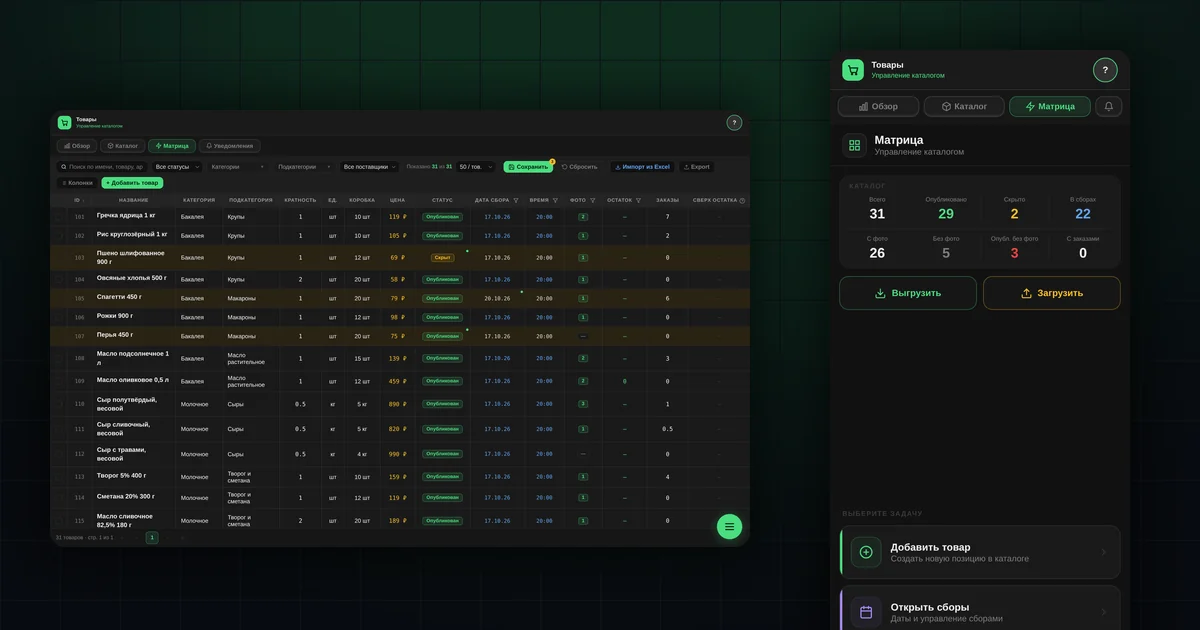
- "Overview" shows the catalog in numbers, "Matrix" shows it as a table.
- Columns can be hidden and reordered, and the setup is remembered.
- Filters by stock, photo, collection date, category and supplier can be combined.
- Edits pile up and are written with the "Save" button above the table.
- A product with stock sells from the warehouse; a product with a collection date sells to order.
What does "Overview" show?
The "Products" → "Overview" section has four cards:
- "Assortment": how many products are in the database, how many are published and how many hidden;
- "Collections": the order total in open collections, how many products are in collections and what share of them already have orders;
- "Media": the share of products with photos, and how many have photos and how many don't;
- "Issued in …": the total of orders issued in the month and the number of buyers.
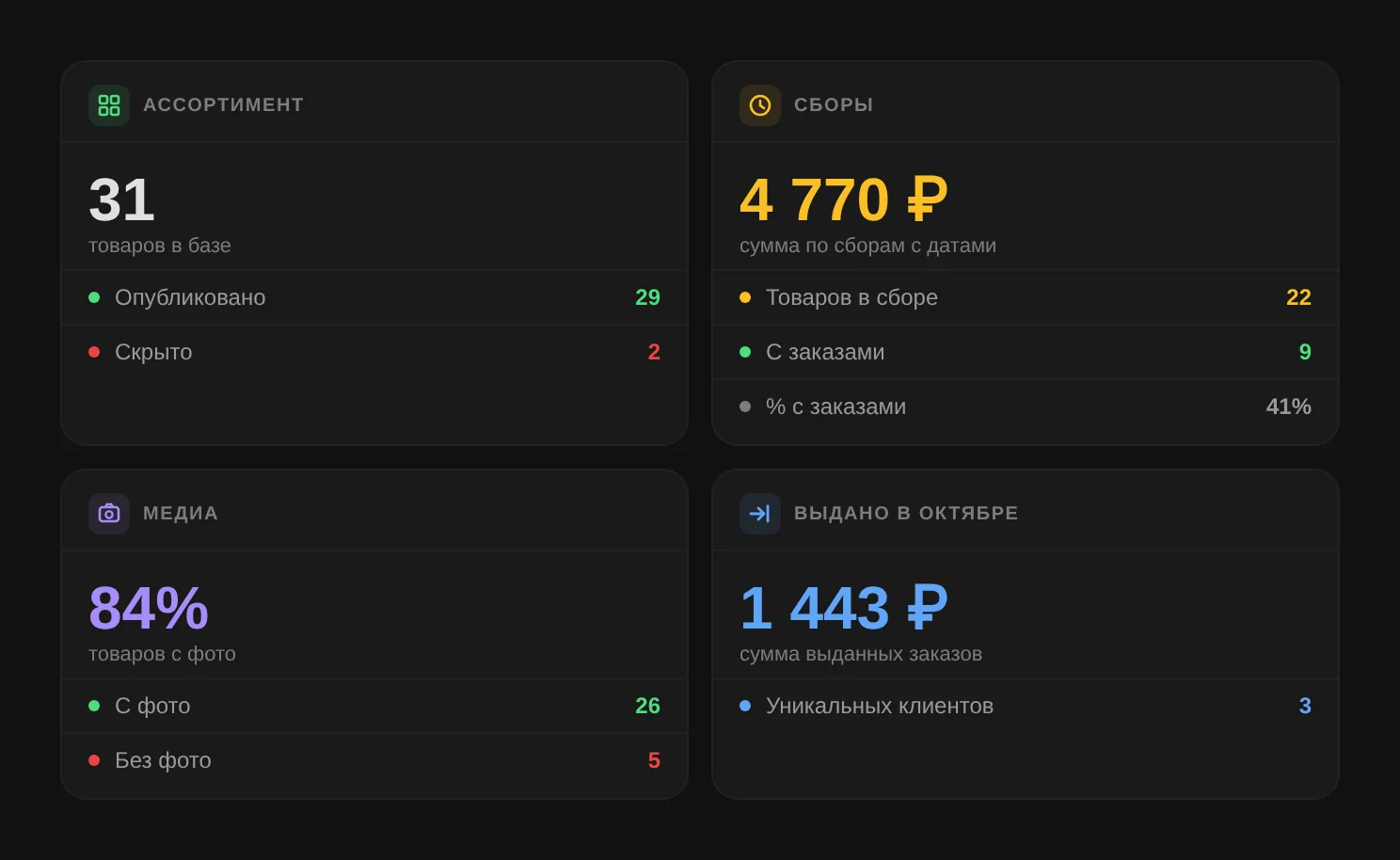
If "Media" shows products without photos, fix that first: such products don't appear in the showcase. More in the article on product photos.
How do you set up columns?
Press "Columns". In the "Column settings" window, a checkbox hides or shows a column, and the ⠿ handle drags it to another position. "Name" can't be hidden. The "Reset to default" button restores the original layout.
To change a column's width, drag its right edge. The set, order and width are remembered in this browser.
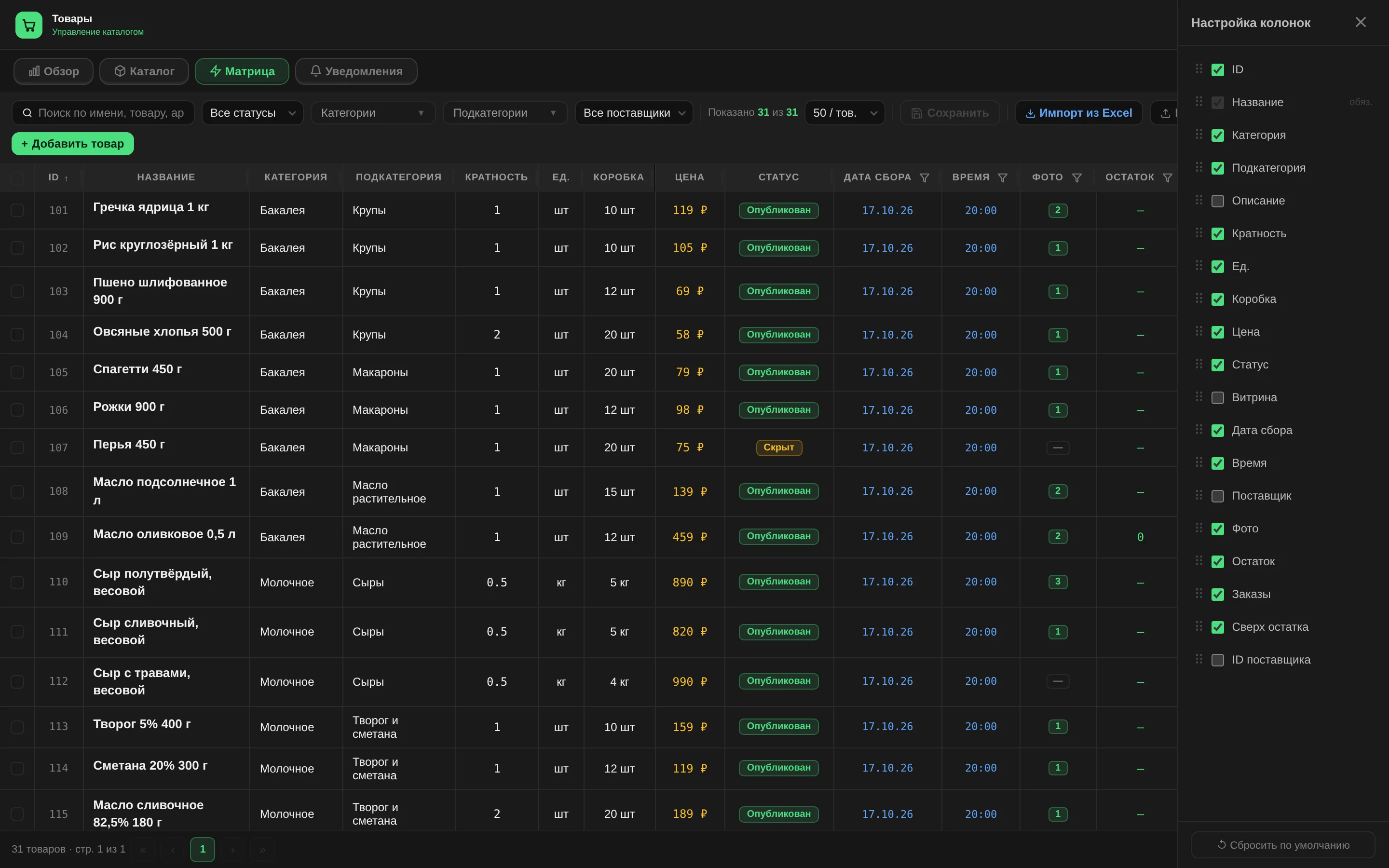
Tip: for everyday work, keep Name, Subcategory, Price, Status, Collection date, Stock and Photo. Turn on the rest when you need it.
How do you filter products by stock, photo and collection date?
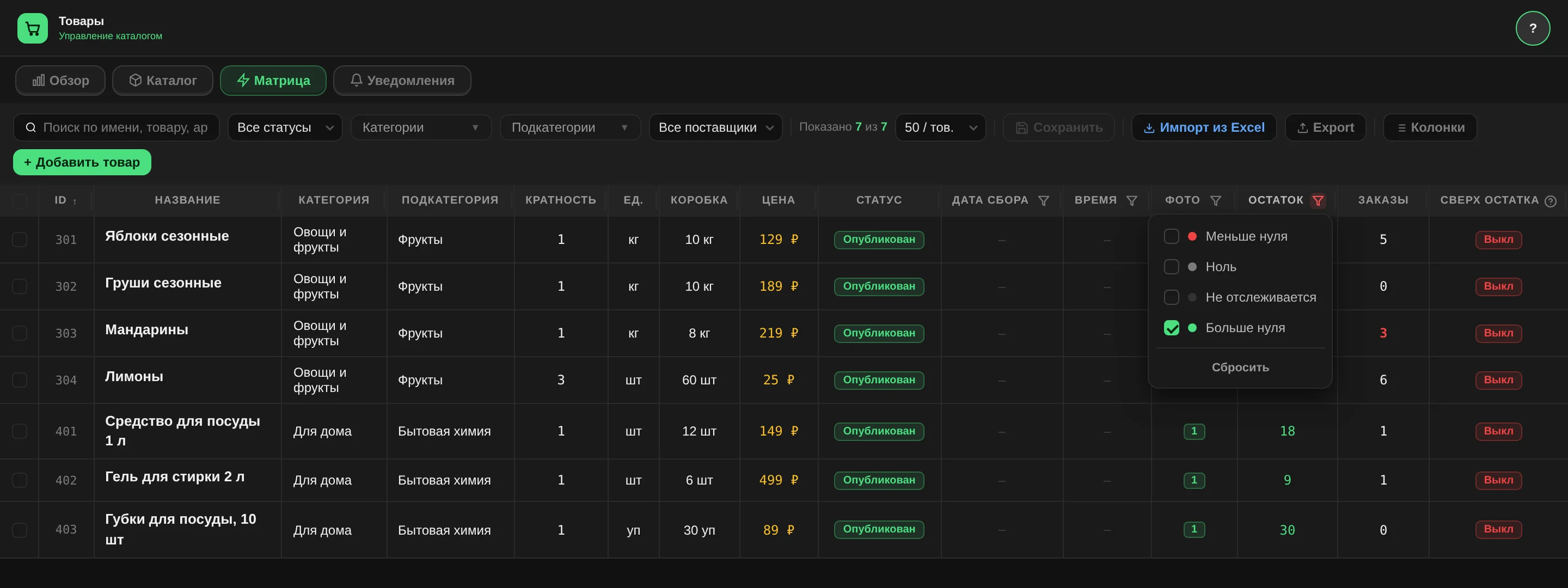
The filters sit in the column headers, behind the funnel icon:
- "Stock": "Below zero", "Zero", "Not tracked", "Above zero"; you can pick several;
- "Photo": "Has photo" or "No photo";
- "Collection date" and "Time": the values present in the catalog, with search.
Above the table are status, categories, subcategories, supplier and search by name and ID.
Filters combine. For example, "Published" + "No photo" gives you the list of what buyers see without a picture.
How do you edit right in the table?
Some fields can be changed in the table itself:
- "Status": a click cycles "Published" → "Hidden" → "Deleted";
- "Showcase": "On" or "Off";
- "Collection date" and "Time": a double click opens the calendar;
- "Stock": opens the "Edit stock" window.
Everything else (name, description, price, pack size) is in the product card: click the row.
Why do changes have to be saved separately?
Edits in the table and in the card first pile up on screen:
- a row with changes is highlighted;
- a changed cell has a green dot, and its tooltip shows the previous value;
- the "Save" button shows a counter of edited products.
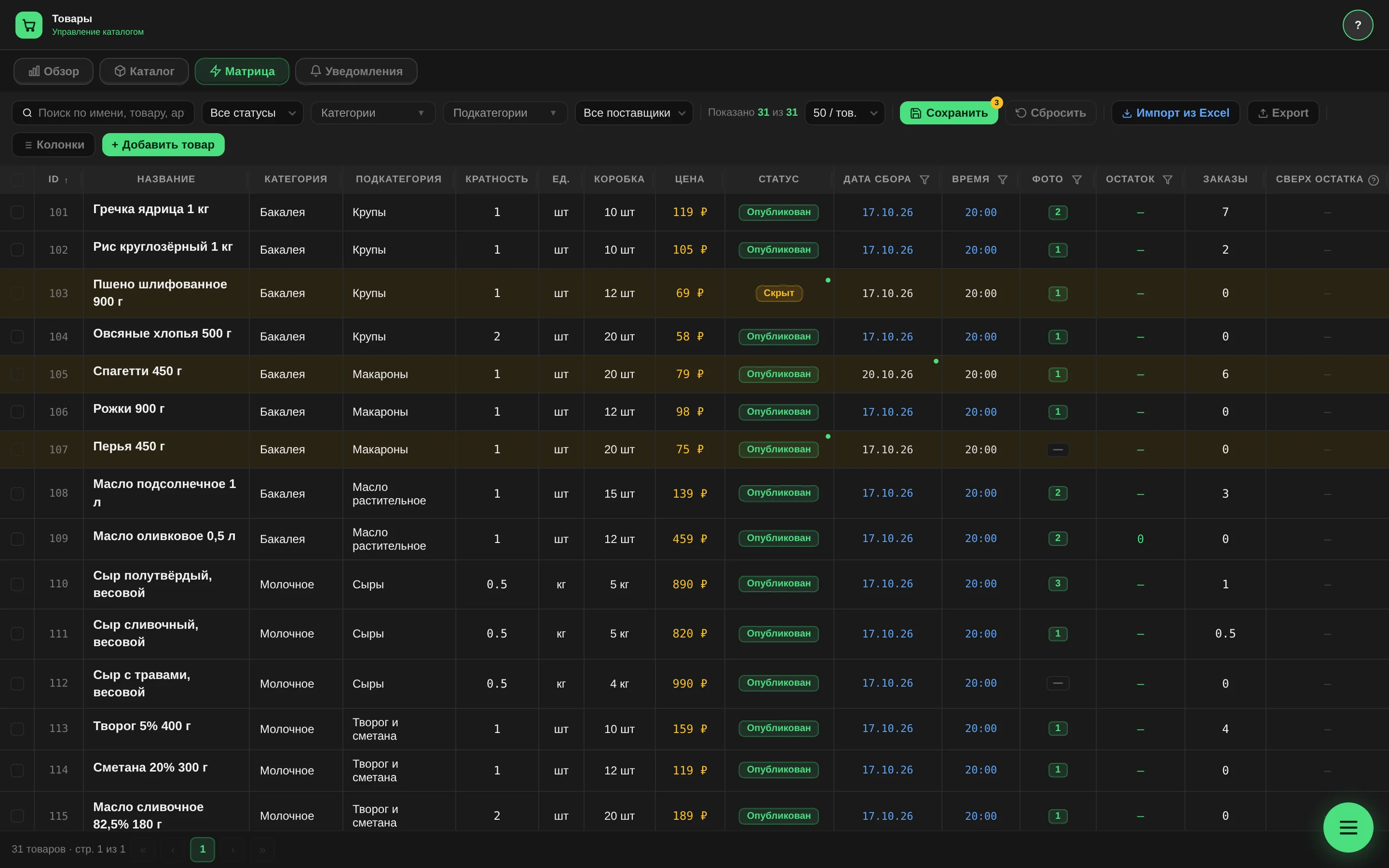
They are written with the "Save" button above the table. On a computer, the "Save" button in the product card only moves the edits into the table. "Reset" discards everything unsaved.
This way you can edit twenty products, check the whole table and write everything with one click. If a required field is empty somewhere, the app shows how many products have errors and won't save until you fix them.
Don't reload the page before saving: unsaved edits will be lost.
Stock is the exception. The "Edit stock" window saves it right away, with its own button.
How do you change many products at once?
Tick the products. The checkbox in the header selects all products under the current filters. An action bar appears:
- status: "Published", "Hidden", "Deleted";
- "Oversell": "On" or "Off";
- "Collection date": a date and time for all selected products.
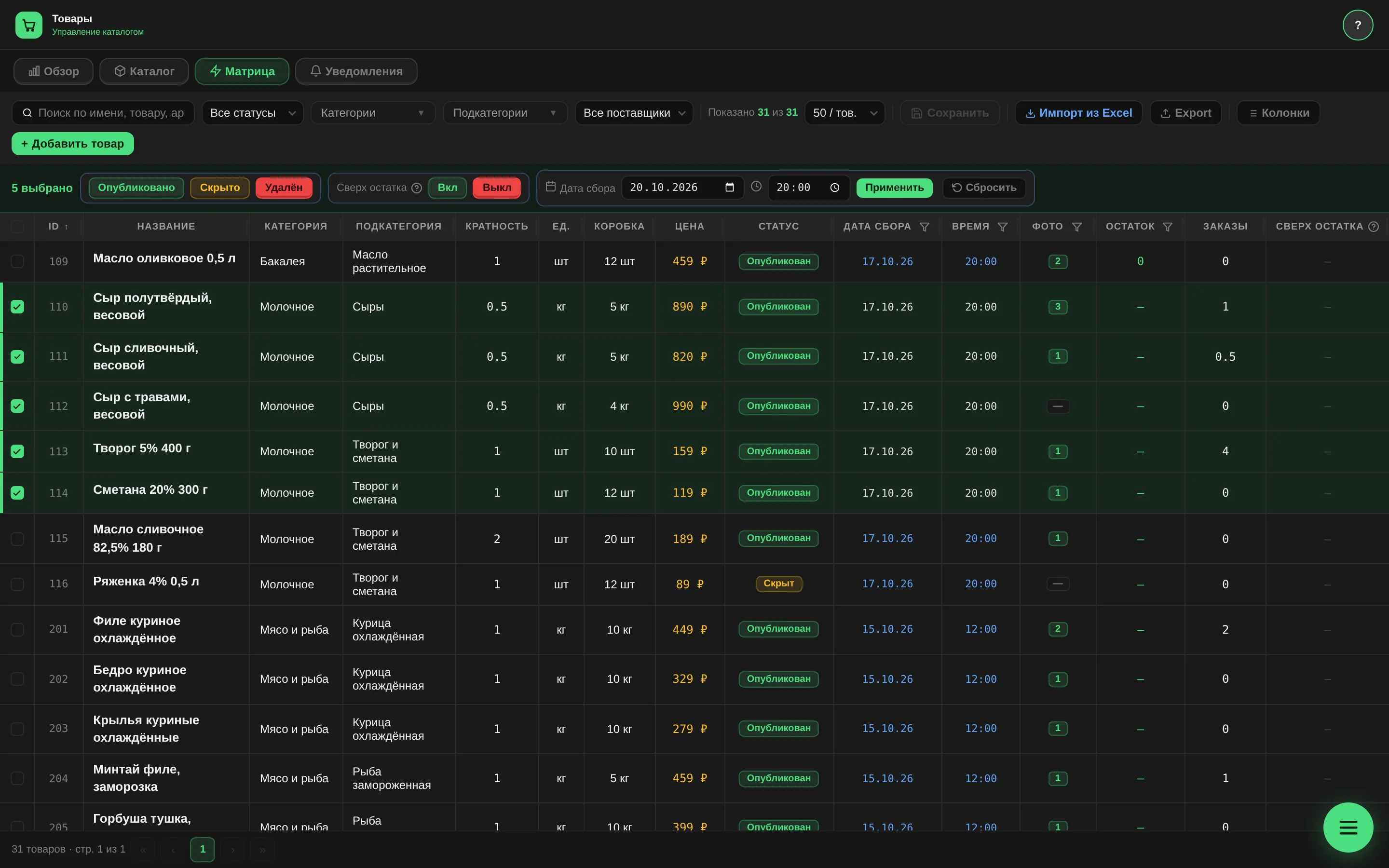
Then press "Save". Deleted products go to the archive; the app asks you to confirm.
How to open a collection for many products at once is covered in the article on opening a collection.
What if stock changed while you were editing?
While you were editing the stock, a buyer may have placed an order. The app compares the stock you saw with the current figure. If it has changed, your stock value isn't written, and the message "Stock changed while you were editing" appears with the current number. The product's other edits are saved.
This way a sale isn't lost just because you kept the window open.
How is a product with stock different from a product in a collection?
| Compared | Product in a collection | Product with stock |
|---|---|---|
| What is filled in | Collection date and time | "Stock" above zero |
| How it sells | To order, until the collection closes | From the warehouse, while it lasts |
| What the buyer sees | A countdown to the end of the collection | "In stock: N units" |
| When it ends | When the collection closes | When everything is reserved |
In both cases the product must be "Published". An empty stock value or zero means "don't track", which is a normal preorder. Details are in the article on stock management.
How is the matrix on a phone different from the computer version?
On a phone, the table is replaced by a task screen:
- "Add product";
- "Open collections": pick products, adjust the price, set the deadline and status;
- "Edit product": find a product by subcategory or search, change its status and showcase setting.
At the top are counters: total, published, hidden, in collections, with photo, no photo and "Publ. no photo".

On a phone, changes are saved right away, without a common button. There are no columns or header filters, so a computer is more convenient for large edits.
What the matrix doesn't do
- It doesn't save edits by itself on a computer: without the "Save" button above the table, changes are not written.
- It doesn't change prices in bulk on a computer. Bulk price changes are done on a phone in "Open collections" or via Excel.
- It doesn't delete products for good. "Deleted" means archived.
Questions and answers
How do you export the catalog to Excel?
With the export button above the table: all products, those selected in the matrix, or by subcategory. More on the three export options.
What is "Showcase"?
Whether the product is shown on the shop's public page.
What does "Oversell" mean?
It allows ordering more than is in stock.