In short
- The app icon is on the phone's home screen.
- Notifications are on in the app and allowed on the phone.
- An email is added and verified in the profile as a backup sign-in.
- The buyer understands that the PIN is a code for signing in to the app.
- The buyer knows where to see orders and the amount to pay.
What should you set up together with the buyer?
| What | How to check | Why |
|---|---|---|
| Home screen icon | The app opens from an icon on the home screen, not from a browser tab | The buyer doesn't lose the link. On iPhone, notifications don't work without the icon. How to add the icon |
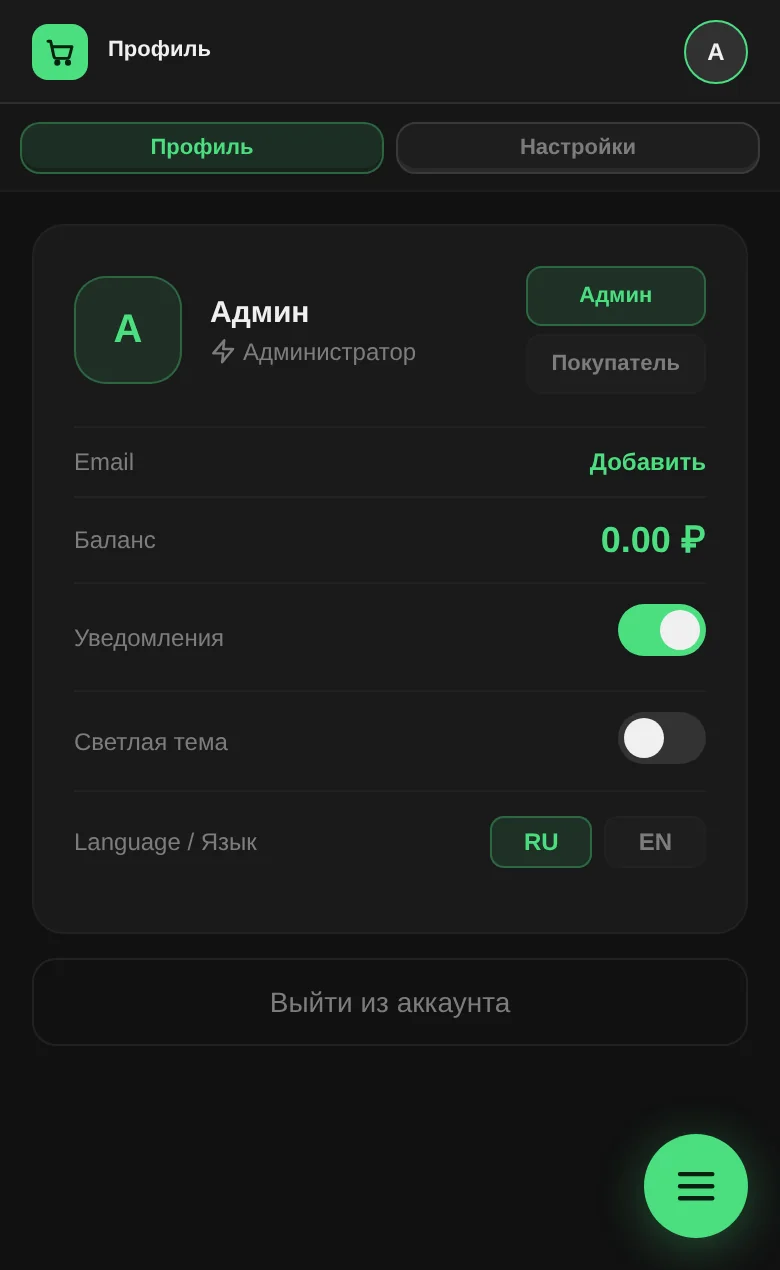
| Notifications | In "Profile", the "Notifications" switch is on. If it says "blocked in browser settings", allow them in the phone's settings | The buyer learns their order is ready without reminders in the chat. If notifications won't turn on |
| In "Profile", the "Login email" line says "verified" | A backup sign-in if something goes wrong with the main method | |
| PIN | The buyer understands the PIN is a one-time code for signing in to your shop's app | They don't confuse it with bank or SMS codes and don't forward it to others |
| Orders | The buyer knows the "Orders" section and the "Ready" tab with the "To pay" amount | Fewer "what did I order" and "how much do I pay" questions. The "My orders" guide |
How do you check that a buyer got a PIN and signed in?
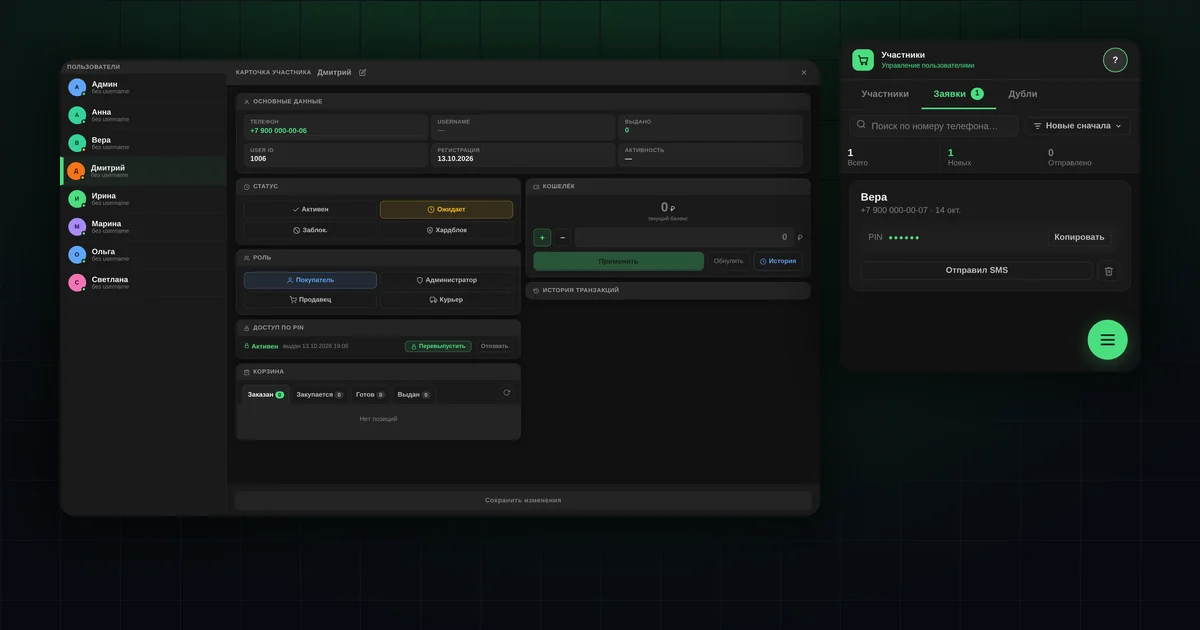
Open the buyer in "Members". Their card has a "PIN access" block:
- "Active · issued …" means a PIN was issued but the person hasn't signed in with it yet. Their "Status" is usually "Pending". They most likely need help: check the phone number or tap "Reissue".
- "Used · used …" means the buyer has signed in with the PIN.
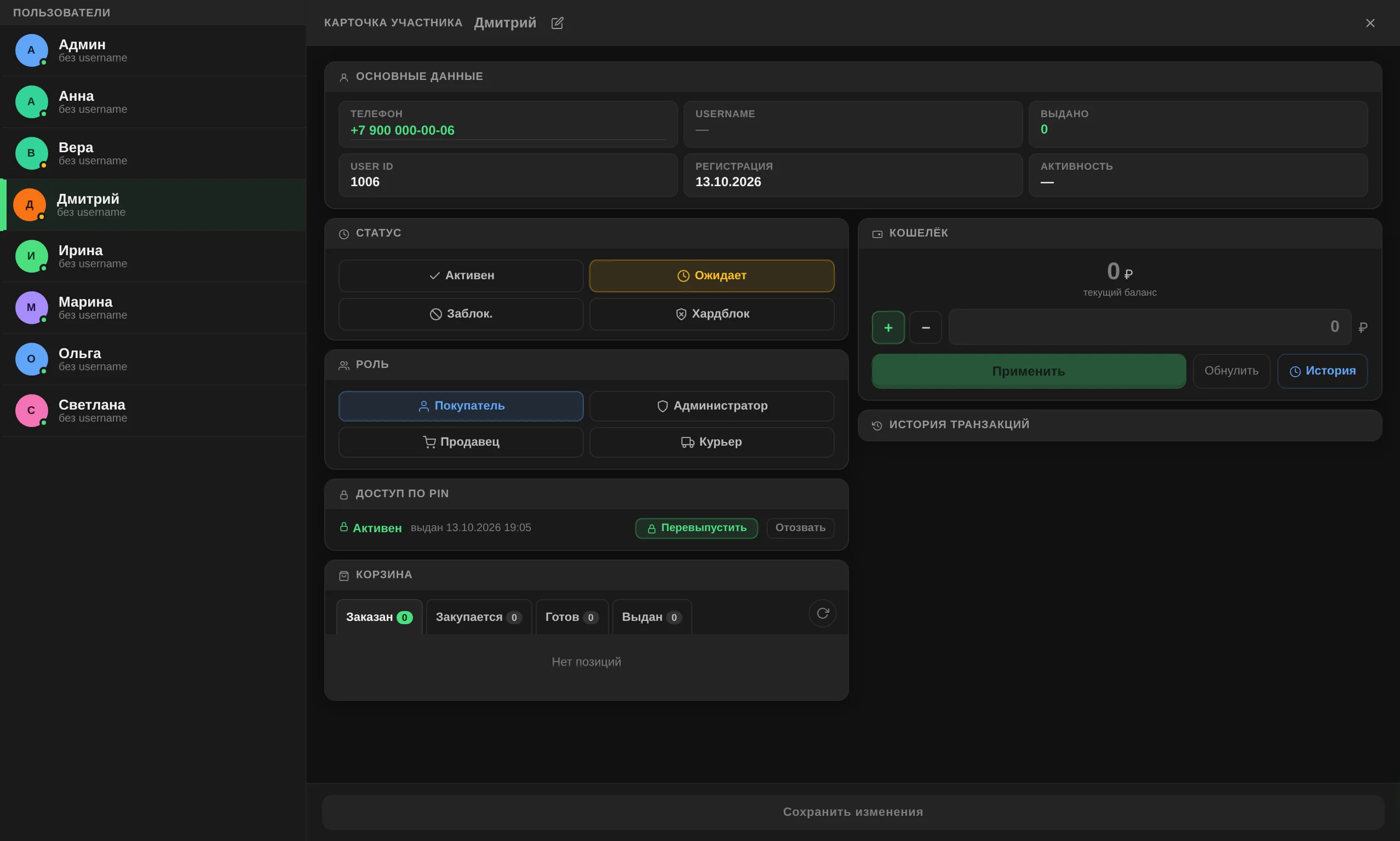
The "Requests" tab shows who has submitted a request and is waiting for a PIN. If someone submits a request again, it usually means they can't sign in, and you get a separate notification about it.
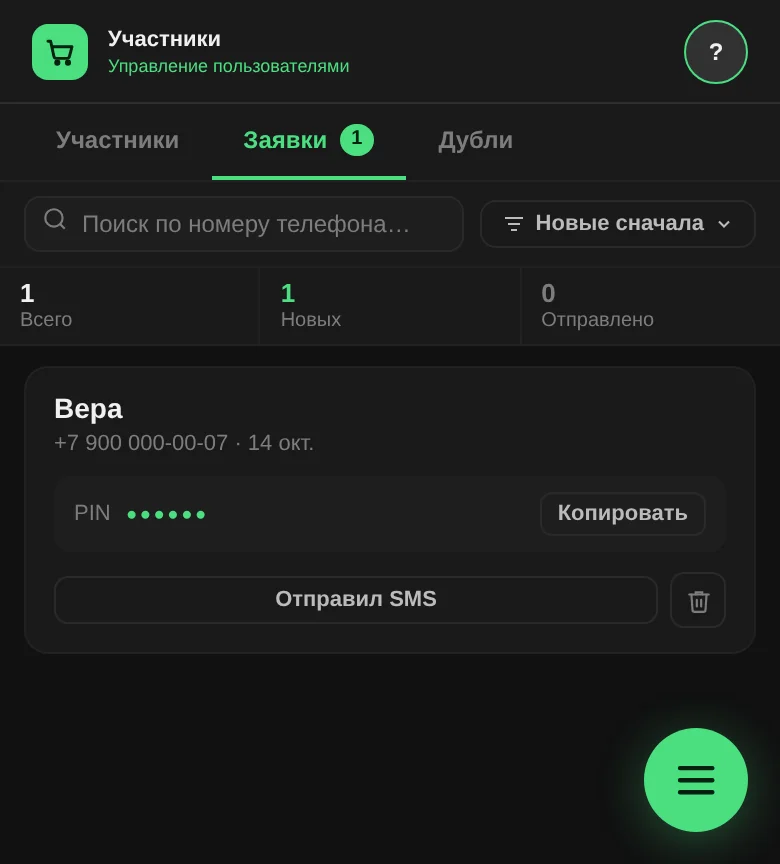
A PIN is one-time and is shown only once. If a buyer has lost it, issue a new one in their card. More: "Sign-up and log-in".
Why turn on notifications for yourself?
So you don't miss it when:
- someone submits a sign-up request;
- a buyer submits a request again because they can't sign in;
- a buyer lets you know they are coming for their order.
It is turned on the same way as for buyers: "Profile" → "Notifications".
What do you see when a buyer is coming for an order?
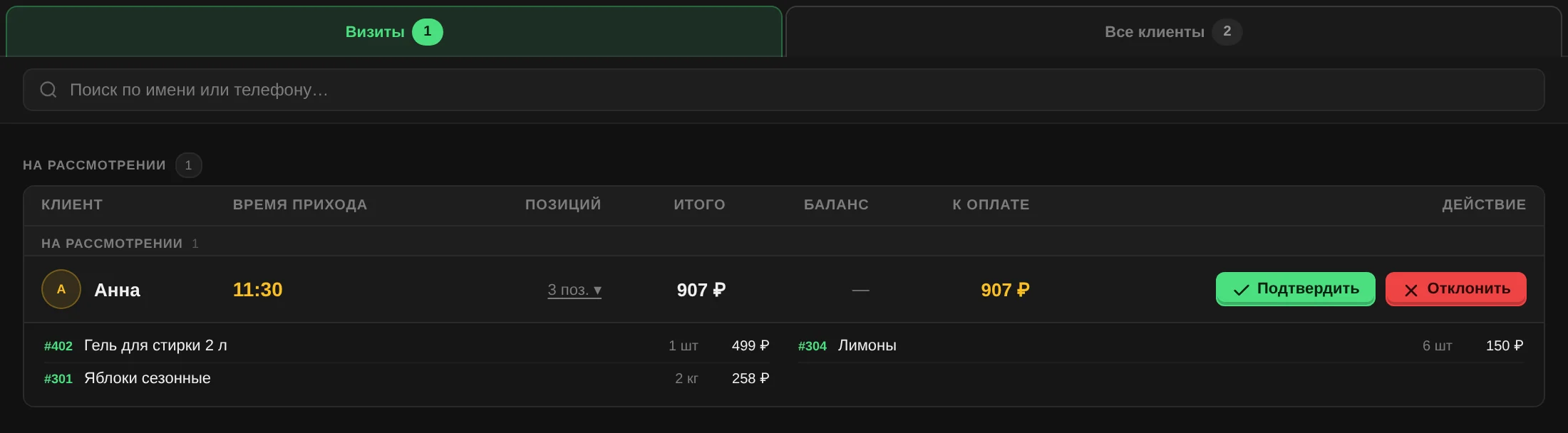
If a buyer taps "Pick up order" and chooses a time, the visit appears in "Orders" → "Issue" under "Pending". There you see:
- when they will arrive;
- how many items are waiting;
- the amount to pay.
Tap "Confirm" and the buyer sees that you are expecting them. If you can't receive them now, tap "Decline".
How not to forget the checklist?
Print the starter kit card and put it on the pickup counter. One side has a QR code for the buyer guide, the other has this checklist for the buyer.
Questions and answers
How long does it take?
Usually a minute or two. Allowing notifications in the phone settings takes the longest.
What if the buyer can't add the icon?
Check the browser: Chrome or Yandex Browser on Android, Safari on iPhone.
Does the buyer have to add an email?
No, but it is a backup way to sign in if something goes wrong with the main one.