In short
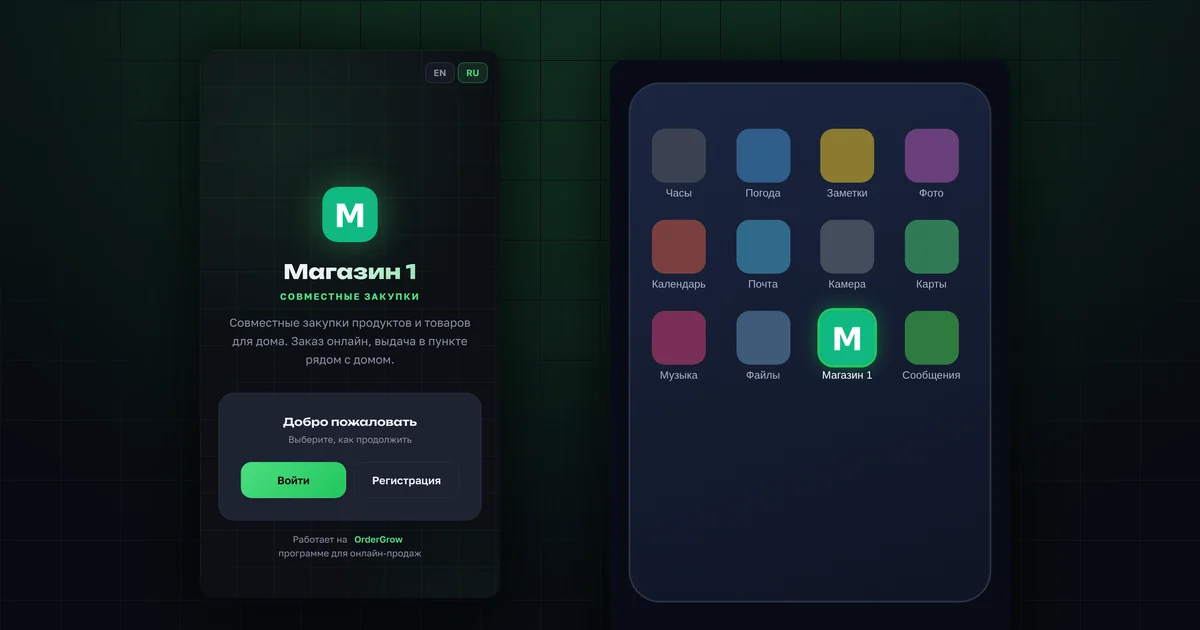
- The name under the icon on a phone fits up to 12 characters. The app header shows the full name.
- No logo yet? We will suggest options based on your wishes.
- The group is your buyers' group in MAX, VK or Telegram.
- You sign in to your own app as the admin with your phone number.
- Before connecting, you can try the software free for 7 days in OrderGrow Lab.
What do you need to launch the app?
- Shop name, full and short (see below).
- Logo: a file or a description in words.
- Link to your group, where your buyers gather.
- Contact email for questions about the app.
- Phone number you will sign in with. It will be given admin rights.
Everything else — products, pickup point, contact channels — you fill in yourself in the app. The order is in the guide "The first 7 days".
How to choose the app name?
The app has two names:
- The full name is shown in the app header and on the sign-in page.
- The short name, up to 12 characters, appears under the icon on the phone screen. If it is longer, the phone cuts it off with an ellipsis.
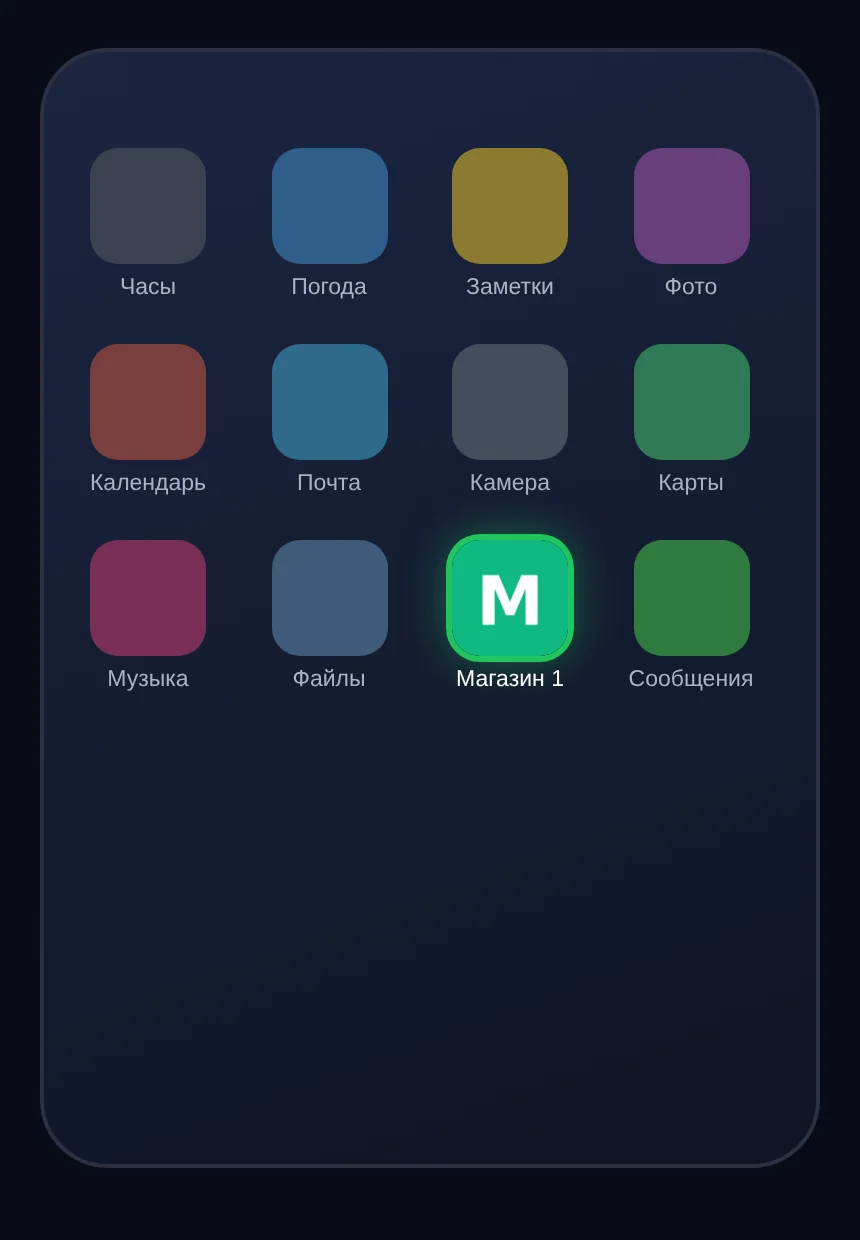
Think the short name through right away. Every buyer who adds the app to their home screen gets an icon with it, and you cannot change it for everyone at once.
What if you don't have a logo?
Describe what you would like: colours, an image, what your shop should make buyers think of. If your group has an avatar your buyers are used to, send it. Based on your description, we will suggest several options to choose from.
The logo becomes the app icon on the phone and appears on the sign-in page.
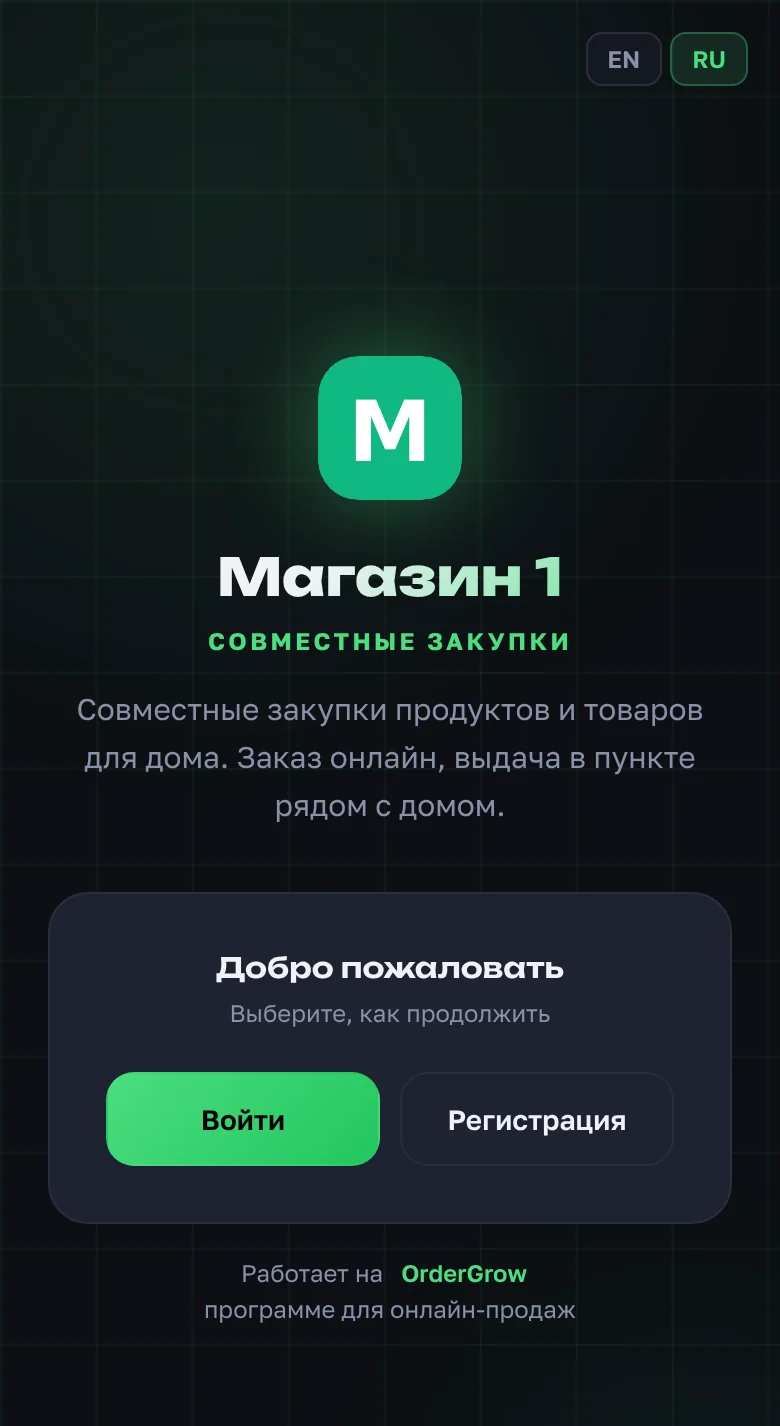
You can later change the line under the name and the description on the sign-in page yourself: "Profile" → "Settings" → "About". More: "Profile and settings".
How to sign in to the app as the admin?
- You receive a link to your app.
- You sign up in it like a regular buyer, with your phone number.
- You are given admin rights.
- The next time you sign in, the admin panel opens.
To see the shop through a buyer's eyes or to place an order yourself, use the "Admin / Client" switch in "Profile".
Right after your first sign-in, add your email in "Profile". It is a backup way to sign in if something goes wrong with the main one.
Can you try the software before connecting?
Yes. In OrderGrow Lab you can try the group buying software for 7 days, with all sections and no bank card. Access is opened with your email address. There you can add products, open and close a collection, and place an order in client mode without worrying about breaking anything.
Where to follow new features and ask questions?
- The "News" section on the site, where new features and guides are published.
- The AI assistant on the site answers questions about working in the software, based on the site's materials. If it has no answer, a person picks up the question.
- Guides for your buyers are collected in the starter kit.
Why add the shop bot to your Telegram group?
This section is only for you if your app has a Telegram bot and you run a group in Telegram.
A bot in the group publishes collection lists automatically, with no manual copying. At the press of a button, it sends the collection list to your group:
- products by subcategory;
- prices;
- links to product cards.
The bot splits a long list into several messages on its own. Only published products are included.
How to connect
- Add the shop bot to your group.
- Make it a group admin. Without this, it cannot post messages.
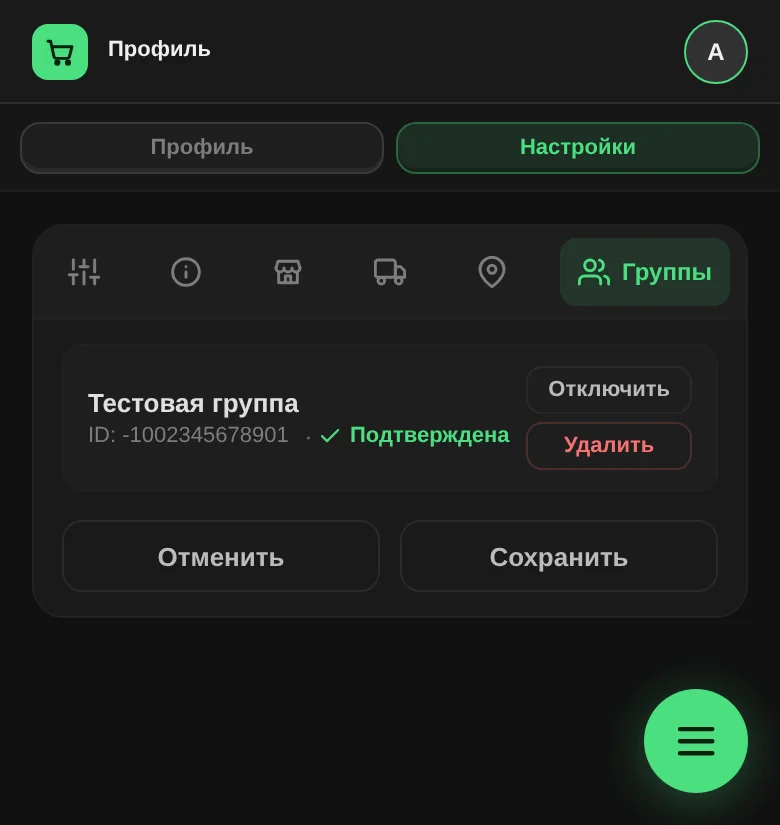
- Check in the app: "Profile" → "Settings" → "Groups". The group should appear in the list and be enabled.
How to publish
"Collections" → collection card → "Broadcast" → select the group → "Send broadcast".
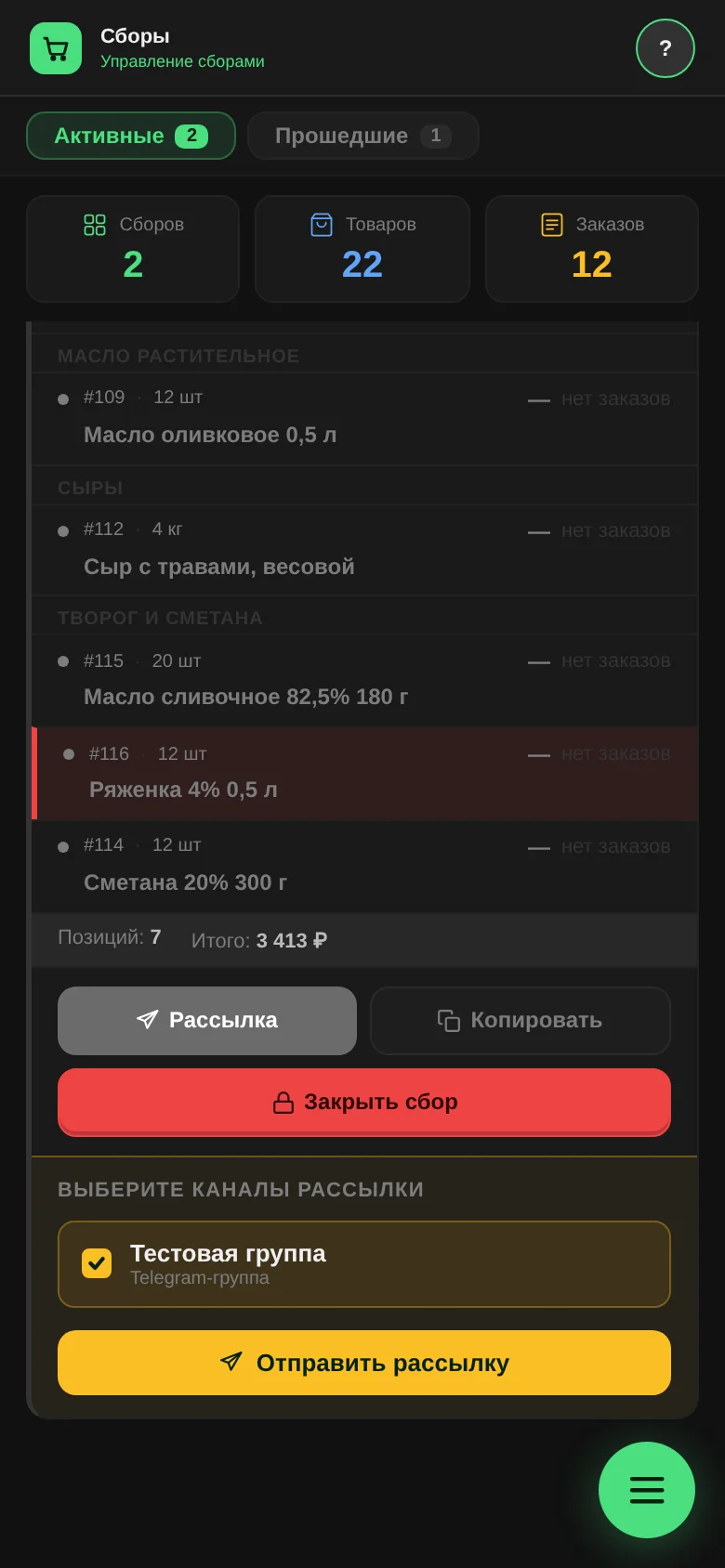
Bot messages use standard texts that cannot be edited. If you don't have a Telegram group, you can get the same list with the "Copy" button in the collection card and paste it into any group manually. More about collections: "Opening a collection".
What's next?
When the app is ready, go to "The first 7 days".
Questions and answers
Do you need Telegram to work in the app?
No. Everything works in the app itself. The bot is an extra option for posting to your group.
Can you change the line under the name and the description on the sign-in page later?
Yes, yourself, in "Profile" → "Settings" → "About".