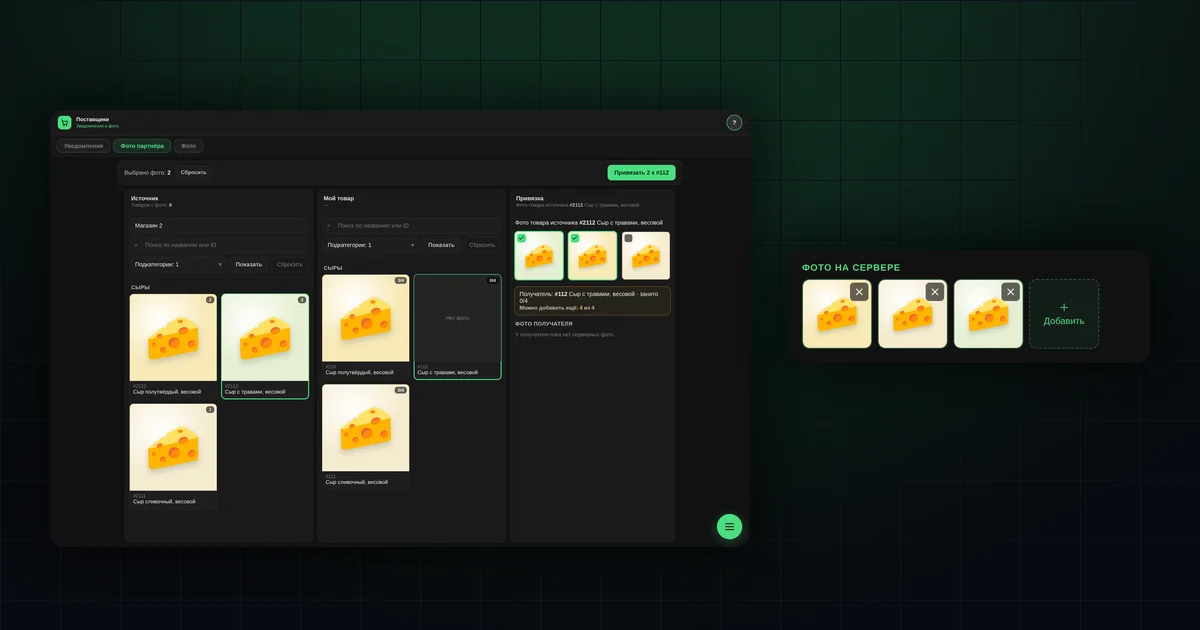
In short
- A product can have up to four photos.
- Phone photos are resized and rotated automatically.
- The first photo you upload becomes the product's cover.
- Partner photos are attached as a link and take up no space.
- A product without a photo does not appear on the public shop page.
How do you add a photo to a product?
- Open the product card: click a row in the matrix, or choose "Add product" on a phone.
- In the "Product photos" block, tap "+ Add".
- Choose the photos; you can pick several at once. On a phone, the gallery or the camera opens, depending on the model.

For a new product, save the card first. Photos are added to the server once the product exists; until then, the block says "Available after creating the product".
When there are four photos, the add button is replaced by "Max 4 photos".
What happens to a photo on upload?
- Large photos are scaled down to 1280 pixels on the long side. That is enough for a phone screen, and the catalog opens faster.
- A photo taken with the phone held sideways is rotated the right way.
- The same file uploaded to different products is stored only once.
Photos are stored on the app's server. If tapping "+" shows the message "Server photo storage is not enabled", contact whoever set up your shop.
Which photo becomes the cover?
The one uploaded first. The software does not let you change the order or pick a main photo. So:
- upload the clearest shot first: the whole product on a light background;
- then the packaging, ingredients, size.
To change the cover, delete the photos and upload them again in the order you want.
How do you delete or replace a photo?
On a computer, hover over the photo and a ✕ appears. On a phone, the ✕ is always visible. The software asks "Delete this photo?".
There is no separate "replace" button: delete the old photo and add a new one.
What are partner photos?
If you buy from a supplier who also works in the software, you can attach their photos to your products. There is no need to download and upload them again.
How to do it: "Suppliers" → "Partner photos":
- In the "Source" column, find the partner's product and select the photos you need.
- In the "My product" column, choose your product.
- Click "Link".
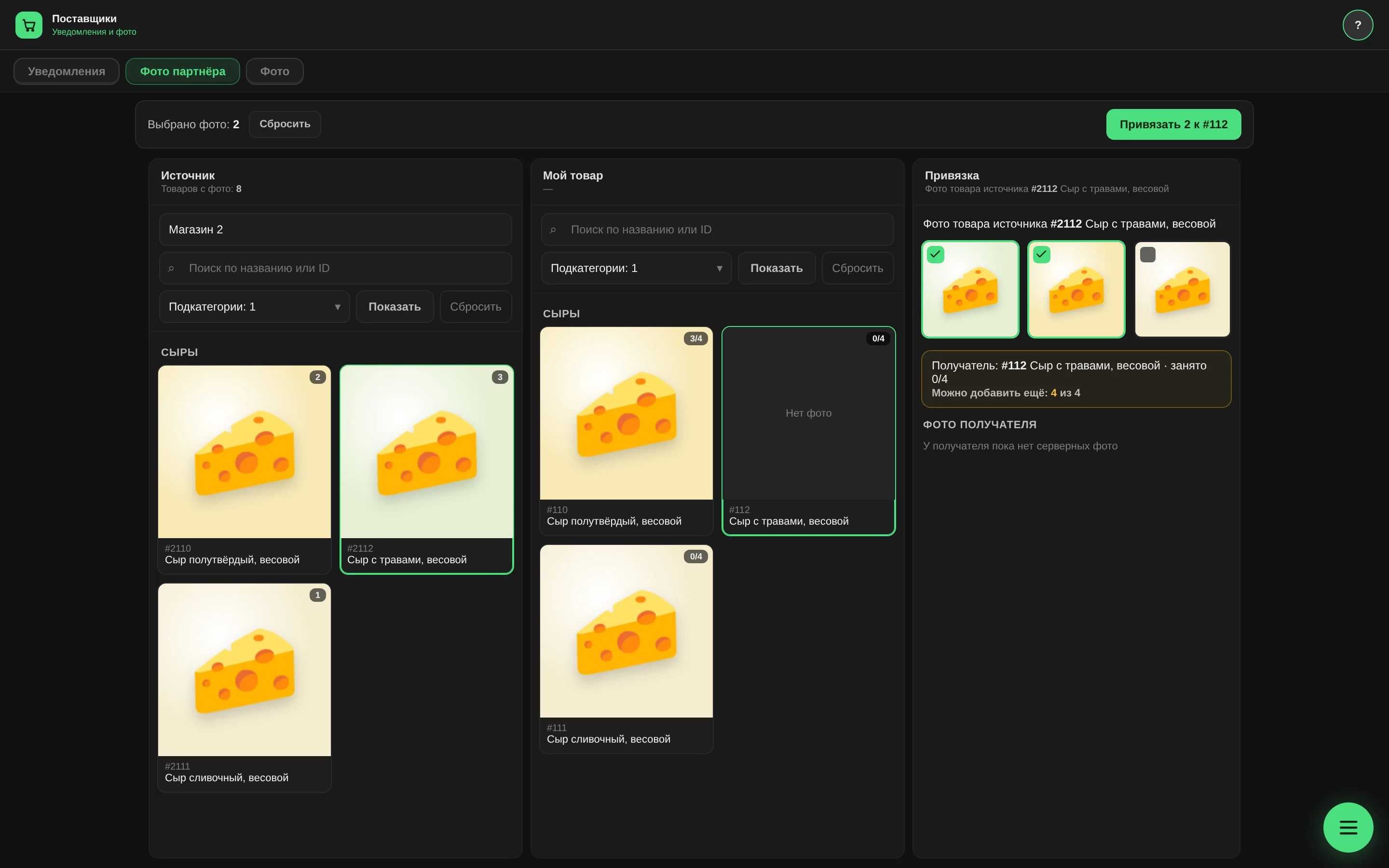
The photo is not copied; only a link to it is saved. It takes up no space but counts towards the product's limit of four photos. If the partner deletes the photo, buyers see a "Photo unavailable" placeholder; replace the photo when that happens.
A partner is connected on request. Until then, the screen says "No connected sources".
Why is a product without a photo missing from the shop page?
The public shop page is meant for new buyers and search engines. A card without a picture looks like an error there, so the software leaves such products off the page and does not count them in the category counters.
In the app, your own buyers still see a product without a photo, with a placeholder icon.
How to find products without photos:
- "Overview" → the "Media" card: how many there are;
- matrix → the "Photo" filter → "No photo": which ones exactly;
- phone → the "Publ. no photo" counter: the ones buyers can already see.
What the photo section doesn't do
- No manual cropping or rotating. Prepare the photo on your phone beforehand.
- No reordering. The cover is the first photo uploaded.
- No upload by URL and no drag and drop. Only choosing a file.
Questions and answers
What format should photos be in?
Any format your phone can open. The software converts the photo itself.
Can one photo be used for several products?
Yes, upload it to each of them. It will be stored only once.
Will a partner photo update if the partner replaces it?
No. A deleted photo becomes a placeholder, and the new one has to be linked again.