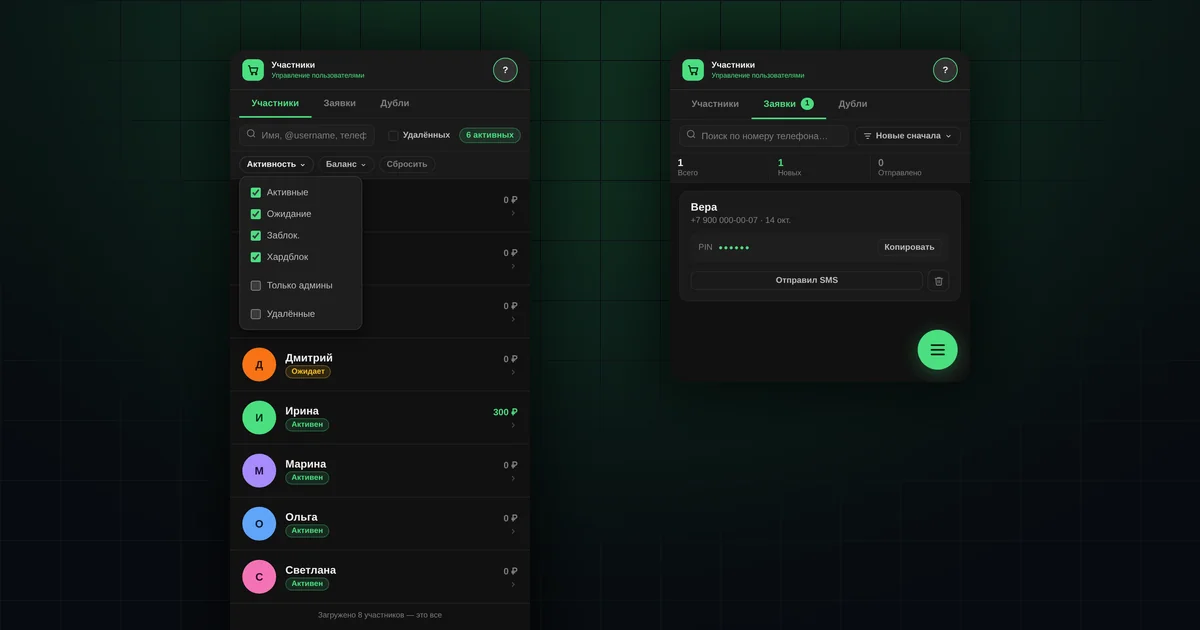
In short
- The section has three tabs: "Members", "Requests", "Duplicates".
- A request is a buyer waiting for a PIN code from you to sign in for the first time.
- A PIN is single-use, has six digits and is shown only once.
- In "manual approval" mode, new people get into the shop only through a request and a PIN.
- Blocking takes effect immediately, without waiting for the buyer to leave the app.
How do you find a member?
Open "Members". Search understands first name, last name, @username, phone and ID; part of the value is enough.
On a computer, the "Status" and "Role" columns have filters, and you sort by clicking a column header. On a phone, the filters are grouped into two lists: "Activity" (active, pending, blocked, admins only, deleted) and "Balance" (positive, zero, negative). Deleted members are hidden by default; the "Deleted" checkbox shows them.
At the top there is a summary: total members, active, signed up today, pending and deleted.
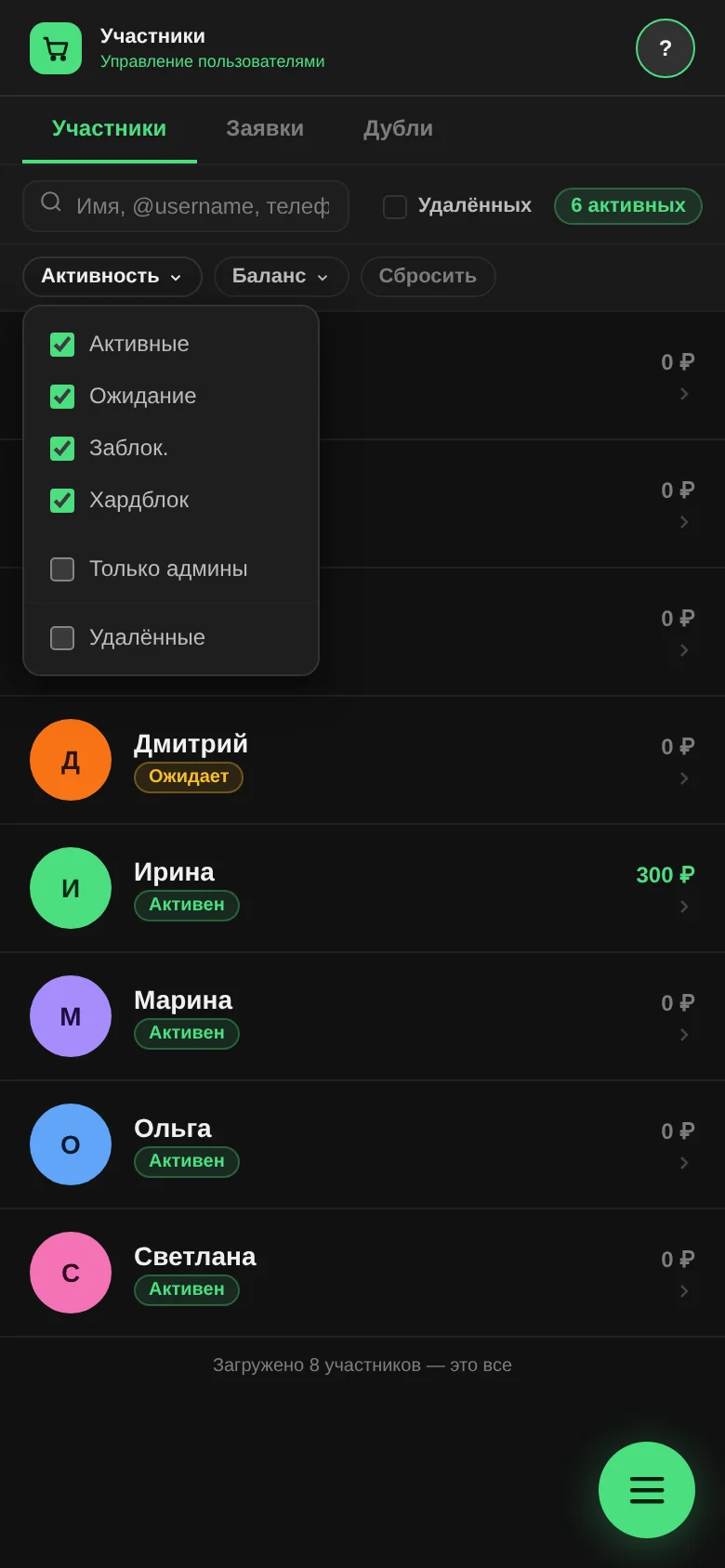
What do the member statuses mean?
| Status | What the buyer can do |
|---|---|
| "Active" | Signs in and places orders |
| "Pending" | Request submitted, access not yet approved |
| "Blocked" | Access fully closed |
| "Hard block" | Access fully closed; not to be restored |
| "Deleted" | Hidden from the list |
"Hard block" closes access exactly like "Blocked". The difference is in meaning: it is a note for you and other admins that this person should never be unblocked. That is why the app sets it only after you confirm.
You change the status with the buttons in the member card. To lift a block, press the same button again; the app will ask "Unblock?".
Where do requests come from, and what do you do with them?
A request appears when someone taps "Submit request" on the sign-in screen and enters their phone number. This way of signing up works with any shop settings.
What happens next:
- The app creates a profile with the "Pending" status and prepares a PIN code for it.
- Admins with notifications turned on get a "New sign-in request" push.
- The "Requests" tab shows the phone, name, date and PIN. If someone has submitted the request again, a "2×" or "3×" mark appears next to it.
- Pass the PIN to the buyer: the "Copy" button, then a text or a message. Press "Mark SMS sent" so you don't send it twice.
- The buyer signs in with their phone and PIN code. On the first sign-in the profile becomes active and the request leaves the list.
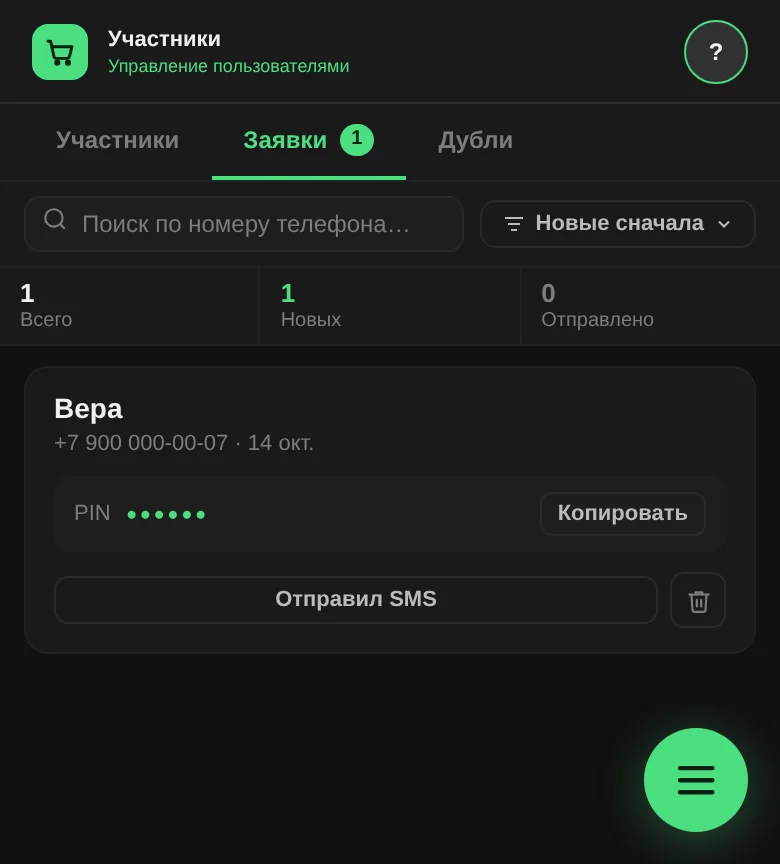
There are no separate "approve" and "reject" buttons. Approval is the PIN you hand over. To reject a request, delete it: if the person has never signed in, their profile is deleted along with the request.
Can you register buyers if phone call sign-in doesn't work?
Yes. Phone call sign-in and sign-in via MAX are convenient, but they are not the only options. The buyer submits a request, you give them a PIN, they sign in. You can share the sign-up link from day one without waiting for other sign-in methods to be connected.
There is a step-by-step guide for buyers that you can forward to your group.
How do you issue, reissue and revoke a PIN?
You issue a PIN in the member card, in the "PIN access" block. The member must have a phone number for this.
| What the block shows | What it means | What you can do |
|---|---|---|
| "Issue PIN" | No PIN has been issued yet | Issue one |
| "Active · issued …" | The PIN is issued but not used | "Reissue", "Revoke" |
| "Used · used …" | The buyer has already signed in with this PIN | "Issue new", "Revoke" |
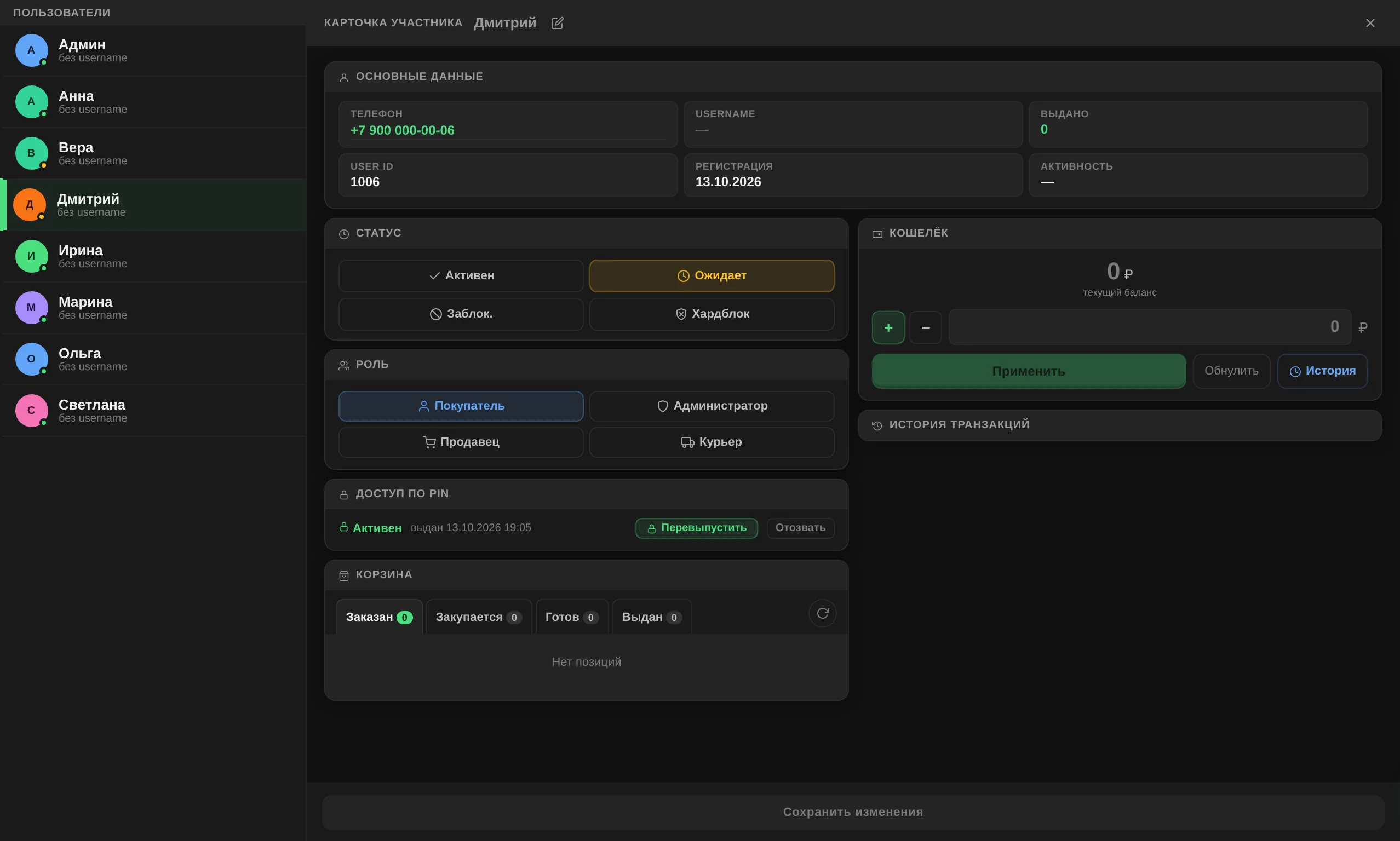
After you issue it, a window appears with the PIN code and a "Copy PIN" button. Write it down or send it right away: the PIN is shown only once. You can't view it later, only issue a new one.
A PIN is single-use. If a buyer has changed phones or signed out of the app and can't sign in another way, issue a new one.
Check the PIN at pickup. If a buyer comes for an order and can't sign in, open their card, issue a new PIN and help them sign in right there.
People sign up through MAX on their own — how do you limit that?
Open "Settings" → "General" → "Access mode" and choose "manual approval". This mode is the default.
In manual mode:
- new people can't create a profile via MAX or a phone call; they are asked to contact the admin;
- sign-up works only through a request and your PIN;
- buyers who are already approved keep signing in as usual, including via MAX.
In "automatic approval" mode, anyone who confirms their number via MAX or a phone call becomes a member right away.
You can also hide the MAX sign-in button from buyers altogether: in the same "General" tab, MAX has a "Show to clients" switch.
Why does blocking take effect immediately?
The app checks the buyer's status again on every action. So a blocked member loses access the moment you press the button, even if they have the app open. Their next action won't go through; they will see the message "Access blocked. Please contact the admin."
An admin can't block or delete themselves, so the shop is never left without someone in charge.
What else is in the member card?
- "Main data": phone, username, how many orders have been issued, sign-up date and last activity. You can correct the phone and the name.
- "Cart": the buyer's orders by status — "Ordered", "Being sourced", "Ready", "Issued".
- "Wallet": balance, top-ups and deductions, and the transaction history.
What the "Members" section doesn't do
- It doesn't send texts by itself. You pass the PIN to the buyer any way you like; the "Mark SMS sent" mark is for your own records.
- It doesn't create a buyer without them. You can't set up a profile on someone's behalf: they submit the request themselves, and you grant access. This way every profile has a confirmed number.
- It doesn't show a PIN twice. Forgot to write it down? Issue a new one.
Questions and answers
A buyer submitted a request twice. Are those two profiles?
No, it's one. The "2×" mark shows that the person asked for a PIN again.
Where can you see that a buyer has two profiles?
In the "Duplicates" tab; see the article on merging duplicates.
Can a deleted member be restored?
Tick the "Deleted" checkbox, open the card and set the status to "Active".